
OBJ File Format Converter: What Survives
You've converted an OBJ, opened the result, and found either a gray model, a surface that's far too large, or a file that looks fine but won't print. The extension changed, but that doesn't guarantee the information your next tool needs made it through.
A reliable OBJ file format converter workflow starts with the job the model must do next. Decide whether you need a visually faithful asset or a printable surface, then check that the output keeps the right geometry, appearance, and scale.
Table of Contents
- Which Format Your OBJ Should Become
- How to Convert OBJ Online or on Desktop
- How an OBJ File Stores a Mesh
- Why Textures Disappear After Conversion
- When the Model Is the Wrong Size
- Normals UVs and ASCII Versus Binary
- Convert Only After the Contract Is Clear
Which Format Your OBJ Should Become
Choose the destination by the job, not by which extension appears first in a converter menu. A real-time asset needs its mapped surfaces and materials; a printer needs a usable surface and the right physical dimensions. The comparison below treats conversion as an output contract: it spells out what you can expect to survive and what still needs checking.
| Format | Use it when | Geometry | UVs and normals | Materials and color | Scale behavior |
|---|---|---|---|---|---|
| GLB or glTF | Web, AR, real-time, or one self-contained file | Mesh, usually triangulated | Kept when present | PBR materials and textures can be embedded | Often meters; confirm the bounding box |
| FBX | Blender, Maya, Unity, or another DCC handoff | Mesh and sometimes more scene data | Usually kept | Materials often kept; textures may stay external | Scene units vary by exporter |
| STL | Single-material 3D printing | Triangles only | Dropped | No UVs, materials, or texture maps | No reliable unit metadata |
| PLY | Scans, point clouds, or vertex-color meshes | Points and faces | Limited, not a full UV material setup | Vertex color is possible; image textures aren't the point | No standard units |
Match the destination to the handoff
Choose GLB when you need a compact, single-file asset for a web viewer, AR experience, or real-time engine. Its package can carry mesh data, UVs, normals, PBR materials, and textures together, which makes it a practical choice when you don't want to keep a loose collection of companion files.
Choose FBX when the receiving application or studio pipeline expects FBX. It can carry mesh information and sometimes more scene data, but don't assume every exporter interprets units the same way. Check the imported dimensions in the destination app before handing the file off.
Choose STL when the target is a slicer and the job is a printable surface. STL keeps triangles, not OBJ's UV layout or appearance data, so a converter's “success” message only says the file was written. It doesn't say the original colors or textures survived.
PLY suits scan data, point clouds, and workflows that need vertex colors. ASCII PLY is useful when you want to inspect the file as text; binary PLY is more compact and isn't meant for reading in a text editor.
Before uploading, write down the contract in one line: visual asset or physical part, required attributes, and whether the OBJ's MTL file and images must remain usable. If you're still deciding between destinations, this guide to 3D file formats can help clarify which formats suit different handoffs.
How to Convert OBJ Online or on Desktop
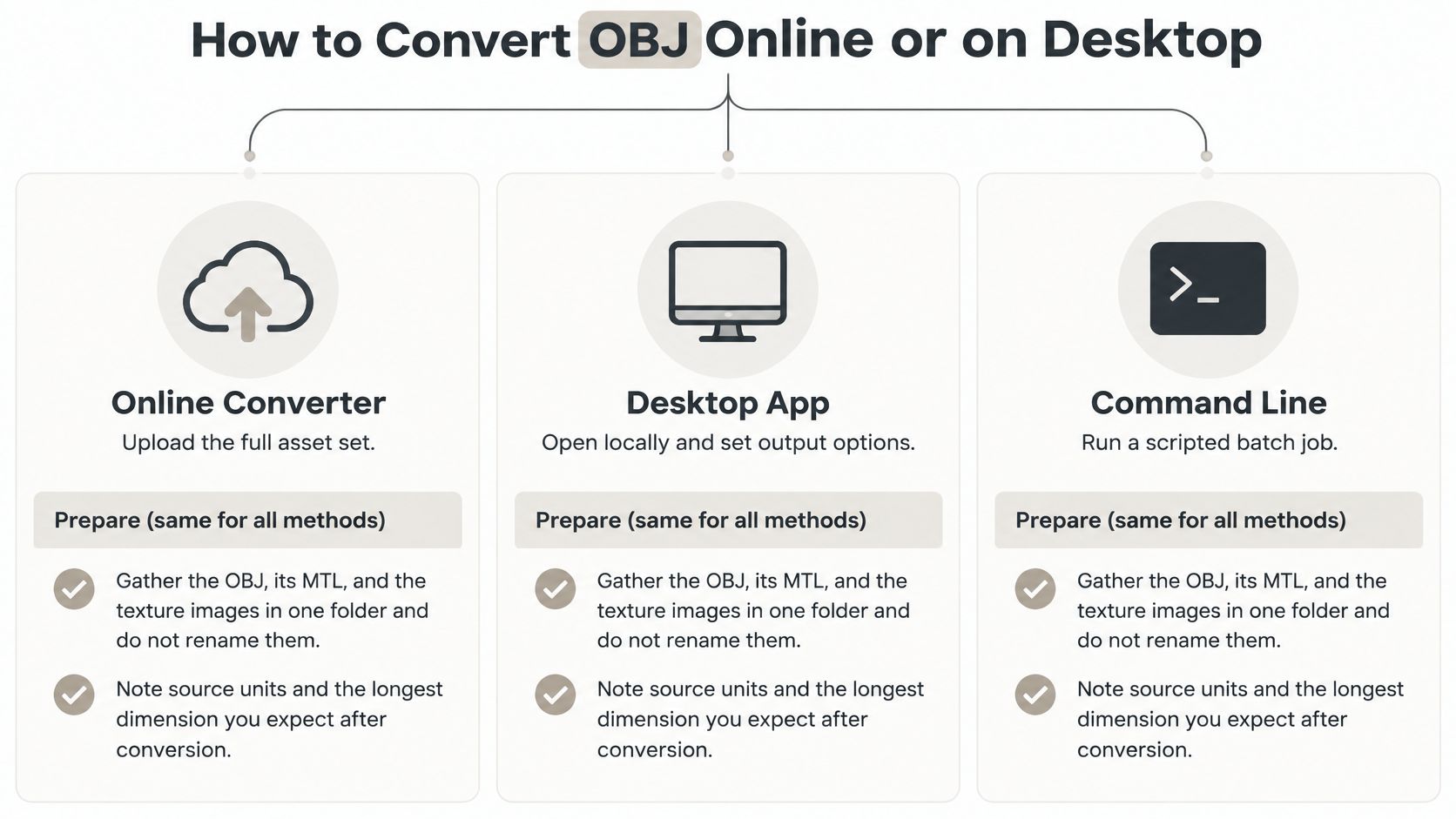
The conversion steps may differ across tools, but the preparation should be the same. Keep the model's companion files together, note the scale you expect, and inspect the output instead of trusting the download button.
Shared preparation
Gather the files. Put the
.obj, its.mtl, and every image the material file names in one folder. Keep their filenames unchanged so the references still point to the right assets.Record the expected size. Note the source units, if you know them, and the longest dimension you expect after conversion. A bounding box gives you a quick check for accidental scaling.
Pick a route
Browser converter: Use this for a one-off static mesh when you want to avoid installing software. Upload the whole asset set if the converter accepts companion files. Pick GLB for a packed visual asset or STL when you need triangles for printing. Options differ between tools, so check what the converter promises before starting.
Blender: Choose Blender when you need to adjust scale or materials by hand. Import the OBJ, check its dimensions, apply the intended scale, then export to GLB, FBX, STL, or PLY. Select options that preserve UVs and normals when the destination supports them, and triangulate deliberately if the receiving application requires predictable triangles.
Sculpty's built-in converter: If your OBJ is already in its browser studio, the built-in converter handles GLB, glTF, STL, OBJ, and PLY. Its export path also offers GLB, STL, OBJ, FBX, USDZ, and 3MF; the studio can preview STL, OBJ, GLB, FBX, and PLY before download. That suits a browser workflow where the mesh came from AI generation or you want conversion near remeshing, PBR texturing, or a private gallery.
| Route | Best for | Advantage | Limitation |
|---|---|---|---|
| Browser converter | One static mesh, quick one-off | No install; accepts the full file set | Companion files must be uploaded together; output options vary |
| Blender | Hand-editing scale or materials | Full control over units and export options | Requires install and manual export settings |
| Sculpty built-in converter | OBJ from AI generation or a browser studio | No local install; preview before download | Works on meshes inside its own studio |
After exporting, reopen the result and compare its vertex count, bounding box, and surface appearance with the source. A quick online conversion suits a single static mesh; Blender is the better fit when you need hands-on adjustments.
For a look at the shared preparation and the three routes, use this walkthrough:
No route can restore a missing MTL or image file automatically. If a companion file wasn't included in the source set, find it before conversion or plan to rebuild the missing material.
How an OBJ File Stores a Mesh
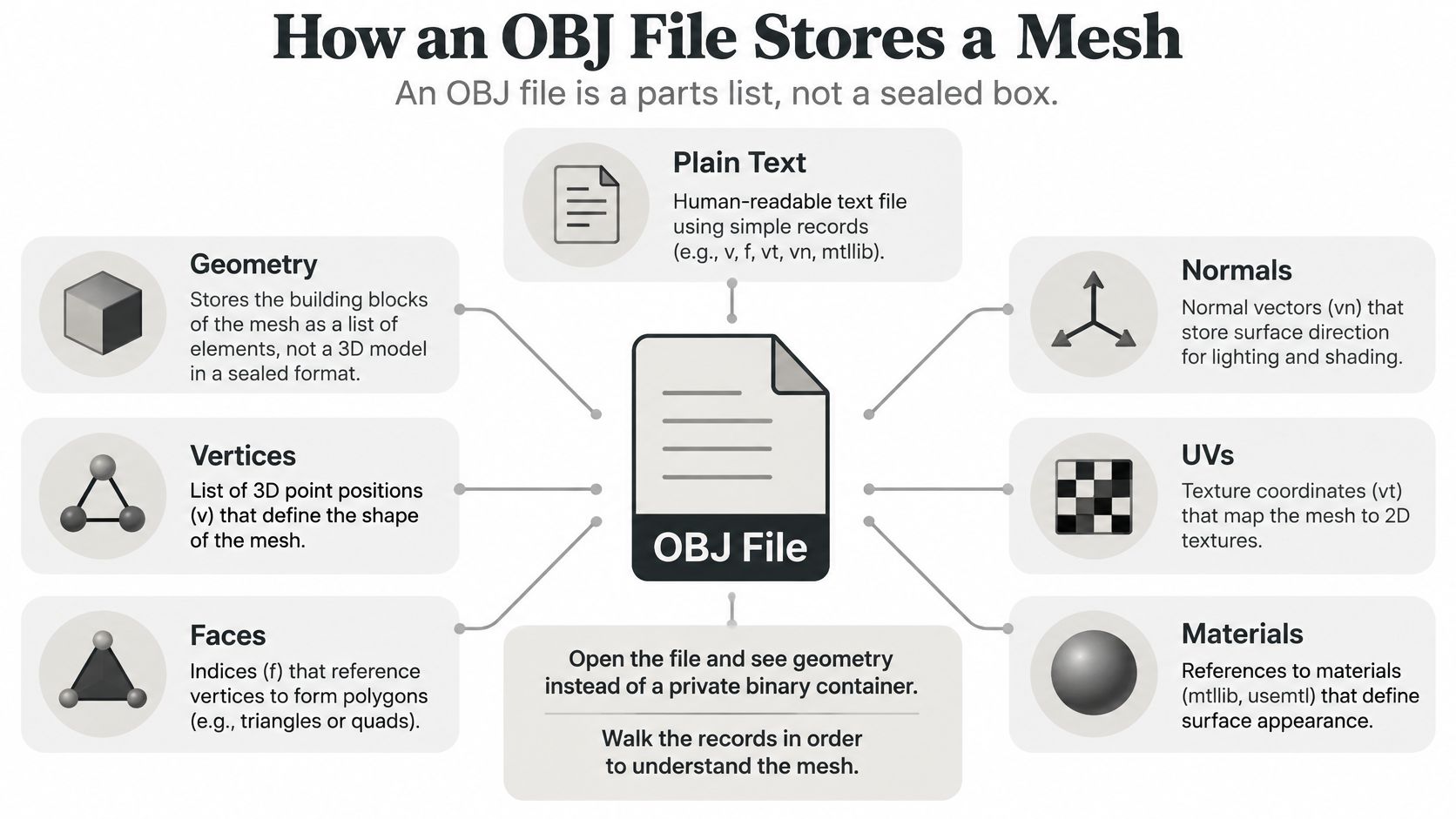
Think of an OBJ as a parts list, not a sealed box. Because it uses plain text, you can open it in a text editor and inspect the mesh records directly. The Library of Congress describes OBJ as a text-based format for polygonal geometry, with positions, texture coordinates, normals, and faces represented by distinct record types (Library of Congress overview of the OBJ format).
Read the records as lists
vrecords list vertex positions, the corners that make up the mesh.vtrecords hold optional UV coordinates, which tell a material how an image sits across the surface.vnrecords hold optional vertex normals, which affect how light and shading make the surface appear.frecords describe faces by pointing back to those lists with indices.
A face can contain three or more corners. That flexibility lets an OBJ store polygons such as quads, but a game engine or slicer may split a polygon into triangles along a different diagonal. If the split matters to the final shape or shading, triangulate deliberately before the handoff.
Here's a tiny example. Four v lines can define a square; vt lines give it UV coordinates; one vn line supplies a normal. A face such as f 1/1/1 2/2/1 3/3/1 4/4/1 refers to each corner by vertex, texture-coordinate, and normal index. Because faces point to shared records, a corner can be reused rather than copied into every face. That saves repeated coordinates and helps keep neighboring faces connected.
The g and o records can identify groups and named objects, so one file can contain several parts. Material references also matter: an OBJ may point to an MTL file, which describes materials and can point to image textures.
For a converter, the practical consequence is simple: it must map positions, indices, normals, UVs, object or group boundaries, and material references intentionally. If one of those records disappears, the result may still open, but it won't contain the complete parts list.
Why Textures Disappear After Conversion
The model opens in the right shape, but it's completely gray. That usually means the geometry made it through while the appearance data didn't, or the receiving application can't interpret the material setup.
A textured OBJ is normally a bundle, not a single file. The OBJ references an .mtl material library, and the MTL can reference image files using paths relative to the folder. If you move or rename a texture, omit the MTL, or upload only the OBJ, those references may break even though the mesh still looks geometrically intact. The OBJ materials and companion-file overview describes this relationship and why missing companion files can leave a converted model untextured.
Separate missing files from unsupported output
Before converting, keep the source filenames and folder relationships intact. Check whether the destination can package textures inside its output or expects external image files. If a tool reports missing materials, treat that warning as an asset problem to solve, not a cosmetic notice to ignore.
OBJ-to-STL conversion is different. STL doesn't preserve OBJ's UVs, materials, colors, or texture maps, so a gray result is an expected consequence of the target format, not necessarily a failed conversion. A converter can carry over the surface geometry while discarding the appearance data that made the original model look right.
That distinction separates two different definitions of success:
- Visual handoff: A Blender or game-engine asset should retain the appearance its destination can support. Check its UV mapping, material assignments, and image paths.
- Print handoff: A slicer needs a printable surface. For a single-material print, the original texture may not be part of the job at all.
A good converter should package companion assets when the destination allows it, flag unresolved material references, and offer texture baking only when the target supports a limited material representation. But even a clear warning can't recreate an image that wasn't included.
If the texture is present but the surface still looks wrong, inspect the material-to-image assignment and UV mapping. This guide to texturing a 3D model can help you identify whether the issue lies in the image, the material, or the way the UVs map onto the mesh.
Before sending the asset onward, confirm the full set: the OBJ, its MTL, and every image the MTL names.
When the Model Is the Wrong Size
A converter can preserve every vertex and still deliver a part at the wrong physical size. OBJ doesn't reliably carry unit metadata, so the same coordinate values can be interpreted as millimeters, centimeters, meters, or inches by different applications. The Xometry color 3D-printing design guide notes that a millimeter-based design interpreted as inches can produce a 25.4-times size difference.
For a visual asset, that may be fixable by scaling it in the game engine or modeling software. For a physical bracket, enclosure, or figurine, an incorrect scale can make the part unusable. Ask for three things before export: the source units, the target units, and the intended longest dimension. Then compare those expectations with the output's bounding-box dimensions.
Check print readiness, not just file validity
A file that opens in a slicer isn't automatically ready to print. Check for watertight shells, manifold edges, consistent normals, self-intersections, and walls thick enough for the chosen process. These are mesh-quality checks, not file-extension checks.
Color is a separate decision. Many single-material FDM workflows don't use OBJ's texture or material information. If the job needs color, confirm that the printer and slicer support the intended color workflow and that the necessary asset files remain available.
Practical rule: Don't approve a physical part until its bounding box matches the intended dimensions and its mesh passes the checks your print process needs.
Conversion complete doesn't prove that a model is dimensionally correct, printable, or visually faithful.
Normals UVs and ASCII Versus Binary
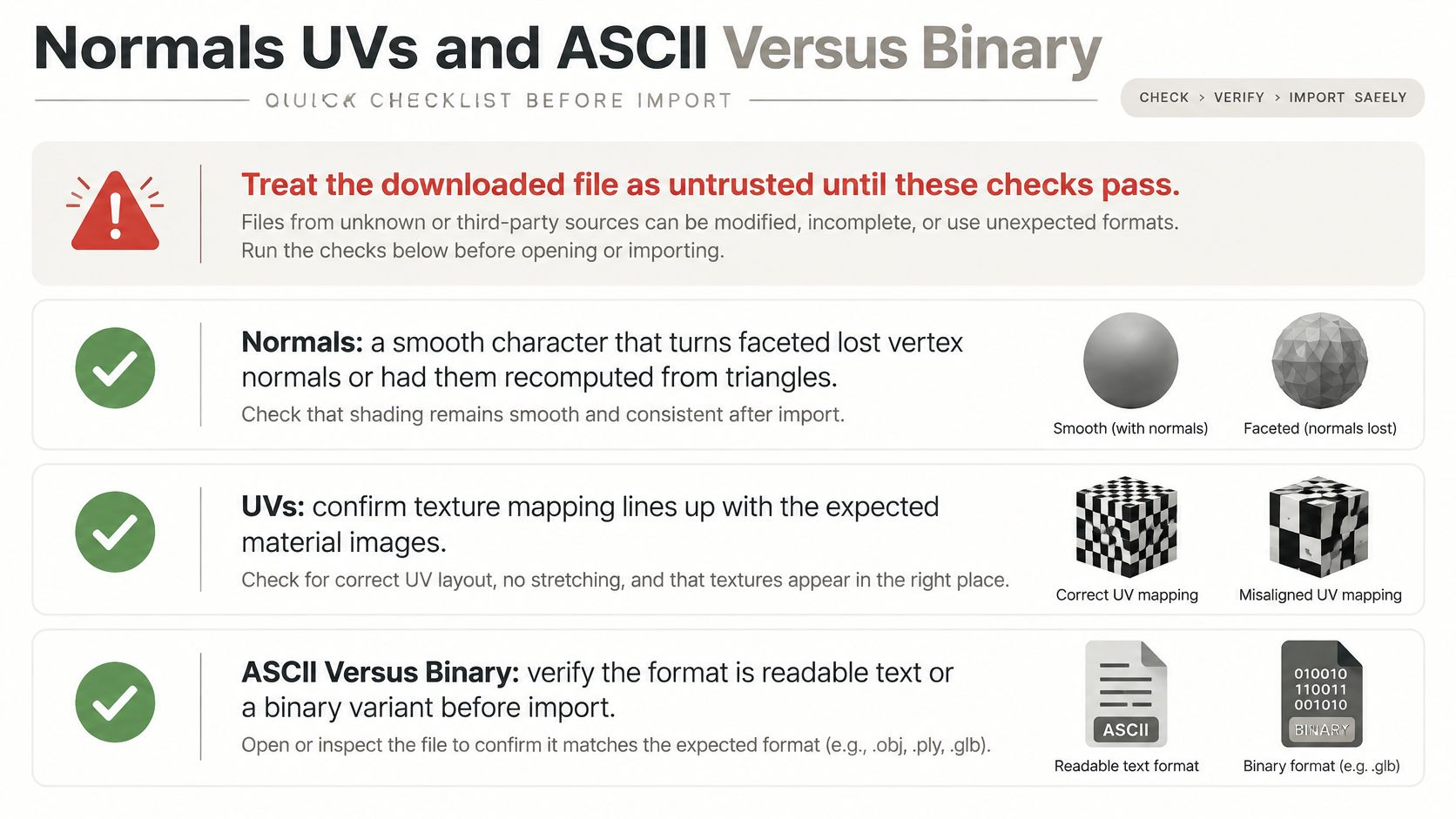
Treat a downloaded conversion as unverified until the surface looks right in the application that will use it. A file can open without errors and still shade incorrectly, map its texture badly, or be in a binary encoding that a text editor can't display.
Check visible symptoms
- Normals: A smooth character that turns faceted may have lost its vertex normals or had them recomputed from triangles. A hard-surface object that looks too soft may have had smoothing forced on. Compare a known crease or curved area against the source.
- UVs: If a texture slides, stretches, or smears at a seam, check whether the UV coordinates survived and whether the material still points to the intended image. A logo or text decal is an easy orientation check. If you're preparing an export from Blender, this Blender-to-OBJ workflow guide can help you check the source settings.
- Polygon splits: A quad can be triangulated along either diagonal. If a formerly flat surface develops a shallow ridge, the split may have changed. Triangulate intentionally when the target is a real-time engine or STL.
Choose the encoding that fits the task
ASCII files store readable text, which makes them convenient to inspect and compare. They can also be large. Binary STL and PLY, along with GLB, are more compact choices when you don't need to read the file directly. If a text editor displays gibberish, that's normal for a binary file and doesn't by itself mean the file is corrupted.
For example, a large ASCII scan can become a smaller binary PLY without changing its vertex count. A game prop that needs its textures to travel with it is a better candidate for GLB than ASCII OBJ, provided the conversion preserves the required appearance data.
Pass the file only when the silhouette and dimensions match, the shading looks correct, and the textures appear if the chosen format promised them.
Convert Only After the Contract Is Clear
Take the output contract you chose and test it against the actual handoff. If the model must still look textured, confirm that the MTL and all named images are available, convert to a suitable destination, then preview the packaged result. If a studio requires FBX, export to that format and record the unit assumption so the next person can verify the scene scale.
For a single-material print, accept that color may be discarded, set the intended units explicitly, check the bounding box, and reject the output if the mesh isn't watertight. For a colored scan, compare its vertex count and color appearance before approving the result. These checks decide whether the conversion is a go for the job, not just whether the file exists.
When the model is already in a browser studio, Sculpty's converter can handle the final format change, with a preview available before download. Download only when the dimensions and appearance match the purpose of the file.
Use Sculpty to convert supported 3D formats in a browser studio and preview models before downloading. If you're preparing a visual asset or a printable mesh, check the output against its required attributes and dimensions before handing it off.