
Image to OBJ: How to Convert a Photo to a 3D Model
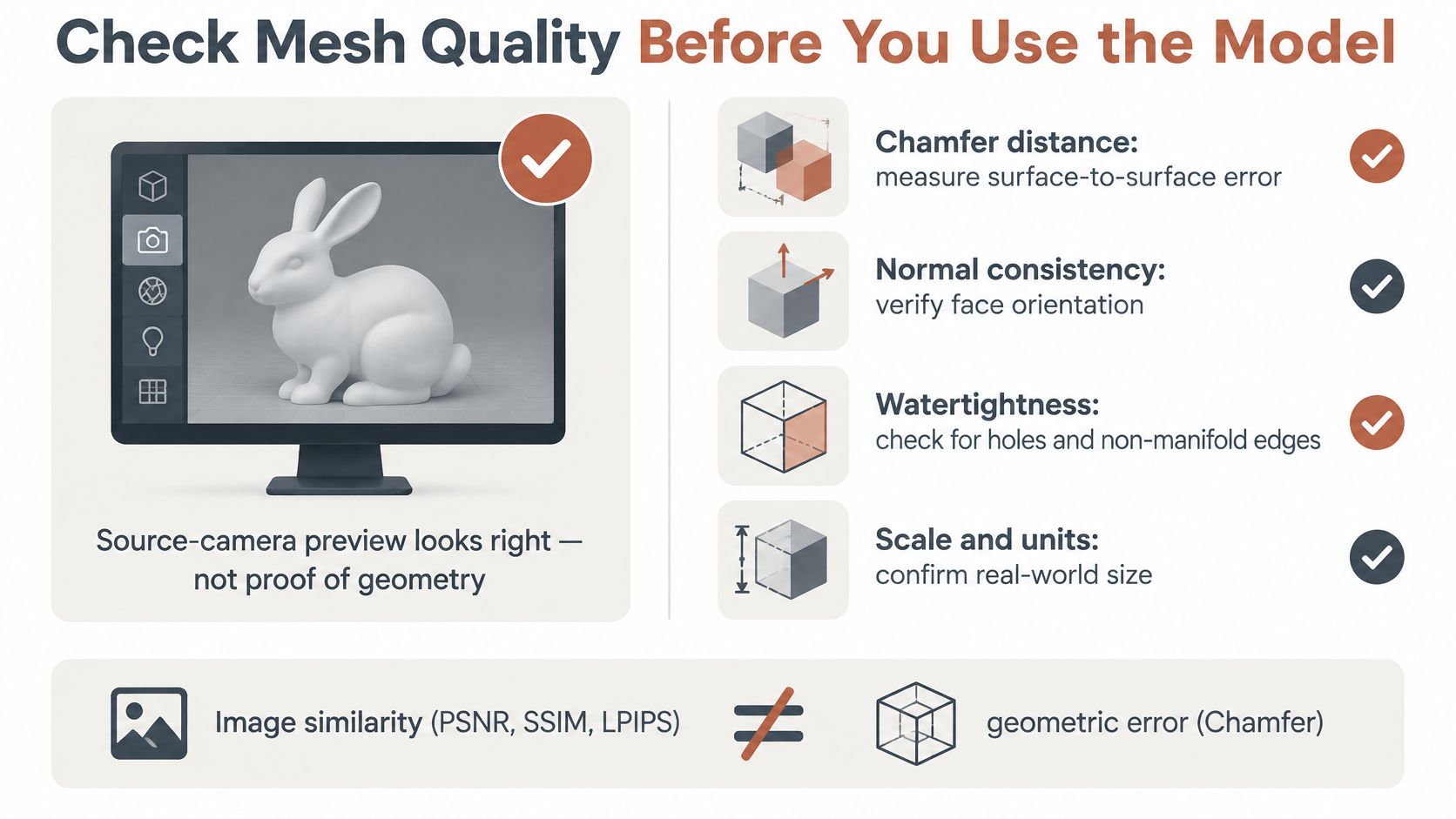
A preview renders from the camera that took the photo, so it flatters exactly the geometry you already know is right. The angles you never see are the ones that fail.
Image similarity and geometric accuracy part company at this stage. A 2025 hybrid reconstruction study reports that image-based metrics such as PSNR, SSIM and LPIPS don't measure geometric errors such as Chamfer distance or point-cloud F-score. An OBJ can match its source photo closely and still hold wrong depth, non-manifold surfaces, self-intersections, disconnected shells, bad scale, or topology no rig will accept.
So the verdict starts with a readiness score on the photo itself, taken before upload. Four checks set it: coverage (which sides stay hidden, and whether you shoot more views or flag those silhouettes for the strictest scrutiny after generation), a scale reference (a ruler or known-size object in frame, so the scale row has something to pass against), lighting (even enough that baked colour and surface normals read clean), and focus (sharp at edges, joints and lettering, the spots compared again after remeshing). Any fail means a reshoot. Generation cannot rebuild geometry the camera never captured.
The mesh half of the score is the walkthrough that usually gets skipped:
Mesh quality checks and pass criteria by use
| Check | How to test | Game or visualization | 3D printing |
|---|---|---|---|
| Watertight | Slicer or Blender 3D Print Toolbox report | Preferred, not required for hidden surfaces | Required |
| Non-manifold edges | Select non-manifold in Blender | Zero on visible surfaces | Zero |
| Flipped normals | Face orientation overlay | Zero | Zero |
| Scale | Compare with a known reference dimension | Matches target size in engine units | Matches target size in millimetres |
| Polygon count | Statistics overlay in the viewer | Within the engine budget | Fine enough for printer resolution |
| Textures | Reopen the OBJ with MTL and images in a viewer | Colour and maps load with relative paths | Not needed |
An edge shared by three faces breaks booleans and slicers alike, and the non-manifold geometry guide shows how to trace that back to a single unmerged loop.
Test before and after any remesh. Put the original and the repaired mesh side by side at edges, joints and any lettering. Remeshing will happily delete the detail you were trying to protect while making the statistics look healthier.
Finish by rotating the model, comparing its silhouette with the photo from several virtual viewpoints, and marking every row pass or fail. Combined with the readiness score, that tally decides ship or redo. The turntable only ever shows the angles that already worked.
Table of Contents
- Fix Common OBJ Export Problems
- When OBJ Is the Right Format and When It Is Not
- Confirm Your OBJ Passes Before You Ship It
Fix Common OBJ Export Problems
The most common symptom shows up before anything looks geometrically wrong: the model arrives grey. Work backwards from what you see.
OBJ symptoms, likely causes and fixes
| Symptom | Likely cause | Fix |
|---|---|---|
| Textures missing after import | MTL not exported or relative paths broken | Re-export with MTL and images in the same folder |
| Texture appears mirrored | Image vertical axis flipped during UV mapping | Flip the UV island or bake the texture again |
| Dark or patchy shading | Stale or flipped normals | Recalculate outward normals and re-export |
| Pieces float apart | Boundary vertices not merged | Merge by distance, then recheck watertightness |
| Model fails print check | Open holes or non-manifold edges | Fill holes, or regenerate from a clearer photo if the back was hidden |
| Model too heavy for the engine | Dense mesh from generation | Decimate to the polygon budget and recheck the silhouette |
Three of those are two-minute fixes and belong in a routine. Repacking the OBJ with its MTL and image folder takes about the time it takes to drag the files together, and it resolves the majority of "the textures are gone" reports. Flipping a UV island is quick too, though you'll want to confirm the fix with a 2×2 checker texture rather than eyeballing colour, since a mirrored map hides well on a symmetrically painted object.
Normals take one command. Enter edit mode, select all, recalculate outside, and the mottled shading disappears.
The slow ones deserve honesty. Unmerged shells mean going back into merge-by-distance with a threshold small enough not to collapse real detail, then re-running the watertightness check. Holes in a back surface that was never photographed mean the same thing: the reconstruction invented a plausible wall and it doesn't close. Decimation buys you weight, but only after you've compared the silhouette at the previous density, because it's the one operation that can turn a recognizable prop into a smooth blob.
Where to stop: if two fixes in the same row keep failing, the problem is upstream in the photo, not in the export settings. Regenerate from a better capture.
When OBJ Is the Right Format and When It Is Not
OBJ is decades old and still in daily use, and the reason is boring and durable: it is plain ASCII text rather than a proprietary container. You can open it in a text editor, read it in a diff, and parse it with a script you wrote yourself.
That openness is why it keeps turning up in pipelines that have nothing else in common. A summary of the National Archives format study published by Spatial puts a number on it: in a catalogue of digital 3D models, OBJ accounted for 25,306 models, more than FBX at 5,978, though fewer than MAX at 71,506 and 3DS at 47,633, which works out at roughly 13.8% of the 183,489 models across the listed formats. The same report notes that OBJ needs no file header, because each line starts with a key identifying what follows, which is what makes the format so easy to inspect, convert and preserve.
OBJ compared with GLB, STL and FBX
| Format | Geometry | Materials | Animation | Best for |
|---|---|---|---|---|
| OBJ | Polygons with optional UVs and normals | Through a companion MTL file | No | Neutral handoff between modeling and visualization tools |
| GLB | Polygons with scene data | PBR materials packed in one file | Yes | Web and real-time engines |
| STL | Triangles only | None | No | 3D printing |
| FBX | Polygons, rigs and scenes | Yes | Yes | Game and animation pipelines |
Choose OBJ to hand a static mesh between Blender, game tools and visualization software, where both ends read it and nobody needs to license a runtime. Choose GLB when materials and scene structure should travel in one file, for web or real-time delivery. Choose STL for printing when colour is irrelevant, since it holds triangles only and nothing more. Choose FBX when the model carries rigs, animation or a scene hierarchy, since OBJ stores none of that.
For a single-photo conversion I default to OBJ, and the reason is the same plainness. The file holds only the geometry, UVs and material references the reconstruction produced, so nothing extra can mask a bad mesh. A pretty preview from the source camera proves nothing on its own; the verdict has to come from measured checks on the file, and a format with no animation data or scene hierarchy leaves fewer places for a failure to hide.
Confirm Your OBJ Passes Before You Ship It
The verdict comes from the checks you already ran. Go back to the table for your use case. A game or visualization asset with hidden open edges can pass; a print part needs a closed mesh at the chosen size, measured in millimetres, not in whatever units the viewport happened to display. Zero non-manifold edges and zero flipped normals, or the file isn't done.
Then confirm the package itself. One folder, containing the OBJ, its MTL and every image the materials reference, with relative paths that still resolve on a different machine. Reopen it in a viewer that isn't the tool that wrote it. If the colour and maps load, the package ships.
Ship-or-redo, decided in one line: if the failure is backside fidelity, scale or watertightness, stop polishing the single photo. Switch to multi-view capture or manual modelling from a measured reference, because no export setting fixes geometry that was never captured.
If it passes, export the bundle and keep the GLB master for future edits. If it fails, the next move is a new input, not a new setting. Upload a sharp, clean photo to the Sculpty image-to-3D studio, score it against the five readiness checks first, run the six mesh checks after generation, then export the OBJ, MTL and texture folder and reopen the whole thing in a free web OBJ viewer before it reaches a game engine, a slicer or a client.
Sculpty is a browser-based 3D AI studio that turns a single product photo into a mesh you can texture, remesh and export as OBJ, with a private gallery and free web viewer for reopening the finished package. That makes it a practical place to run the readiness score, the generation pass and the six quality checks in one sitting, before anything reaches a client. Visit Sculpty when you're ready to convert a photo and see whether the geometry earns a ship or a redo.