
Image to 3D Model Blender: From Photo to Export-Ready Mesh
You've imported a photo-generated mesh into Blender, and the textured preview looks convincing. Then you rotate it, find a sealed handle opening, notice floating fragments underneath, and realize the file says nothing about its real size. Importing worked. The asset still isn't ready.
A reliable image to 3D model Blender workflow starts with the photograph and ends in the destination application, not the import dialog. Choose a reconstruction method that fits the available evidence, preserve an untouched source mesh, and make cleanup decisions around the actual deliverable.
Table of Contents
- Choose Photogrammetry or Single-Image Before You Open Blender
- How to Prepare Photos and Import Them into Blender
- How to Clean Up and Reduce the Mesh
- Check Which Parts of the Model Are Guesses
- How to Texture and Export for Your Destination
- Fixing Common Import, Mesh and Export Problems
- Pick One Test Object and Run the Full Pipeline
Choose Photogrammetry or Single-Image Before You Open Blender
The input decides the method. Don't start adjusting modifiers until you know whether you need visual resemblance, measured geometry, or topology that can deform.
Consider a mug photographed from the front. You can judge its visible silhouette, but you can't inspect the underside of its handle or confirm the base profile. Treat that photograph as a reference, not a complete specification.
Input methods compared for image to 3D in Blender
Processing time depends on the capture, software, hardware, and cleanup requirements. Use the table to compare the work involved rather than treating generation speed as a delivery estimate.
| Method | What you need | Typical time | Hidden surfaces | Best for |
|---|---|---|---|---|
| Photogrammetry | Overlapping photographs with consistent exposure and focus | Reconstruction followed by inspection and cleanup | Reconstructed where sufficiently photographed, gaps elsewhere | Existing objects with accessible surfaces |
| Single-image AI | A clean, isolated photograph | Generation followed by validation | Inferred rather than observed | Concepts, background props, stylized assets |
| Multi-view AI | Consistent views of the same object | Generation plus cross-view checking | Better constrained, but still generated | Objects with important rear or underside details |
| Manual modeling from photo | Reference image and reliable measurements | Hands-on modeling and revision | Deliberately constructed by the modeler | Hard-surface parts and controlled dimensions |
Tools such as Meshroom or RealityCapture belong to the photogrammetry route. Image-generation services belong to a different route: they propose geometry from visual input rather than making every surface a measurement.
For manual work, load the photograph through Add > Image > Reference. Build against known dimensions instead of tracing perspective distortion as though it were an orthographic drawing.
Choose by the cost of being wrong
A decorative prop can tolerate an approximate rear surface. A fitted enclosure, replacement component, or collectible with distinctive rear details needs stronger evidence.
Use multi-view 3D reconstruction when additional photographs can resolve those uncertainties. Photograph the missing surfaces deliberately; extra views that repeat the same visible face won't answer questions about the underside.
Practical rule: If a surface controls fit, function, or recognition, capture it or model it from measurements.
Photogrammetry and multi-view generation still need dimensional validation. Neither method should be treated as an automatic guarantee of manufacturing accuracy.
Write down the destination before continuing: render, game, animation, or print. Also record the features that must survive cleanup, such as a handle opening, mounting recess, joint boundary, or embossed label.
How to Prepare Photos and Import Them into Blender
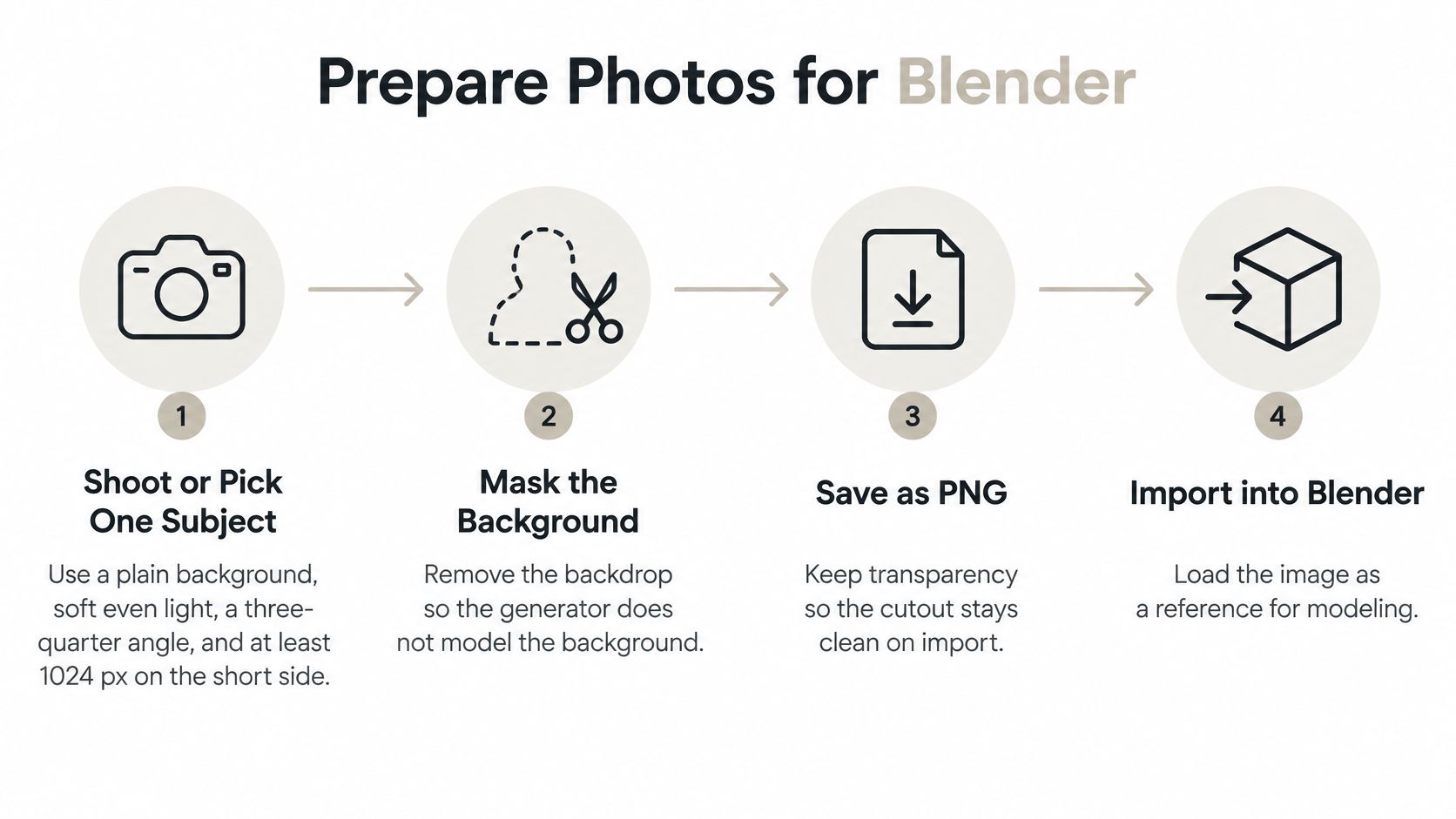
Prepare the image for the chosen method, not for an attractive social-media crop. Keep the complete silhouette visible and avoid cutting off features that the model must preserve.
The preparation sequence below separates image cleanup from mesh import.
Prepare a reference the generator can interpret
Choose a readable subject. Use soft, even lighting and an angle that exposes the object's depth. Keep fine details sharp enough to inspect instead of relying on sharpening to recover blurred edges.
Separate the subject from the background. For isolated-image generation, mask the table, wall, and unrelated objects without clipping the subject. Inspect openings carefully so the mask doesn't turn a handle or gap into a solid patch.
Keep capture conditions consistent. For photogrammetry, preserve focus, exposure, and white balance across overlapping views. Avoid changing the object's shape or moving flexible parts between photographs.
Distinguish references from geometry. A transparent PNG remains an image, not a mesh. Import it as a reference for manual modeling, or submit it to the reconstruction tool before exporting geometry.
Import and establish physical scale
Choose a mesh format you can inspect. Export GLB, OBJ, or FBX from the generation tool. In Blender, use File > Import, then choose glTF 2.0 for GLB, Wavefront for OBJ, or FBX, depending on the file.
Check dimensions before cleanup. Select the mesh, press N, and open Item > Dimensions. Set the intended unit system under Scene Properties > Units, then resize the object against a real measurement; changing unit display alone isn't a dimensional correction.
Apply transforms deliberately. Use Ctrl+A > Rotation & Scale after sizing so subsequent operations use a predictable object scale. Move the asset to the intended scene origin separately; applying Location doesn't move visible geometry to the origin.
Keep a recovery copy. Duplicate the imported mesh into a separate collection and hide it before editing. Preserve the original materials and texture files alongside the working project.
Your checkpoint is concrete: the object occupies the intended position, its measured size matches the reference, and the visible silhouette hasn't changed during setup. Inspect the original viewing angle for missing patches, but don't mistake a clean front view for a complete surface inspection.
How to Clean Up and Reduce the Mesh
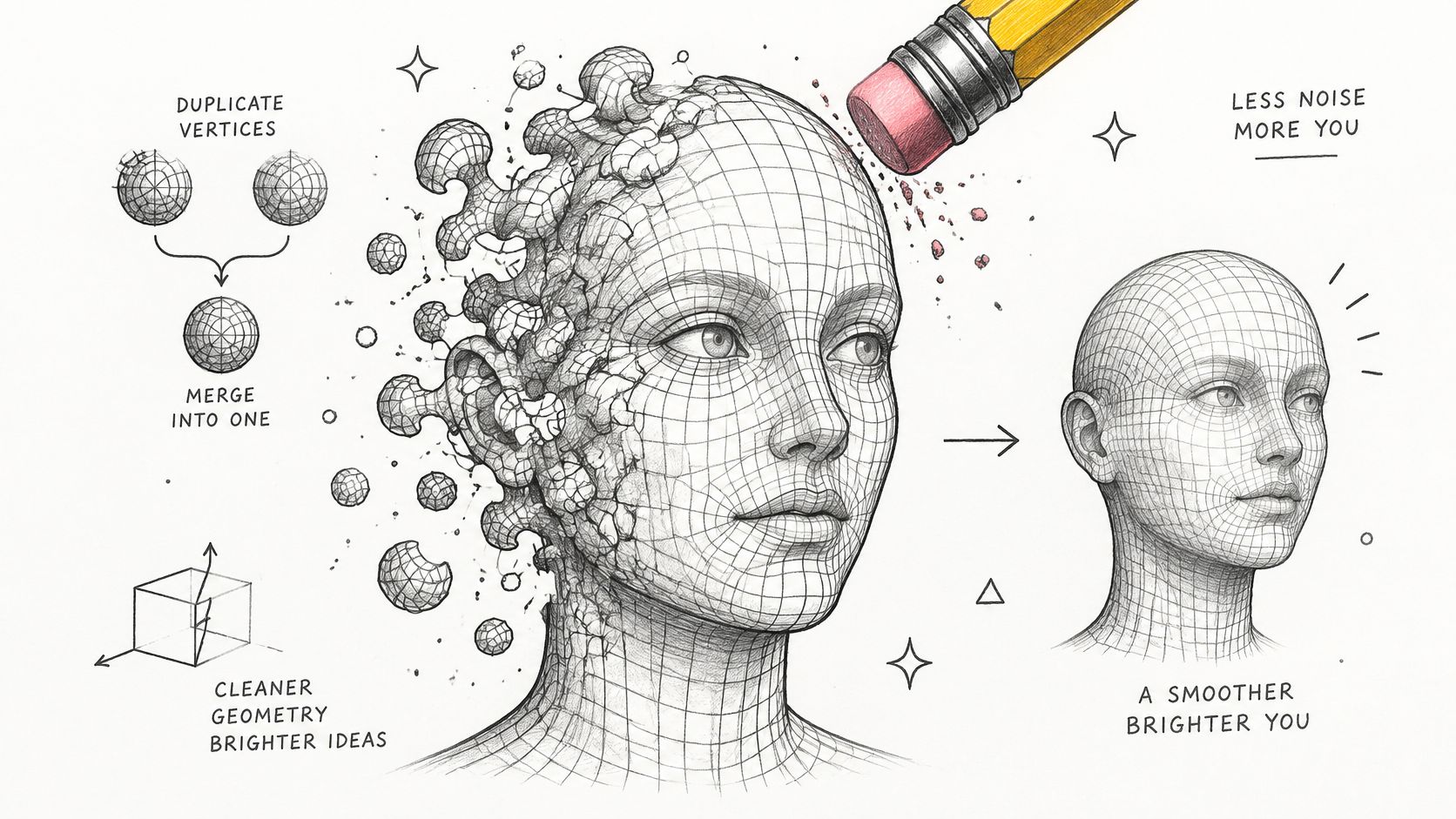
Clean for the destination, not for a prettier wireframe. A static render, a skinned character, and a printable shell each need different repairs. Photo-based meshes also carry defects that hand-built geometry rarely produces: fused shell fragments, inverted faces, and density spikes wherever the reconstruction guessed. Dense geometry alone doesn't tell you whether the asset is usable.
Keep the original mesh available for comparison while removing reconstruction noise.
Remove defects before rebuilding topology
Merge only unintended duplicates. Press Tab for Edit Mode, select with A, and run Mesh > Clean Up > Merge by Distance. Inspect the operator settings carefully because an excessive distance can fuse nearby details that should remain separate.
Separate loose elements from floating shells. Run Mesh > Clean Up > Delete Loose for unused vertices and edges. Disconnected blobs made of faces may remain, so hover over a suspect shell, press L to select linked geometry, and inspect it before deleting. Single-image reconstructions often leave several of these where the tool filled in occluded areas.
Correct surface orientation. Select the relevant faces and press Shift+N to recalculate normals outside. Open or overlapping surfaces may need manual attention rather than repeated recalculation.
Stop here if the asset only needs a static render and already shades correctly. Rebuilding acceptable geometry introduces risk without necessarily improving the deliverable.
Choose the rebuild around the job
For a sculpt-like shape or printable shell, test Voxel Remesh on a duplicate. Search for the remesh operation with F3, and choose a voxel size that preserves the smallest required feature while suppressing unwanted noise.
Don't use a universal voxel-size percentage. Inspect handle gaps, thin walls, engraved details, and sharp corners after each test. Meshes built from one photograph tend to produce paper-thin regions on the unseen side, and a voxel size that looks fine on the front can erase the back entirely.
For deformation, search F3 > Quadriflow Remesh to produce a starting quad layout, then inspect it manually. Quads alone don't establish animation readiness: joints need deliberate edge flow and a deformation test.
For reduction, add Decimate through the modifier panel. Try Collapse for general static geometry or Planar for suitable flat regions, and enable viewport Statistics to watch the triangle count while you adjust the ratio.
Set the triangle target based on the asset's screen coverage and destination. A prop that fills a few dozen pixels in a mobile scene tolerates aggressive reduction; a hero object that dominates the frame shows every collapsed edge. Confirm the final count in Statistics, then confirm the silhouette still reads at the distance the asset will be viewed.
For a closer treatment of reduction choices, use this Blender mesh simplification guide.
The video below provides an additional visual reference for mesh work.
Keep the detailed source until the reduced mesh, materials, and destination test all pass.
Remeshing can improve surface continuity while sacrificing sharp features, UV continuity, or useful deformation topology. Compare the result with the preserved source before applying the modifier.
For animated assets, bend the joints before approving the topology. For mobile games, prepare suitable LODs and simplified collision geometry, then test them in the engine. For printing, prioritize connected volume and feature survival rather than evenly distributed quads.
Check Which Parts of the Model Are Guesses
A convincing turntable proves the model presents well. It says nothing about whether the reconstruction matches the physical object.
Single-image reconstruction is an ill-posed problem: many different 3D shapes can produce the same photograph, and the uncertainty concentrates wherever the camera never looked. Rear faces, undersides, and interiors come from the generator's priors, not from your photo. How much that matters depends on the input you started with and where the asset is going.
Run this audit before you spend time texturing geometry that was never observed.

Audit evidence surface by surface
- Mark occlusion on the photograph. Identify rear surfaces, undersides, interiors, and components hidden behind other parts. Keep that marked reference with the project.
- Match the original viewpoint. Position a Blender camera to approximate the photograph, then compare silhouettes and visible openings. Judging the source view from an unrelated angle tells you nothing.
- Check independent measurements. Compare overall dimensions through N > Item > Dimensions. Use Blender's Measure tool for local features the bounding box can't describe.
- Label confidence explicitly. I use separate collections for visible, inferred, and invented surfaces; material colors or project notes work too. These are review labels for your own decisions.
- Resolve consequential gaps. Capture the back, interior, or underside when those areas control fit or recognition. Synthetic views help explore a design, and they still count as inference rather than observation.
- Verify symmetry before enforcing it. Preserve symmetry where the object supports it. Mirroring can erase an intentional offset, latch, seam, or rear connector.
Decide whether to revise or recapture
Weigh the guess against the destination. A render viewed from the source angle can carry a hidden approximation. A print that mates on all sides, or an animation that turns the object toward camera, cannot.
Dense photo coverage earns more trust than a single image, yet even a good photogrammetry set leaves interior voids. When the destination depends on geometry you never captured, recapture the object or rebuild that region from measurements.
Record the decision either way. A client should be able to distinguish a concept reconstruction from a dimensionally checked model without reverse-engineering your process.
How to Texture and Export for Your Destination
Finish the working topology before committing to UVs and baking. Otherwise, later geometry changes can force you to repeat material work.
For a quick static asset, enter Edit Mode, select the relevant faces, and choose U > Smart UV Project. Inspect the UV layout and apply a checker texture to reveal distortion; Checker Deselect is a selection command, not a UV-stretch overlay.
Build materials that survive handoff
For controlled seams, mark edges deliberately and use U > Unwrap instead. Check visible labels, broad curved surfaces, and material boundaries rather than judging only whether the UV islands fit inside the editor.
Prepare the maps the destination needs:
- Base Color carries surface color without depending on Blender scene lighting.
- Roughness and Metallic define the intended surface response.
- Normal carries suitable fine shading detail on the finished mesh.
- Baked detail transfers information from a preserved detailed source when the reduced asset requires it.
If baking from a high-detail source, use Cycles and inspect the bake setup, active target, and ray coverage before running the full job. A bake that captures adjacent surfaces or misses recessed areas needs setup changes, not extra texture resolution.
Use File > External Data > Pack Resources to make the Blender project more self-contained. Then inspect the export settings separately: packing a .blend file doesn't guarantee that another format embeds or locates every texture.
Export format and settings by destination
| Destination | Format | Settings to check |
|---|---|---|
| Game engine, including Unity or Unreal | FBX or GLB | Applied transforms, destination axis conventions, supported material setup, texture delivery |
| Web or 3D viewer | GLB | Embedded textures, PBR appearance, file contents |
| iOS AR | USDZ | Supported conversion from GLB or USD, material appearance, physical scale |
| 3D printing | STL or 3MF | Millimetre interpretation, manifold geometry, wall thickness, slicer preview; STL doesn't carry color |
| Legacy or multi-app exchange | OBJ | Accompanying MTL and image files, basic material expectations |
Don't assume a complex Blender shader graph will travel intact. Favor a straightforward PBR material for exchange, and verify the receiving application's interpretation of roughness, metallic response, transparency, and normals.
For OBJ delivery, follow a deliberate Blender-to-OBJ export workflow. Keep the material library and referenced images with the geometry rather than sending the OBJ alone.
Delivery gate: Approve the exported file in its receiving application, not just the Blender source.
Export a test asset for each destination. Check orientation, dimensions, material separation, and appearance after reopening it; for printing, inspect the sliced result before committing material or machine time.
Fixing Common Import, Mesh and Export Problems
A model that arrives tiny or huge needs a scale diagnosis, not immediate remeshing. Compare its dimensions with the intended measurement and inspect the receiving application's unit interpretation before changing geometry.
Use the table as a symptom-based checklist. It isn't a frequency ranking: the likely failure depends on the source file and the operations already applied.
Symptom, likely cause and fix
| Symptom | Likely cause | Fix |
|---|---|---|
| Model is tiny or huge | Unit interpretation or incorrect object scale | Check Scene Properties > Units, correct N > Item > Dimensions, then Ctrl+A > Scale |
| Textures missing | Broken image paths or incomplete delivery | File > External Data > Find Missing Files, then Pack Resources for the Blender project |
| Print rejected for holes | Open edges or non-manifold geometry | If installed, 3D Print Toolbox > Check All, then inspect and repair flagged areas |
| Bumpy surface after remesh | Fine voxel sampling preserved unwanted source noise | Increase voxel size cautiously and test Vertex > Smooth Vertices |
| Sharp edges lost | Remeshing softened required features | Undo; test the Remesh modifier's Sharp mode where appropriate, or retopologize |
| Dark shading patches | Inverted normals, overlaps, or damaged geometry | Start with Shift+N, then inspect remaining problem faces |
| Floating blobs | Loose elements or disconnected face shells | Mesh > Clean Up > Delete Loose; use L to inspect and remove linked shells |
| Materials gone after export | Export configuration or unsupported shader features | Inspect material export options, simplify materials, or test GLB |
Distinguish shading repairs from geometry repairs
A dark patch isn't automatically a hole. Toggle material display, inspect face orientation, and look for overlapping surfaces before filling anything.
Likewise, smoothing a lumpy region may improve its appearance while changing its profile. Keep the original reference visible so you can tell whether you removed noise or erased a real feature.
- For printable assets, inspect disconnected shells and wall thickness after repairs. A visually closed object still needs a slicer check.
- For hard surfaces, protect intentional planes and corners. Don't keep shrinking the voxel size to recover edges from an unsuitable remesh.
- For exported materials, reopen the actual delivery package. A successful export notification doesn't confirm that the receiving application found every image.
Any operation that changes geometry should trigger a reference comparison. Check the affected region from the source viewpoint and from an angle that exposes thickness or depth, especially after smoothing, filling, or reducing.
Save a new working version before destructive repairs. That lets you reject a local improvement when it creates a worse silhouette, closes an opening, or damages a material boundary elsewhere.
Pick One Test Object and Run the Full Pipeline
Choose a simple object you can handle and measure, such as a spice jar or plain mug. Avoid starting with transparent packaging, intricate machinery, or a flexible subject whose shape changes during capture.
Use an isolated photograph for the single-image trial. If you're comparing methods, capture the additional surfaces needed for a multi-view attempt or a suitable overlapping photogrammetry set.
Keep a useful production log
Record the decisions that would matter on a client job:
- Input and intended destination. Note the method, available views, and features that must remain accurate.
- Cleanup effort. Time the work and identify the first operation that required manual intervention.
- Final mesh condition. Record triangle count, dimensional discrepancy, and unresolved surface assumptions.
- Destination result. Note whether the engine, renderer, or slicer accepted the export and what needed repair.
Judge the result against the intended use, not an arbitrary tolerance. A convincing concept prop can still be unsuitable for a fitted print, and a clean static mesh can still be unsuitable for animation.
If the result fails because of missing evidence, capture more evidence. If it fails because of topology, revise the mesh strategy rather than repeatedly generating the same unsupported shape.
Run this test this week and keep the source photographs, untouched import, working file, export, and log together. That small reference project will make your next production estimate more grounded than a polished generation preview.
Sculpty offers browser-based single-image and multi-view generation, PBR texturing, remeshing, retopology, and export formats for downstream work in Blender. Visit it to generate a test asset, then use the dimensional, geometry, and destination checks above before treating the file as delivery-ready.