
GLB to USDZ: How to Convert 3D Models for Apple AR
Search for glb to usdz and the top results all say the same thing. Upload the file, wait a few seconds, download a .usdz, and your model is ready for iPhone AR.
That promise holds for the narrowest case: a static, low-poly, single-material model with no animation and no compressed textures. For anything you'd put in front of a client, the converter is the start of the job, not the end.
Treat glb to usdz as a renderer-targeted asset conversion. The question isn't whether the file converted. It's what the converter dropped, whether the result opens in Quick Look, and whether it looks right and sits at the correct size when someone points a phone at a table. Every route below finishes the same way: with a USDZ you've opened on a real iPhone, not just a file with the right extension.
Table of Contents
- Why Renaming GLB to USDZ Fails
- Pick the Right GLB to USDZ Tool
- Convert GLB to USDZ with Apple's usdzconvert
- Convert GLB to USDZ in Blender
- Check Materials, Textures and Animation Before You Ship
- Make the USDZ Pass the iPhone AR Test
- Ship Both Formats from One Pipeline
Why Renaming GLB to USDZ Fails
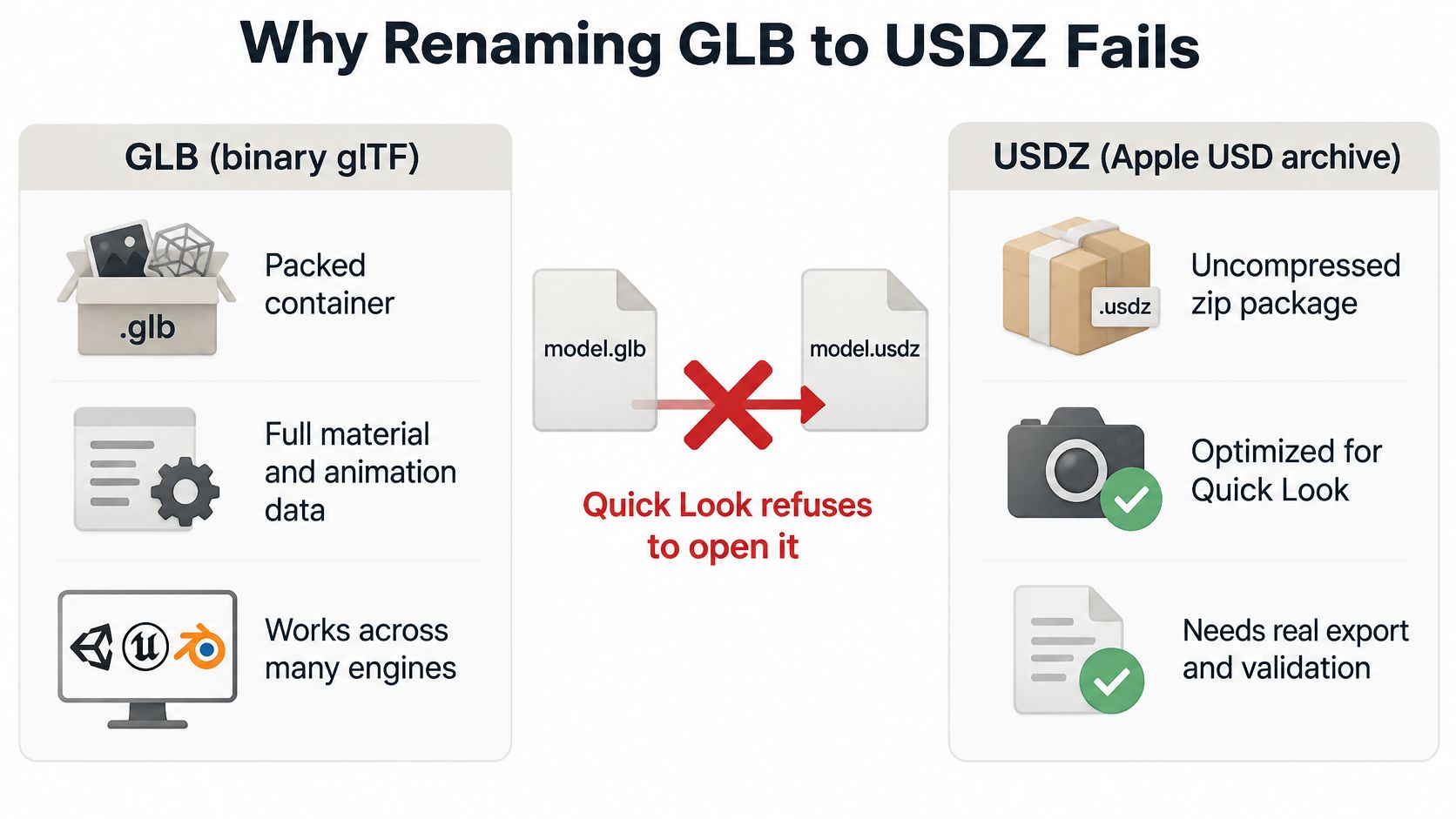
Rename model.glb to model.usdz and Quick Look won't render it. You get nothing useful, no error message that explains itself, no degraded preview. The file is an archive wearing the wrong internal structure, and Apple's viewer checks before it draws.
The reason is that GLB and USDZ package 3D data in different ways. GLB is the binary form of glTF 2.0, the runtime format the Khronos glTF 2.0 specification defines around the .glb extension and the model/gltf-binary media type, built to minimize asset size and load cost for browsers, game engines and asset systems. USDZ is Pixar's Universal Scene Description packaged for distribution: an uncompressed, unencrypted ZIP archive whose contents sit on 64-byte boundaries so iOS can memory-map them straight into memory. One is a runtime container. The other is a distribution wrapper around a USD scene graph.
So conversion is a translation. Scene structure, transforms, coordinate orientation, material graphs, texture assignments and animation have to be remapped into USD primitives before packaging, and then the package has to be written in the alignment the viewer expects.
What survives that translation cleanly is boring stuff: mesh geometry, UV sets, base color textures, simple transforms.
What needs verification every single time: packed metallic-roughness maps, Draco-compressed geometry, KTX2 textures, multiple animation clips, and anything built with exotic shader nodes. Those are the features that either get dropped or get re-baked into something that looks close on a desktop and wrong on a phone.
The destination matters as much as the source. A USDZ exists to be tapped: it opens in AR Quick Look from a link in Safari, a Messages thread, Mail, or Files, on iPhone, iPad and Apple Vision Pro, with no app install and no custom viewer. That's the whole value proposition, and it's also why a technically valid file can still fail commercially.
Three routes get you there: picking the right tool for your workflow, Apple's own usdzconvert, or Blender. Each has a different failure mode.
Pick the Right GLB to USDZ Tool
Choose by workflow before you choose by tool. There are three real situations, and they don't share an answer.
- A one-off test. You have a single file and you want to see whether the idea works. A browser converter is fine. You'll get a file, it may look right, and you'll learn nothing about your production pipeline.
- A repeatable local pipeline. You convert the same asset repeatedly as it changes. This needs a scriptable, pinned environment, which means Apple's tooling or Blender.
- Assets you haven't made yet. If the model is going to be generated, the cleanest fix is to produce the USDZ at creation time instead of converting afterwards.
Here's how the options stack up.
| Tool | Best for | Platform | Cost | Watch out for |
|---|---|---|---|---|
| Apple usdzconvert | Official scripted conversion from glTF, FBX and OBJ | macOS with Xcode or USD tools | Free | Command line only and results can vary between macOS versions |
| Blender | Free hands-on cleanup and export on any desktop | Windows, macOS, Linux | Free | Material and metallic-roughness response can shift after export |
| Sculpty | Generating new 3D assets and exporting GLB and USDZ directly | Web browser | Credit-based subscription | Covers assets created in the studio, not arbitrary local GLB files |
| Aspose 3D converter | Quick one-off conversions without installing anything | Web browser | Free tier | Limited control over materials, textures and animation |
| Reality Composer Pro | Inspecting and fixing converted USDZ on Apple hardware | macOS with Xcode | Free | A preview and authoring tool, not a bulk converter |
The no-Mac problem deserves a direct answer, because a lot of conversion advice assumes you own an Apple laptop. Blender solves it: it imports glTF and exports USDZ on Windows, macOS and Linux for free. If you're on Windows and need a USDZ today, Blender is the route that works without a borrowed Mac.
Two more notes on the table. Online converters earn their place for a smoke test, but you hand over control of material packing, texture compression and animation, and you usually can't tell what was changed. Reality Composer Pro is where I open a finished file to inspect it, not where I batch-convert a folder.
My rule: one-off test, web converter. Client work, usdzconvert or Blender. New AI-generated assets, a studio that exports both formats from the start, which is what Sculpty does from its browser studio.
If you want the underlying format differences in more depth before committing to a route, this breakdown of 3D file formats covers where GLB, USDZ and FBX each fit.
Convert GLB to USDZ with Apple's usdzconvert
This is the official route, and it's scriptable, which is why production pipelines end up here. Apple documents usdzconvert as accepting glTF, FBX and OBJ input, and the AR Quick Look documentation confirms .usdz and .reality as the formats websites and apps deliver. The tool shipped into the spotlight when Apple introduced USDZ at WWDC in June 2018 alongside iOS 12, wiring 3D objects into Safari, Messages, Mail and Files. Cross-format conversion was always part of the intended workflow.
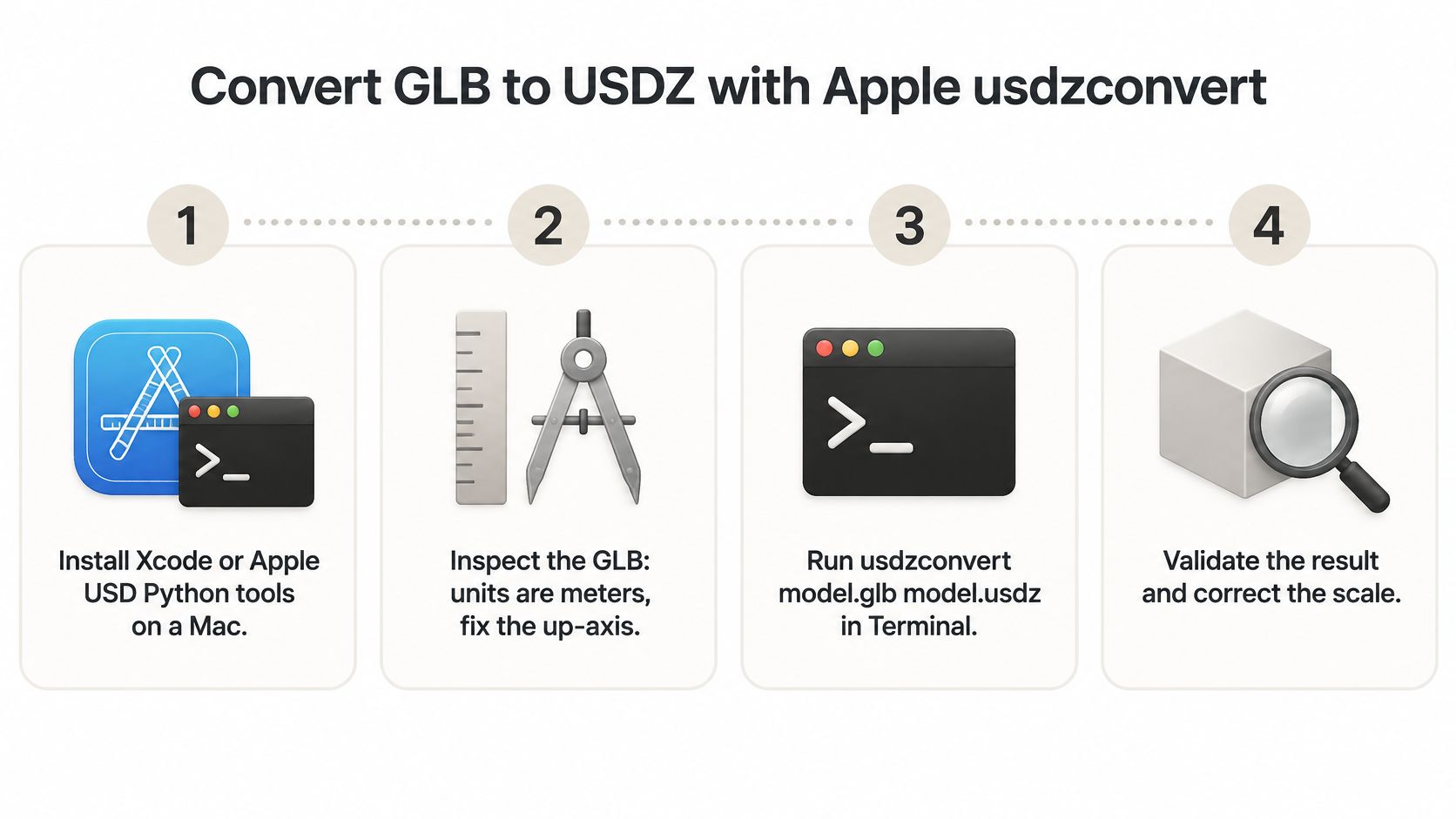
The working sequence, in order:
- Install the toolchain. Xcode, or Apple's USD Python tools, puts
usdzconvertin Terminal. Runusdzconvert -honce and read the flags for cameras, animation and frame ranges before you convert anything real. - Inspect the GLB first. Confirm the units are meters, note the up-axis, list the animation clips by name, and check whether textures are Draco or KTX2 compressed. Quick Look reads neither, so finding that out now saves an hour of confusion later.
- Run the conversion.
usdzconvert model.glb model.usdzdetects glTF input and writes the packaged archive. Keep the command in a shell script from the second asset onward, because you'll run it again. - Validate the structure.
usdchecker model.usdzcatches broken references and packaging errors. Treat a pass as necessary and nowhere near sufficient. - Compare on the desktop. Open the USDZ in Preview or Reality Composer Pro and put it next to the source GLB in a browser viewer. Geometry, scale and texture appearance are what you're checking.
- Test the live link on device. Once the file is served over HTTPS with the right headers (more on that in the device test below), open the URL in Safari on the iPhone or iPad you ship for.
Validation is not acceptance. A passing structural check tells you the package is well-formed. It says nothing about missing materials, wrong lighting or renderer features RealityKit doesn't implement. The Library of Congress format description documents what a USDZ package must contain, and it's a useful reference when a file fails to open at all, but the visual judgement has to happen in a viewer.
Pipeline habit worth the setup cost: pin the macOS version for batch work and keep every source GLB. Conversion output has a habit of changing between OS releases, and without the original you can't tell whether a regression came from the tool or the asset.
For a single marketing model, one pass is enough. For a catalog, wrap those six steps in a loop and log what changed on every run.
Convert GLB to USDZ in Blender
A file that exports cleanly can still lie on its side, arrive the wrong size, or lose its maps. Blender is the route to use when the GLB needs repair rather than a straight conversion: scale, materials and normals can be corrected in the viewport, then written out as USDZ. It is free, it runs on Windows, macOS and Linux, and it is the workable option on a Windows machine.
The import setting does most of the orientation work.
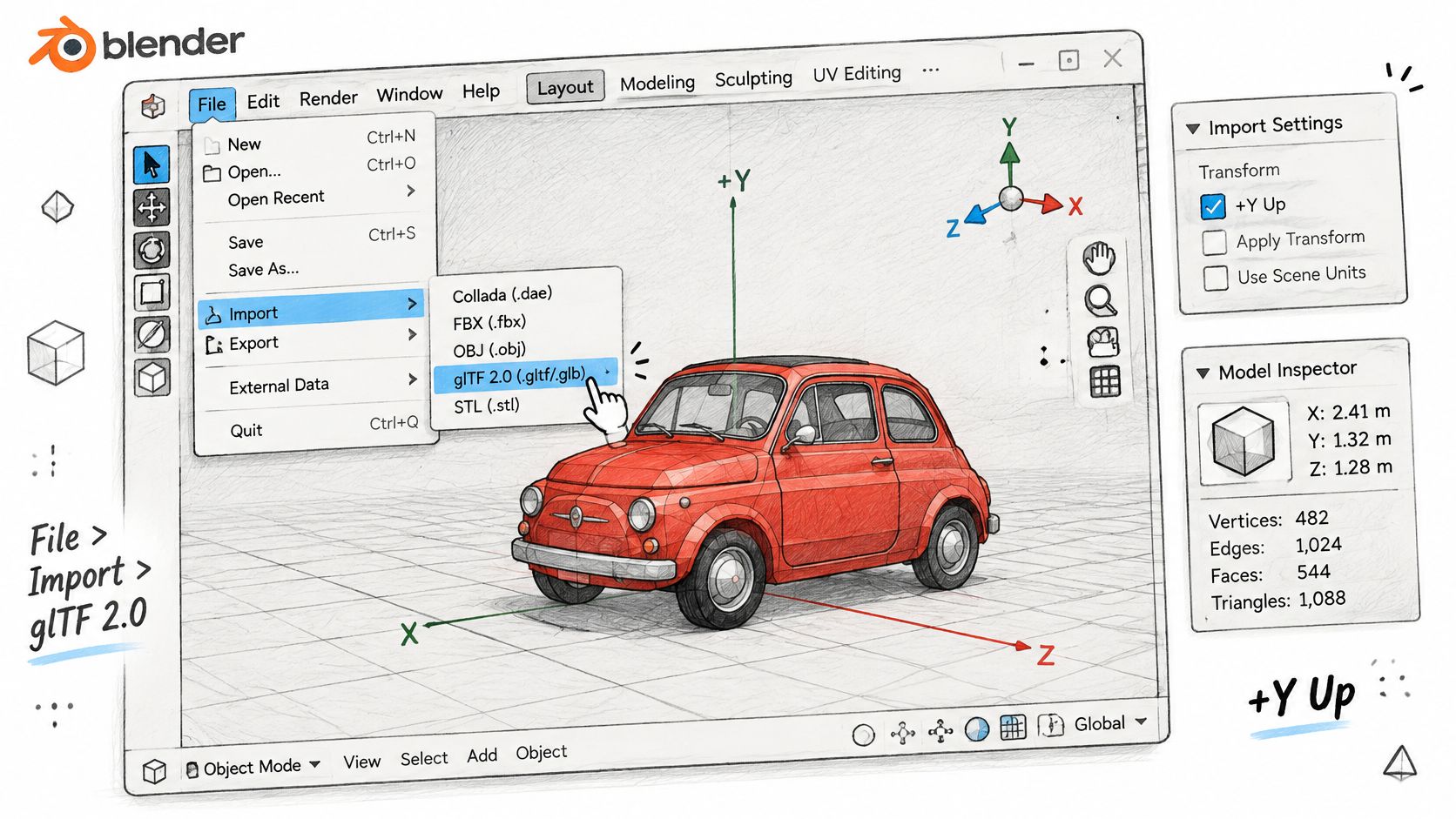
Go to File > Import > glTF 2.0 and leave +Y Up enabled. That checkbox is the default, and it is the difference between a model standing upright and one lying on its side in Quick Look. Correcting the axis afterwards is fiddly. With the file in the viewport, check the things that change how the phone will read it:
- Scale. Compare the dimensions to a real measurement. A chair should be roughly a chair, or Quick Look places a miniature or a giant.
- Normals and UVs. Turn on the face orientation overlay and look for flipped faces. Confirm the UV sets exist and are not overlapping.
- Textures. See whether images are packed into the file or linked from a folder. Linked textures do not travel into the USDZ, so those maps never reach the package.
- Density. Decimate anything obviously too heavy for mobile before export. A Decimate modifier in Blender is one step. Cutting the same mesh out of the USDZ means a rebuild.
- Color spaces. Base color and emission maps want sRGB. Normal, roughness, metallic and ambient occlusion maps want Non-Color. A wrong space is the usual reason a model looks washed out in AR.
Materials come after the mesh checks. Reduce each one to a Principled BSDF fed by plain image textures. Node groups, procedural noise, mix shaders and layered setups rarely survive USD translation intact, and every extra node is another guess the exporter has to make.
Export with File > Export > Universal Scene Description. The .usdz option is available in Blender 3.2 and newer. Turn on material and texture export, apply modifiers, and delete hidden geometry instead of leaving it hidden. Hidden objects still travel into the package.
USD export from Blender generally keeps geometry more reliably than material response. Metallic and roughness can shift on the way through. The viewport is not the acceptance test. Open the USDZ in Quick Look on the iPhone and confirm it stands upright, matches the measured size, and still reads as the same surface.
Check Materials, Textures and Animation Before You Ship
Three groups of failures account for almost every "the USDZ looks wrong" ticket. Each one shows up as a specific visible symptom, and each has a specific fix. Technical guidance on AR asset delivery packages is blunt about the cause: Quick Look is a constrained target, and it does not read GLB-specific delivery features such as Draco compression or KTX2 textures.
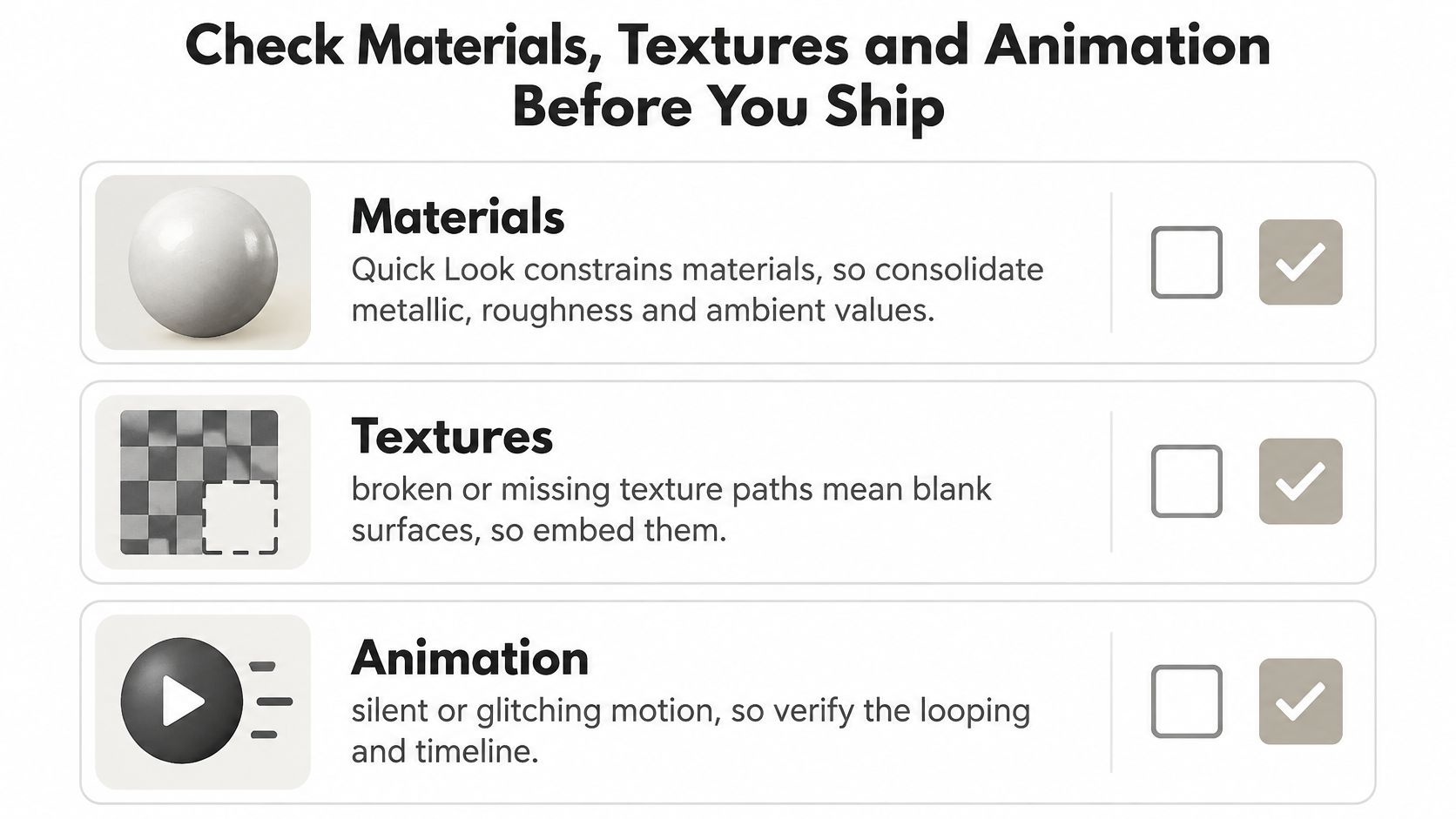
Materials that arrive looking wrong
The symptom is a model that's too shiny, too flat or oddly dark compared with the GLB. Quick Look supports a narrower material model than glTF does, so consolidate metallic, roughness and ambient occlusion into one documented packed texture and simplify the graph. Confirm normal-map orientation and color-space metadata, then verify the current limits against Apple's own Quick Look documentation before you publish, because they move between releases.
Textures that go missing
Blank surfaces and blurry maps mean the converter dropped or transcoded something. Draco and KTX2 sources are the usual suspects: the exporter either discards them or re-encodes them at a resolution you didn't choose. Check that every map survived, confirm the dimensions you ended up with, and make sure albedo is sRGB while data maps stay linear.
Animation that only half plays
Count clips going in and count them coming out. A source GLB with several clips may see Quick Look retain only one animation timeline, and automatically generated USDZ files carry known animation limits compared with a USDZ authored for the target scene. Static product models are safe. Skinned characters, morph targets and multi-clip game assets need frame-by-frame inspection.
The comparison method that settles all three: open the GLB in a trusted web viewer and the USDZ in Quick Look on the same device, then compare silhouette, material response, opacity and motion side by side. Desktop-versus-desktop comparisons hide mobile-only failures.
A converter or studio pipeline that reports dropped clips, recompressed textures and unsupported material nodes is worth paying for. Silence is the expensive option.
If your asset also has to feed a game engine or DCC pipeline, the material trade-offs in converting GLB to FBX overlap with everything above.
Make the USDZ Pass the iPhone AR Test
Structure validation doesn't predict performance. Independent AR guidance collected by Polyforge's AR model requirements puts practical mobile limits in plain numbers: keep polygon counts near 100,000 or below for higher-memory iOS devices, use power-of-two texture sizes, and test physical scale inside the actual AR experience. The same guidance estimates that a single uncompressed 4K texture costs roughly 85 MB of RAM, which is why a model that renders instantly on your Mac can stutter or fail to launch on a phone.
That gap is the whole problem. A conversion can succeed technically and still fail on the device your customer is holding.
Run the preflight before you touch the phone
Work through the numbers first, because each one rules out a class of failure:
- Polygon count. Near 100,000 or below for higher-memory iOS devices. Lower still for older hardware you still support.
- Texture sizes. Powers of two, typically 1024 or 2048. Downscale 4K maps to 2K for mobile AR.
- File size. Check the final USDZ, not the source GLB. Textures usually dominate.
- Real-world scale. Confirm the model is authored in meters.
- Material appearance. Judge it in Quick Look, not in a desktop viewer.
A cross-check helps before you blame the export: load the source GLB in an online GLB viewer on the target phone, so you know which artifacts the converter introduced and which were in the asset all along.
Get the hosting right
Plenty of USDZ files fail for reasons that have nothing to do with geometry. Serve the file over HTTPS with the MIME type model/vnd.usdz+zip, link to it with rel="ar" on an anchor wrapping a preview image, and test the live URL in Safari rather than a local copy. A file that opens from the Files app can still fail from a web page if headers are wrong.
Testing only on a desktop preview or a simulator will miss the failures that depend on real hardware, memory and renderer behavior. If the release process around this is thin, closing iOS coverage gaps before release is worth reading alongside the checks here.
Diagnose the common failures fast
| Symptom | Likely cause | Fix |
|---|---|---|
| Quick Look shows a gray placeholder | Invalid structure or unsupported renderer features | Re-run usdchecker, simplify material graphs and re-export |
| Model looks washed out or too shiny | PBR maps not packed or wrong color space | Pack metallic, roughness and AO into one texture and set sRGB versus linear correctly |
| Textures blurry or missing | Draco or KTX2 sources dropped during conversion | Re-export with standard PNG or JPEG textures at power-of-two sizes |
| Only one of several animations plays | Quick Look keeps a single animation timeline | Export one clip per USDZ or bake the clips into one combined timeline |
| Model is giant or tiny in AR | Unit or scale mismatch from the GLB | Set real-world size in meters and verify with tap-to-place on device |
| Loads on Mac but fails on iPhone | Memory or renderer limits on mobile | Cut polygons below 100,000 and downscale 4K textures to 2K |
The scale check that saves demos: place the model on a real table through Quick Look and measure it against a known object. A unit error is invisible on a desktop monitor and fatal in front of a client.
Ship Both Formats from One Pipeline
GLB stays the master and the delivery file for web and Android 3D viewers. USDZ is the Apple AR pass generated from that same source, not a second asset you rebuild by hand.
The standing workflow, once, so you stop reinventing it per project:
- Keep one source GLB as the master. Everything else is generated, never hand-edited in parallel.
- Convert with
usdzconvertor Blender, then validate twice.usdcheckerfor structure, a real iPhone or iPad for appearance and scale. - Publish both files. Link the USDZ through an AR Quick Look anchor on the product page, and serve the GLB to browsers, Android and any embed viewer.
- Generate new assets in a studio that exports both formats from the same project. Conversion then becomes part of production instead of a scramble the day before launch.
When the USDZ is an output of the creation step, you never open a folder of GLBs the night before a client review and meet an unfamiliar converter. The device test still has to happen. It happens once, on an asset that was built for it. I recommend treating a structurally valid USDZ as a gate, not a sign-off: Quick Look has to open it, the materials have to read correctly, and the scale has to match the physical object on an iPhone.
A valid file is not the finish line. A model that opens, looks right and is correctly sized on a real iPhone is.
Sculpty turns a prompt or a photo into a textured 3D model and exports it as GLB and USDZ from the same browser studio, so the Apple AR pass is produced when the asset is created rather than bolted on afterwards. Whether you are building a product model for a client or testing a character concept, you can generate, texture, remesh and download both formats without juggling separate tools. Head to Sculpty and export your next asset in both formats, then run it through the device test above before it reaches a client.