
4K Texture Size Explained: Memory, Mipmaps and Workflows
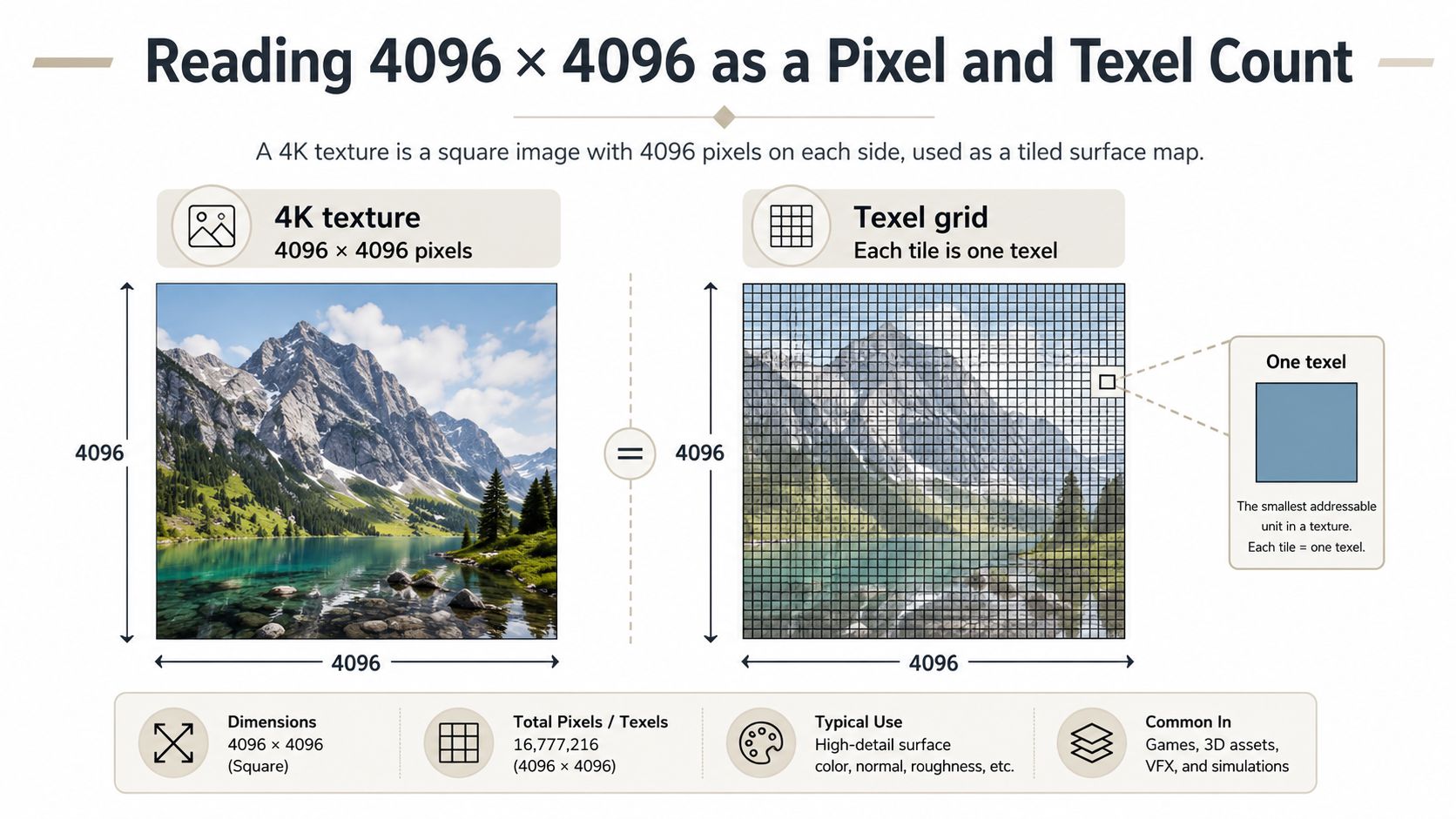
A 4K texture is a square image of 4096 × 4096 pixels, or 16,777,216 texels in total, and it's four times the pixel count of a 2K texture. You're probably looking at that number because an export setting, an engine warning, or a client request has forced a choice you don't want to guess at. Pick too low and a hero surface looks soft in close-up. Pick too high everywhere and you spend memory on detail nobody can see. The useful question isn't whether 4K is good or bad. It's which map, on which asset, for which screen, earns that cost.
Table of Contents
- Why 4K Texture Size Matters in Your Pipeline
- Reading 4096 × 4096 as a Pixel and Texel Count
- How Mipmaps and Compression Change the Memory Bill
- Sizing PBR Channels Within a Texture Budget
- Choosing Where 4K Earns Its Memory
- Delivering Master Textures to Web, Game and VR Targets
- Building a 4K Texture Workflow and Choosing Your Tools
Why 4K Texture Size Matters in Your Pipeline
Your test scene runs smoothly on Monday. On Tuesday you replace three placeholder props with finished hero assets, each carrying a full set of high-resolution maps, and the viewport starts to hitch. The geometry hasn't changed much. The lighting is the same. You're left opening folders and guessing which texture pushed the scene over its limit.
That moment is where 4K texture size stops being a label in an export dialog and becomes a budget decision. Every map you load competes for the same GPU memory as geometry, framebuffers, and lighting data. A single asset rarely causes trouble on its own. Trouble arrives when several finished assets, each reasonable in isolation, are visible together and their maps must all stay resident at once.
What You're Actually Deciding
You're not choosing a quality level for a whole project. You're making three smaller decisions that are easy to blur together.
- Resolution per map: Does this particular surface image need to be large, or would a smaller version look identical from the camera's position?
- Memory per material: How many separate maps does the material carry, and what do they cost together rather than individually?
- Delivery per platform: Does the file you keep as your master need to be the same file a browser, game, or headset loads?
Keeping those decisions separate is the habit that prevents the Tuesday problem. A texture can be worth authoring large and still be wrong to ship at that size to every target.
A calm starting rule: Treat 4K as something an asset earns through close camera work, not as a default you apply because the option is there.
By the end of this guide, you'll be able to work out what a 4K map costs, judge which channels in a material deserve it, and decide what variant each destination should receive. None of that requires advanced math. It requires counting texels, checking the result on the target device, and resisting the urge to set one resolution for an entire scene. The detail you save in the background is the headroom that lets your hero asset stay sharp.
Reading 4096 × 4096 as a Pixel and Texel Count
Think of a texture as a sheet of small tiles wrapped over a surface. Each tile carries one piece of information, such as a color, and that tile is called a texel, short for texture element. When artists talk about pixels in a texture file and texels on a model, they're describing the same grid from two sides. The file holds the grid. The surface displays it.
The core count is straightforward, as the texture resolution guide from The3DAI sets out. A 4K texture contains 16,777,216 texels, which is four times a 2K texture and sixteen times a 1K texture, because doubling both the width and the height quadruples the area. That's the step that surprises people. Doubling sounds modest. Quadrupling the data is what happens.
The Ladder From 1K to 4K
The common sizes form a ladder, and each rung multiplies the texel count rather than adding to it.
- 1K: The smallest of the three, suited to surfaces seen small or far away.
- 2K: One step up in each direction, so four times the texels of the rung below.
- 4K: Another doubling in each direction, so four times the texels again.
You can check any size yourself with one multiplication. Width times height gives the texel count. If you double either dimension alone, the count doubles. If you double both, which is what moving up a tier does, the count grows fourfold. That single fact explains why the jump to 4K feels so expensive compared with the jump in visible sharpness.
Dimensions Are Not File Size
Here's where readers often get confused. The dimensions describe the grid, not the weight of the file on your drive. A PNG or JPEG on disk can be compact because those formats compress the image for storage. Once a renderer opens it, the image is decoded into its full grid so the GPU can read any texel quickly.
So a small file in your project folder doesn't guarantee a small cost in memory. Two textures with identical dimensions can have very different file sizes depending on how much detail they contain and how they were saved, yet they occupy the same grid once decoded. Judge a texture by its dimensions and format when you're planning memory. Judge it by its file size when you're planning downloads or storage. They're related questions, but they aren't the same one.
How Mipmaps and Compression Change the Memory Bill
A 4K texture can have a manageable base size and a larger runtime footprint. The difference comes from two choices: whether the renderer keeps smaller copies for distant surfaces, and how many bits it stores for each texel. These costs apply per map, so a material's runtime memory depends on the settings for each of its textures.
Why Mipmaps Add a Third
Real-time renderers often keep mipmaps, progressively smaller copies of a texture. When an object is far from the camera, the renderer samples a smaller copy rather than squeezing the full-resolution image into a handful of screen pixels. This reduces shimmering and harsh aliasing, helping surfaces look stable as the camera moves.
Each mip level is about a quarter the size of the previous one. Add the full chain, and the total is roughly one-third larger than the base image alone. For example, if a base texture uses 64 MiB, a complete mip chain adds about 21.3 MiB, for roughly 85.3 MiB overall. That extra space is predictable, but it still belongs in the runtime budget.
Compression Changes the Storage Rate
GPUs can store textures in block-compressed formats, which use fewer bits per texel while remaining readable by the hardware. The values below use the 4K examples from the texture memory calculator at Numivo. The calculator lists uncompressed RGBA at 64 MiB for the base level, BC7 at about 21.3 MiB with mipmaps, and five uncompressed 4K maps at roughly 426.7 MiB with mip chains. The other mipmapped totals in the table are calculated estimates using the same roughly one-third mip overhead.
| Format | Bits per pixel | Base level (MiB) | With mipmaps (MiB) |
|---|---|---|---|
| Uncompressed RGBA | 32 | 64 | about 85.3, calculated |
| BC7 | 8 | 16 | about 21.3, listed by Numivo |
| BC1 | 4 | 8 | about 10.7, calculated |
The arithmetic follows the storage rate: halve the bits per pixel, and the base texture needs about half the memory. BC1 is the leaner option, but it has limited material detail and restricted alpha quality. BC7 uses roughly twice as much memory per texel as BC1, while preserving more color and alpha detail. That difference matters for subtle gradients and meaningful transparency.
Compression doesn't make a texture free. It reduces the cost, and the savings matter when a scene holds many materials.
For the artist, the master texture and the runtime texture are separate decisions. Keep a high-resolution master file for editing, then choose the resolution, compression format, and mipmaps for the version each platform loads. Five maps for one material can already use roughly 426.7 MiB when stored as uncompressed 4K textures with mip chains, before accounting for meshes, framebuffers, or the engine. Across a room of unique assets, those per-map costs add up. Set the runtime format and resolution for each asset, rather than treating 4K as a project-wide setting.
Sizing PBR Channels Within a Texture Budget
A finished material is rarely one image. In a physically based workflow, usually called PBR, several maps work together to describe how a surface looks and reacts to light. If you're new to the individual roles, this guide to PBR texture maps walks through what each channel does before you start sizing them.
Each Map Pays Separately
The channels you'll meet most often each carry distinct information, so each one is its own allocation in memory.
- Base color: The surface color itself, including painted detail, labels, wear, and variation the viewer reads directly.
- Normal: Direction data that fakes fine surface bumps, scratches, and pores through lighting rather than geometry.
- Roughness: How polished or matte each point is, which controls how sharp or diffuse its reflections look.
- Metallic: Which parts behave like metal and which don't, usually a fairly simple mask with clean regions.
- Ambient occlusion: Soft shadowing baked into crevices and contact areas, generally smooth and low in fine detail.
- Displacement: Actual height information that can push geometry outward, used where silhouette detail matters.
Because every channel pays separately, a material built entirely at 4K multiplies the cost of one map by the number of maps in the set. That's the arithmetic behind the five-map total covered in the section above. The practical response isn't to shrink everything. It's to notice that the channels don't all benefit equally from extra texels.
Which Channels Reward Resolution
Base color and normal maps tend to carry the detail viewers inspect, such as lettering, stitching, scratches, and skin texture. They're the strongest candidates when you have memory to spend. Roughness, metallic, and ambient occlusion usually change gradually across a surface, so they're worth testing at a lower resolution before you commit. Test rather than assume, because a roughness map full of fingerprints or sharp wear patterns can deserve more than a plain one.
Channel packing offers another saving. Grayscale maps like roughness, metallic, and ambient occlusion each use only one channel of information, so you can store them in the red, green, and blue channels of a single shared texture. Your shader then reads one texture instead of three, and you manage fewer files. The trade-off is that all three packed maps share one resolution, so you size the packed texture for whichever channel needs the most detail.
A simple per-material budget keeps this manageable. List the maps the material needs, note the resolution and format you've chosen for each, and add them up before you export. If the total feels heavy, reduce the smoothest channel first and compare renders side by side. You're looking for the point where you can't tell the difference at the intended viewing distance. Everything above that point is memory you can hand to another asset.
Choosing Where 4K Earns Its Memory
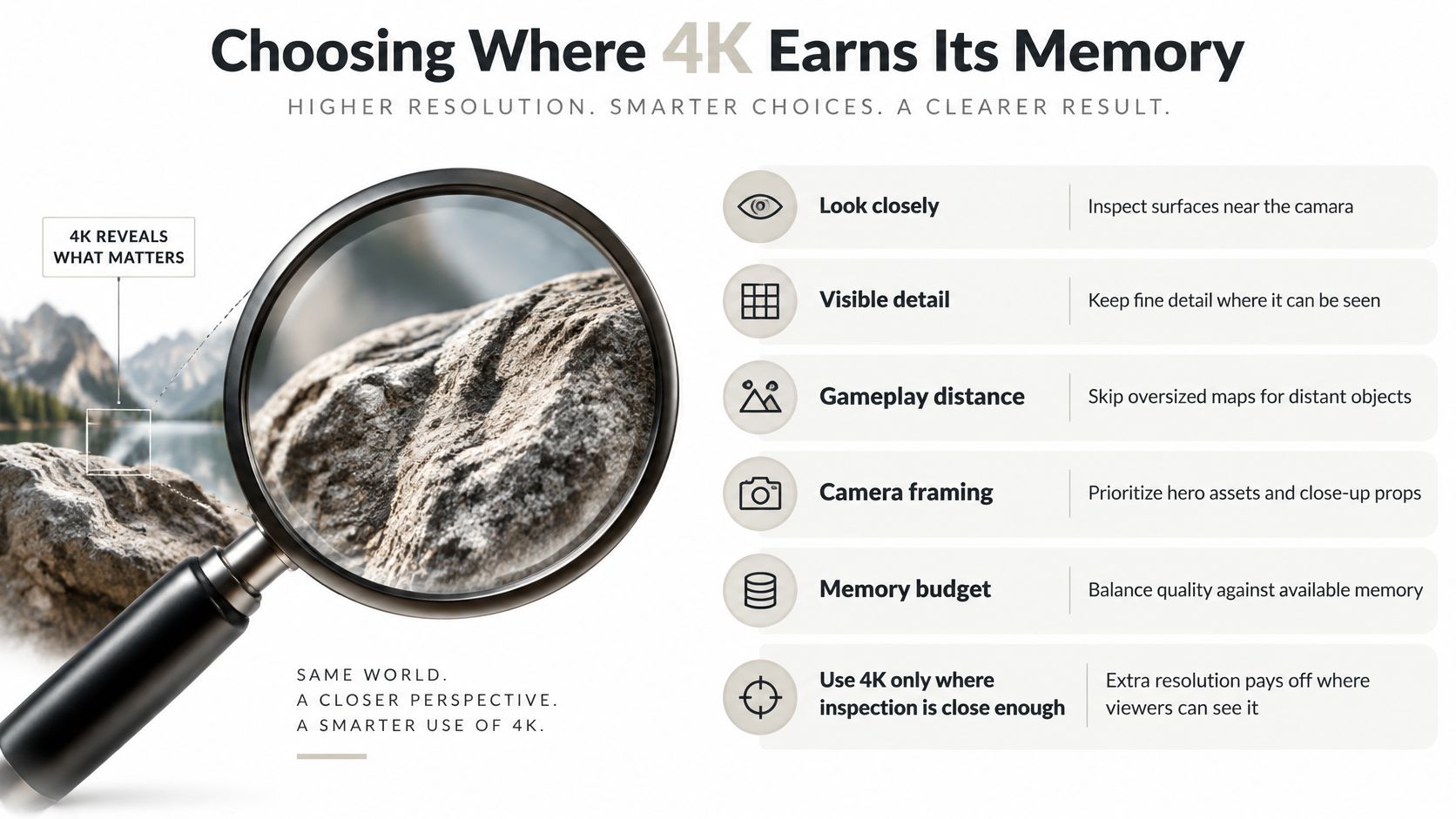
Extra resolution behaves like a magnifying glass. It only helps where someone leans in close enough to use it. A surface that fills the screen during an inspection screen can reveal every texel you give it. A surface that never appears larger than a thumbnail will hide most of them, no matter how carefully you painted the detail.
Questions to Ask of Each Asset
Run through these before you set a resolution, and let the answers rather than habit make the call.
- How close does the camera get? A first-person view, a product turntable, or a character portrait brings surfaces near enough to justify fine detail.
- How much of the screen does it fill? Large screen coverage spreads texels thinly, so big visible surfaces need more of them to stay crisp.
- How long will viewers study it? A hero character, a featured product, or an item examined in an inventory screen gets sustained attention that background dressing doesn't.
- How often does it repeat? A texture instanced across a whole level multiplies in a different way, since many copies may be visible together, while a unique centerpiece appears once.
- What else shares the frame? Memory is spent on everything visible at the same moment, so a generous choice in one place is a stricter choice somewhere else.
Assets that answer yes to closeness, coverage, and attention are genuine 4K candidates. Faces, hands, signature props, and product hero shots belong in that group, which is why planning models specifically for games treats resolution as part of asset planning rather than a final export toggle. Distant scenery, small clutter, ceiling tiles, and props glimpsed in passing usually don't reward the same spend. They can sit at a lower tier without the viewer noticing, because the screen never gives their texels room to show.
One caution keeps this honest. Judge sharpness in context, inside the scene, at real viewing distance, rather than zoomed into a texture editor. Almost any map looks inadequate when you stare at it filling your monitor. That view isn't the one your audience gets.
Spend texels where eyes linger. Save them where eyes pass.
The result of this habit is a scene with uneven resolutions, and that's a sign of care rather than inconsistency. Your hero pieces stay crisp because your background pieces aren't competing with them. 4K works best as a per-map tier you grant asset by asset, and the checklist above is how you decide who qualifies.
Delivering Master Textures to Web, Game and VR Targets
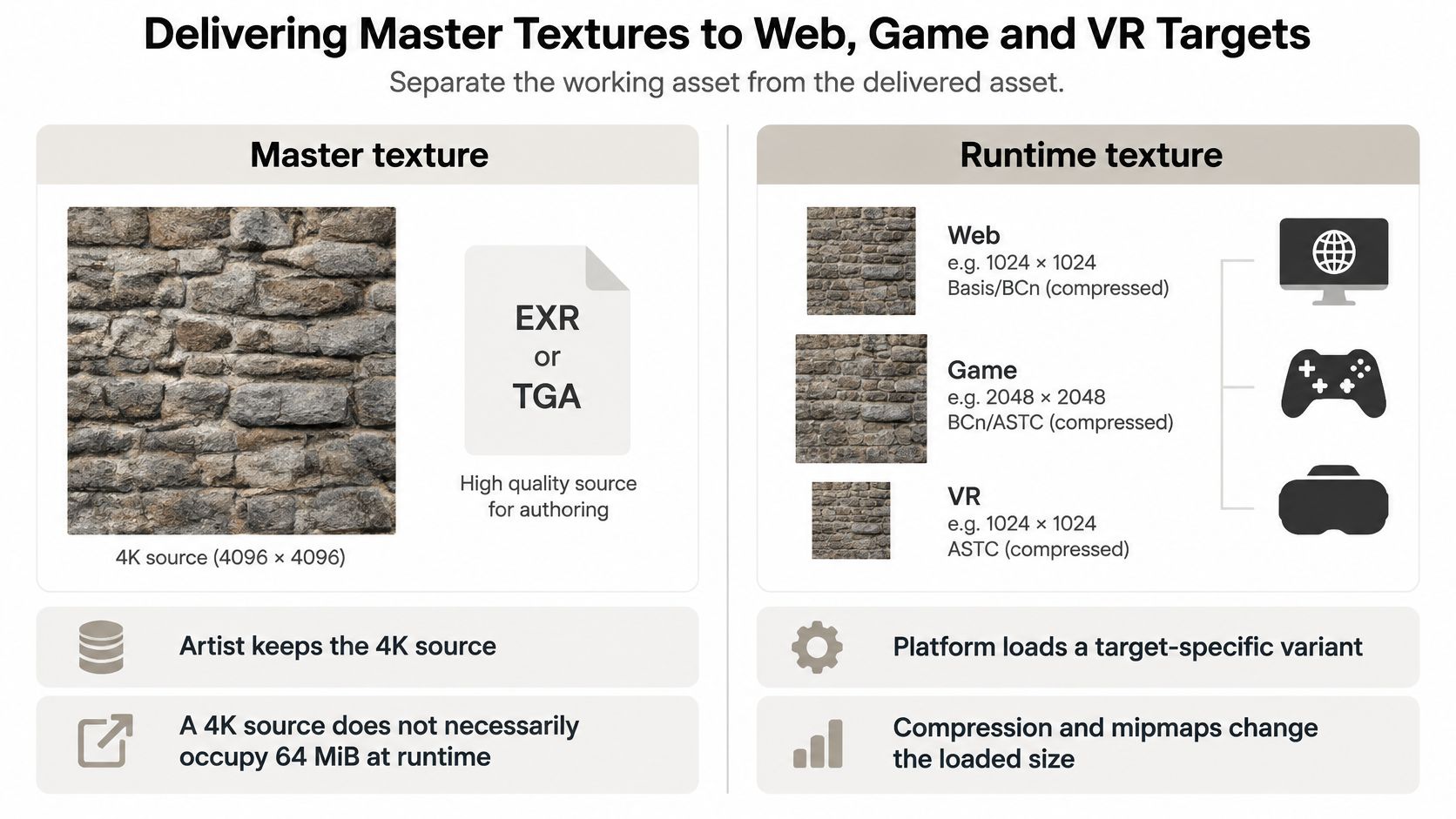
Two different files hide inside the phrase 4K texture size, and confusing them causes a lot of wasted effort. Your master texture is the high-resolution source you keep, edit, and re-export from. Your runtime texture is the variant a particular platform loads. They don't have to match, and usually they shouldn't.
Source Size Isn't Resident Size
A large source doesn't automatically mean a large resident cost, because GPU-native block compression can reduce texture memory by roughly 4:1 to 8:1 while still allowing hardware decoding and random access, as this overview of texture compression for 3D models explains. Random access matters because the GPU needs to grab any texel instantly as it draws, unlike a photo viewer that can decode an image in order. That requirement is why delivery formats exist separately from ordinary image files.
The outcome still depends on your choices. Compression format, whether you need alpha, how normal maps are treated, engine support, and target hardware all shift the final number. A compressed texture can also be excessive in aggregate. One well-compressed hero asset is fine. A gallery of them on screen together can still exhaust a modest device.
What Each Target Cares About
Different destinations pull the decision in different directions, so it helps to name the pressure each one applies.
- Web viewers: Download size, upload time, decode effort, and GPU memory all arrive together, and your visitor's hardware is unknown. Testing in an online 3D model viewer shows you the experience a visitor gets rather than the one your workstation gets.
- Games: Resident GPU memory and frame stability dominate, since textures compete with everything else the frame needs. If you're speccing hardware for this work, GPU selection advice from Steel City IT is a useful companion when you're weighing memory capacity against the scenes you plan to build.
- VR: Two eyes, close surfaces, and a strict need for steady frame delivery make waste expensive and blur conspicuous, so choices need testing in the headset.
- Offline rendering: Memory still matters, but you're trading against render time rather than interactive frame rate, which allows larger sources where they help.
The practical pattern that satisfies all four is to keep one generous master and export target-specific variants from it. A desktop build might receive the full-size maps, a browser viewer a reduced set, and a headset something tuned between the two. Delivery approaches such as KTX2 with Basis-style transcoding exist to package GPU-ready variants efficiently, and they're worth evaluating when you ship to several platforms. Whichever route you choose, verify the loaded size and the visual result on the actual device. Assumptions made on a development machine are where texture budgets break.
Building a 4K Texture Workflow and Choosing Your Tools
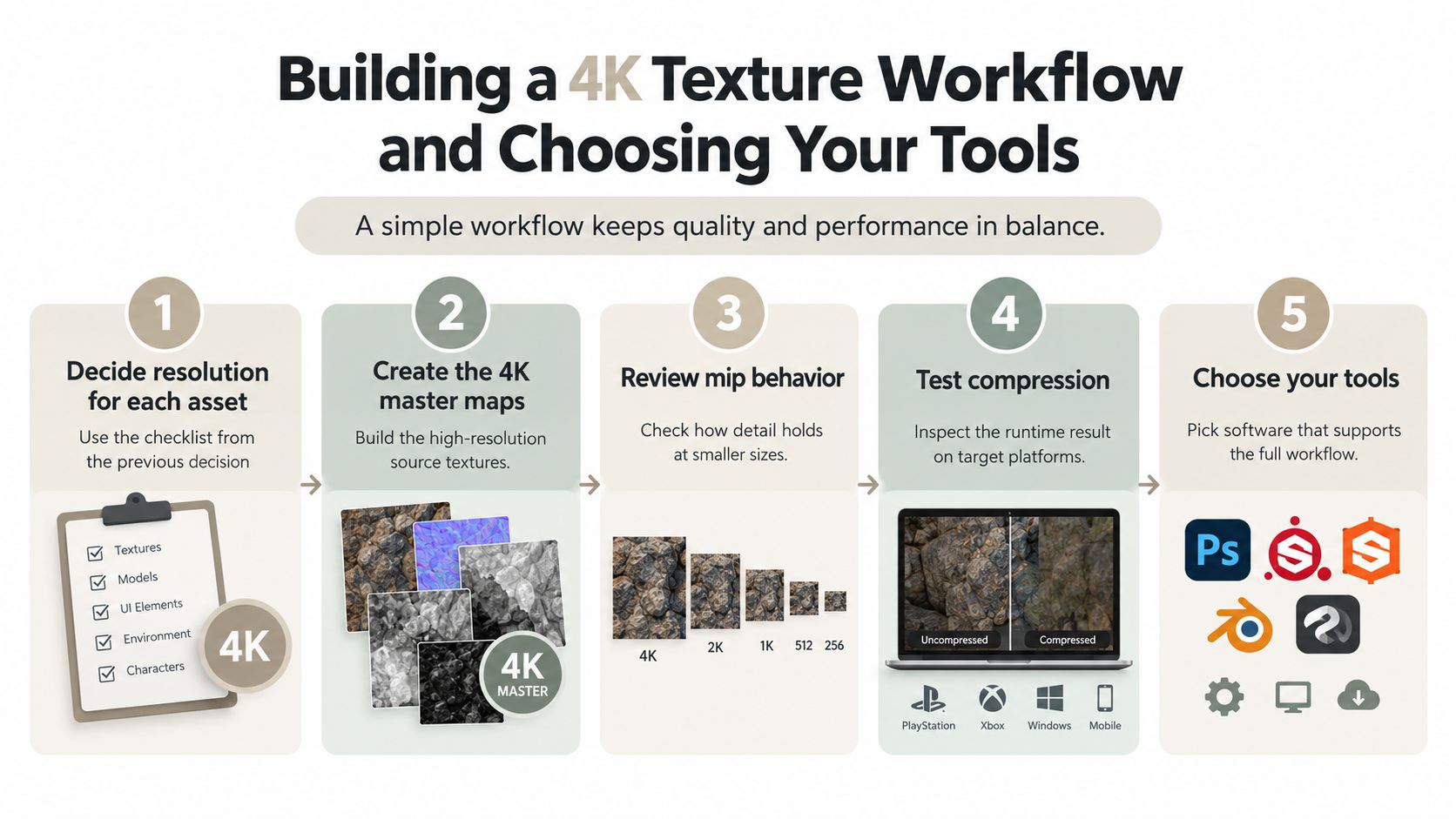
A reliable workflow turns all of the decisions above into a sequence you can repeat without rethinking them each time. The order matters. Deciding resolution after you've painted everything leaves you choosing between redoing work and overspending memory.
The Workflow in Five Stages
- Decide resolution per asset. Use the camera distance, screen coverage, and attention questions from the earlier checklist, and record the choice per map rather than per project.
- Create the master maps. Author or generate at the size your most demanding target needs, so every smaller variant can be derived from a clean source.
- Review mip behavior. Pull the camera back in your target engine and watch for shimmering, blurring, or visible steps between mip levels as distance changes.
- Test compression on the target. Export with the format the platform expects and inspect gradients, alpha edges, and normal detail for artifacts that the uncompressed master hides.
- Render stills for review. Produce high-resolution images for clients or teammates so approval happens on presentation quality, separate from runtime constraints.
Each stage catches a different kind of mistake. Stage three catches distance problems you'd never see in a texture editor. Stage four catches compression artifacts you'd never see in a master file. Skipping straight from creation to delivery is how those problems reach an audience.
Comparing the Ways to Make the Maps
Manual painting and baking in a dedicated texturing application give you the most control. You decide every scratch and stain, and you can build exactly the channels a material needs. The cost is time and a learning curve, which is a fair trade for signature assets and a poor one for filling a scene quickly. If you're early in building your toolkit, the creative tools reviewed by MaxiJournal offer a helpful survey of where beginner-friendly design software fits before you commit to specialized programs.
Prompt-driven AI texturing takes the opposite trade. You describe a material in words and receive a coordinated PBR set, which makes it fast to explore directions and dress secondary assets. You give up some fine control, so most artists check the output channel by channel and repaint where a story detail matters. Sculpty sits in this category as a browser-based 3D AI studio. Its AI texturing produces prompt-driven PBR materials with 4K textures, its Render Studio handles 4K scene staging and image output, and assets export as GLB, FBX, OBJ, and USDZ for Blender, Unity, and other downstream tools without local installs.
Many productions mix both approaches. Generate broadly to establish materials and fill out the scene, then hand-finish the handful of surfaces viewers will inspect. That division of labor mirrors the resolution decisions you've already made, since your time and your texels both go furthest where attention concentrates.
One afternoon test: Take a single hero asset, produce its maps at 4K, export it, and load it into your own engine or viewer on the weakest device you support.
Watch how it behaves at real camera distances, check what it costs alongside the rest of your scene, and compare it against a reduced variant. That one measurement tells you more about your project's texture budget than any general recommendation. Once you've seen the difference with your own asset, choosing resolutions for everything else stops feeling like guesswork.
If you want to run that test without building a texturing setup first, Sculpty lets you generate prompt-driven PBR materials with 4K textures in the browser and export the result as GLB for your engine. Create one hero asset, measure it on your target device, and let that real number set the texture budget for the rest of your scene.