
10 3D Model Viewer Online Tools for Every Workflow
You need a 3d model viewer online right now because someone has asked for a link, not a ZIP. The problem is that “viewer” means different things depending on the handoff. A portfolio embed needs presentation and branding control. A CAD review needs measurement and sectioning. A print check needs fast mesh inspection. PBR debugging needs material and lighting controls, not a pretty share page.
That's why the useful comparison isn't “most popular 3D viewers.” It's which viewer matches the job. The tools below are organized around real browser workflows: all-in-one asset pipelines, hosted embeds, CAD review, quick file inspection, and glTF or scene debugging. I'm focusing on supported formats, sharing method, embed options, inspection depth, and the practical limits that usually show up after the first upload.
Sculpty matters here because some teams don't just need to view files. They need to generate, convert, texture, retopologize, render, and manage them in the same browser workflow. If that's your situation, it belongs in the shortlist alongside dedicated viewers. If you're also evaluating adjacent software stacks, this directory of curated tools for founders is a useful broader reference.
Table of Contents
- 1. Sculpty
- 2. Sketchfab Viewer
- 3. Autodesk Viewer
- 4. p3d.in
- 5. Online 3D Viewer
- 6. Babylon.js Sandbox
- 7. three.js Editor
- 8. Don McCurdy's glTF Viewer
- 9. Vectary Viewer and Embeds
- 10. ShareCAD Online Viewer
- Top 10 Online 3D Model Viewers, Feature Comparison
- Match the Viewer to the Handoff
1. Sculpty
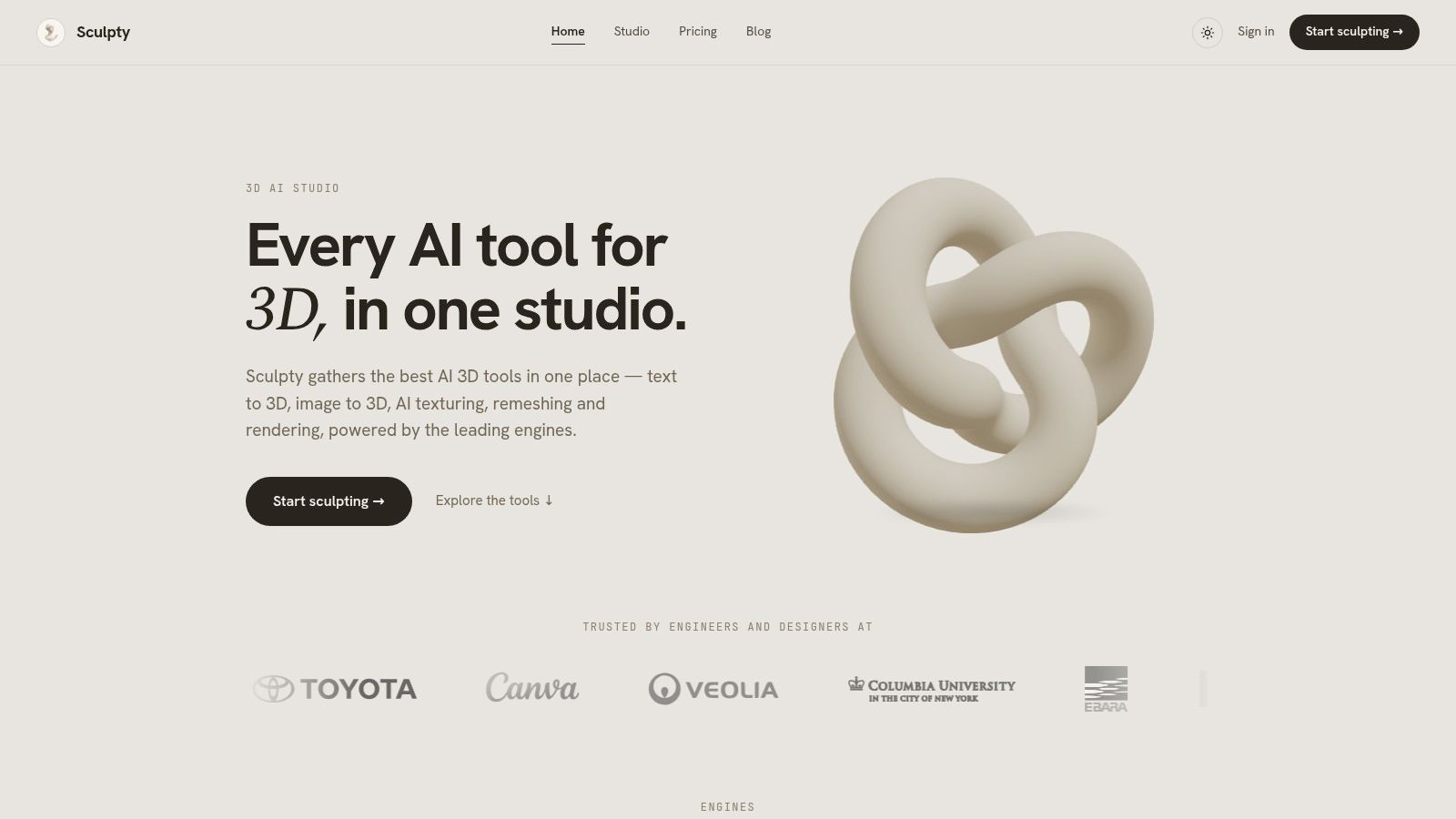
A common handoff problem starts before sharing. The model still needs cleanup, a format conversion, a texture pass, or a quick render for someone who will never open Blender. Sculpty fits that job better than a viewer that only opens files, because the viewer is part of a browser-based asset workflow rather than a separate endpoint.
It combines text-to-3D and image-to-3D generation with texturing, remesh or retopology, rendering, export, and web viewing in one place. That setup is useful when review is only one checkpoint in a longer chain. I would put it in the all-in-one workflow category, not the hosted embed category.
Best fit
Sculpty makes sense for creators, small game teams, agencies, and product visualization work where assets change hands in multiple formats before approval. It supports exports such as GLB, STL, OBJ, FBX, USDZ, and 3MF, plus browser viewers and format conversion tools. In practice, GLB is the safer default for web delivery, STL or 3MF fits print prep, and FBX or OBJ still comes up when a downstream DCC or engine pipeline expects them.
The private gallery also matters. If a team needs a persistent browser workspace for iterating, comparing versions, and exporting the same model for different recipients, that is more useful than a one-time upload page.
Practical rule: Choose Sculpty when the handoff problem includes generation, cleanup, conversion, and export, not just file viewing.
Where it fits well
- Multi-step browser workflow: Generation, inspection, texturing, topology cleanup, and export happen in one interface.
- Format handoff flexibility: It covers common web, game, AR, and print outputs, which reduces rework when different stakeholders ask for different files.
- Non-3D stakeholder review: Rendered stills and 360° turntables help when approval has to happen outside a 3D app.
- Asset organization: A private gallery is useful for repeat work, especially when several versions of the same model need to stay accessible.
Trade-offs to expect
- Broader than a simple viewer: If the job is only "send an embed link," this is more tool than you need.
- Pricing detail can be hard to evaluate upfront: Public-facing materials do not always make per-task costs obvious.
- Browser dependency: It depends on a stable connection and a modern JavaScript-enabled browser.
- Output quality still needs review: Generation engines vary, so some assets will still need cleanup before client delivery, engine import, or print use.
For teams building a repeatable browser pipeline, that trade-off is often acceptable. For someone who only needs a public showcase or a lightweight inspection page, the narrower tools later in this list are usually a better fit.
2. Sketchfab Viewer
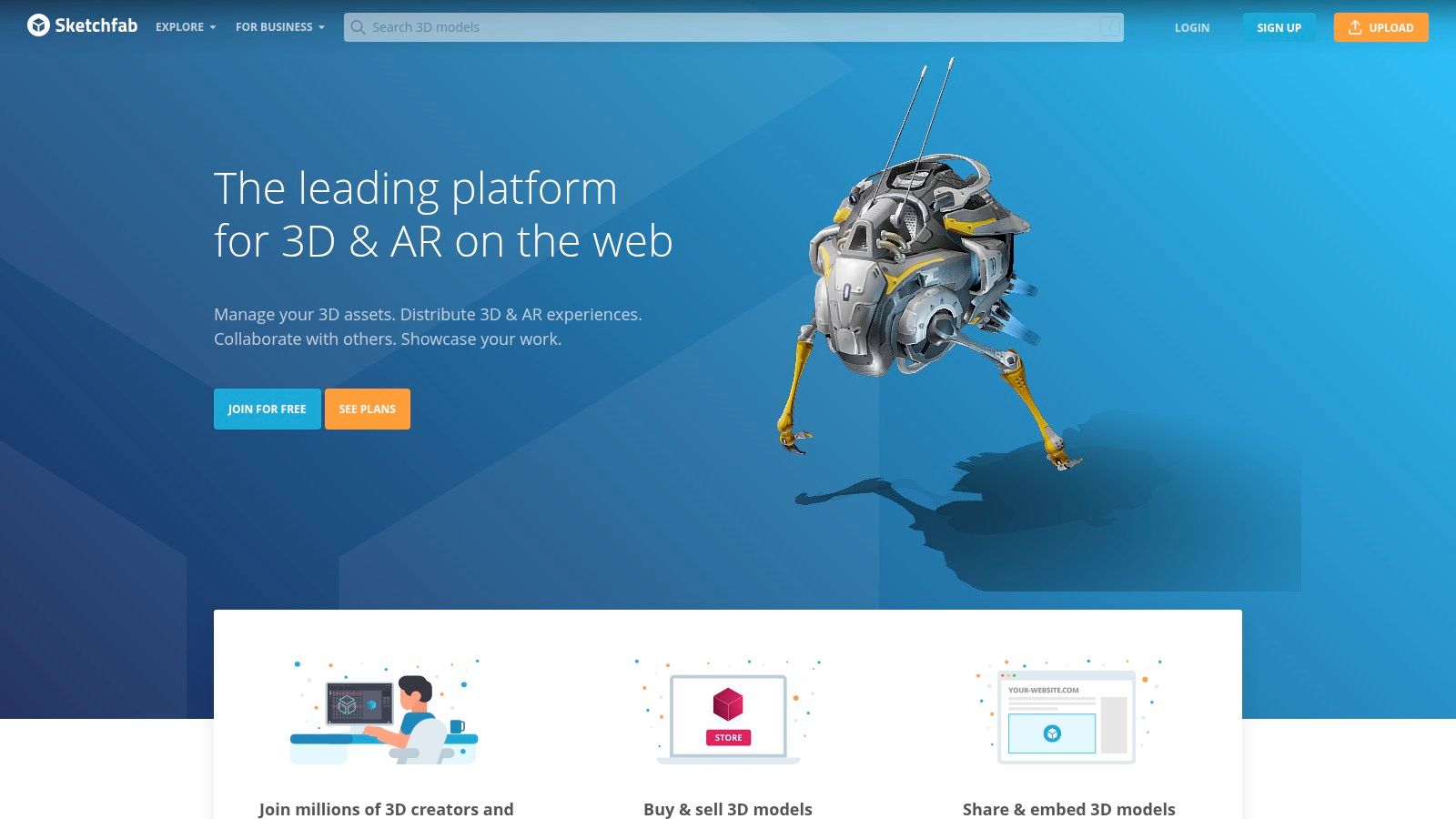
Sketchfab is still one of the easiest answers when the job is “host this model and let people interact with it on a webpage.” It's mature, familiar to clients, and built for embeds rather than private local inspection. If your model is part of a portfolio, product demo, or interactive content page, that focus shows.
It supports a broad range of common 3D formats and has a Viewer API for teams that want custom UI or configurator-style behavior. For web-facing assets, this is also where file format discipline matters. If you're deciding what to upload, this breakdown of 3D file formats for web workflows is a practical companion.
Best use case
Sketchfab works best when the viewer itself is part of the published experience. You upload, configure presentation, and embed. That's different from tools that are mainly for opening files locally in-browser.
A useful trade-off to understand is that it's a hosted platform first. That means faster publishing and easier sharing, but also plan-based limits around privacy, branding, and advanced controls.
- Good for: Portfolios, marketing pages, public showcases, client review links
- Less ideal for: Sensitive internal review, CAD-native measurement, offline workflows
Hosted viewers save time, but you're accepting their player, their policies, and their account model.
Sketchfab also sits comfortably inside the broader shift toward browser-based 3D. Three.js, which underpins many web 3D experiences, recorded 113,155,174 downloads in 2025 and 9,435,384 downloads in the week of July 9 to 15, 2026, with detection on 110,915 domains. That doesn't make Sketchfab the right tool for every job, but it does reinforce that web 3D viewing is established infrastructure, not a novelty.
Use Sketchfab when sharing and embedding are the primary requirement. Skip it when your stakeholders need engineering review tools more than visual presentation. You can check the platform at Sketchfab.
3. Autodesk Viewer
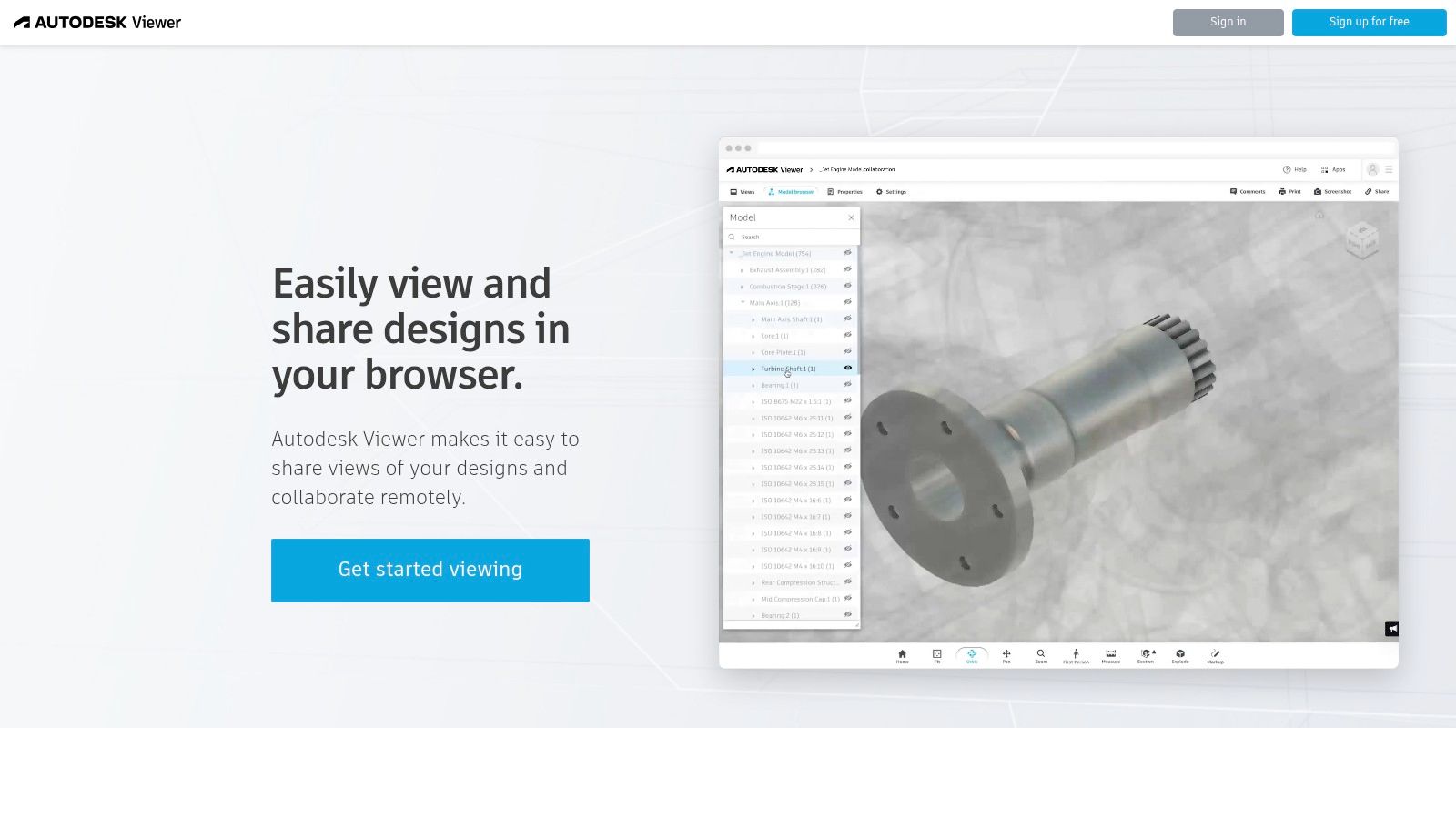
Autodesk Viewer solves a different problem from portfolio viewers. It's for situations where someone asks, “Can I measure this?”, “Can we section it?”, or “Can I review the actual CAD file without installing anything?” If that's the requirement, a general mesh viewer usually feels shallow within minutes.
It supports many Autodesk and non-Autodesk formats, and the in-browser tools for measurement, sectioning, explode views, and annotation make it much better suited to engineering and AEC reviews than art-first viewers. If your workflow centers on STEP handoff, Sculpty's own STEP viewer online is also worth comparing as a lighter browser option.
Where Autodesk Viewer earns its place
This is a practical review tool, not a design showcase tool. It's strongest when stakeholders care about structure and dimensions more than presentation polish. Uploading a mechanical assembly into a portfolio viewer often creates friction because the controls people need aren't there.
Autodesk Viewer is also a better fit when teams exchange mixed-discipline files. Architects, manufacturers, and external reviewers can inspect the same browser-rendered model without everyone standardizing on one desktop CAD package.
- Use it for: CAD and BIM review, dimensions, sections, collaboration comments
- Don't use it for: Beauty-first product embeds, PBR material validation, public portfolio display
A common limitation is that the full upload and sharing flow often expects sign-in, and deeper automation usually means Autodesk Platform Services development. That's normal for an engineering tool, but it's heavier than a simple drag-and-drop viewer.
The practical decision is simple. If geometry is the message, use a visual host. If dimensions are the message, use Autodesk Viewer. The service is available at Autodesk Viewer.
4. p3d.in
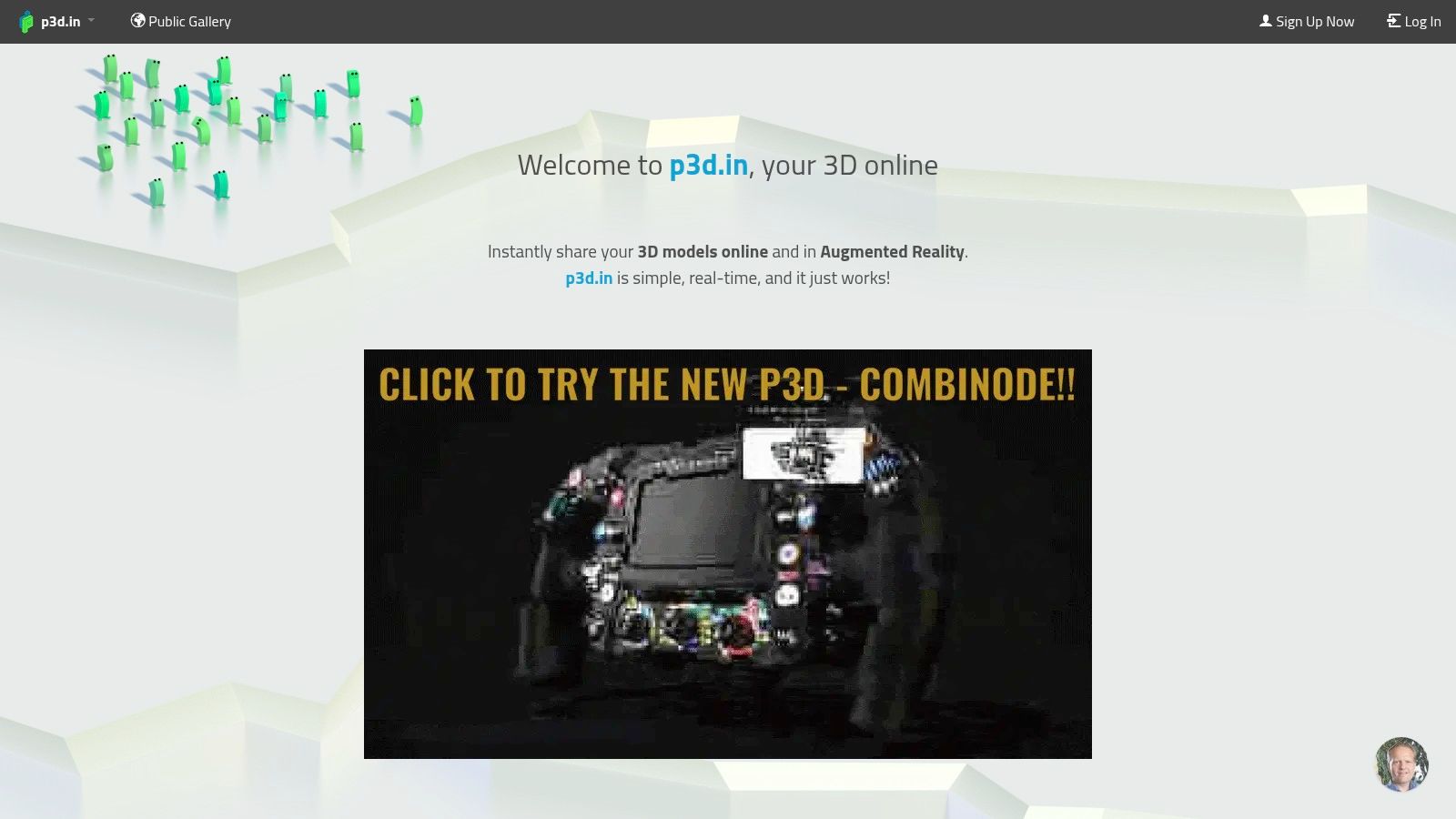
p3d.in is the lightweight hosted embed choice in this list. It's useful when you want a model online quickly, need an iframe, and don't need the broader ecosystem or community layer that comes with a larger platform. That narrower scope is often a feature, not a drawback.
The viewer supports embeddable iframes, customization, and developer-oriented integration through its embed API on paid plans. If your use case is “put this model on a product page or landing page and control the basics,” p3d.in is straightforward.
Why teams pick it
Some tools try to be marketplaces, community hubs, and presentation platforms all at once. p3d.in stays closer to hosted viewing and embedding. That can make it easier to work with when you don't want extra discovery features or platform noise around the model.
Its paid tiers provide the more useful workflow features, especially annotations and higher texture limits. That means you should treat it as a professional embed service, not as an unlimited free utility.
- Best for: Fast website embeds, portfolio pages, lighter product showcases
- Weak spot: Smaller ecosystem and fewer surrounding workflow features than larger competitors
- Important caveat: Advanced presentation controls tend to sit behind paid plans
I'd pick p3d.in when the team wants hosted web delivery with less overhead than a larger platform, and when embed simplicity matters more than viewer extensibility. If your client expects complex review tools or a social publishing layer, look elsewhere. You can evaluate it on p3d.in.
5. Online 3D Viewer
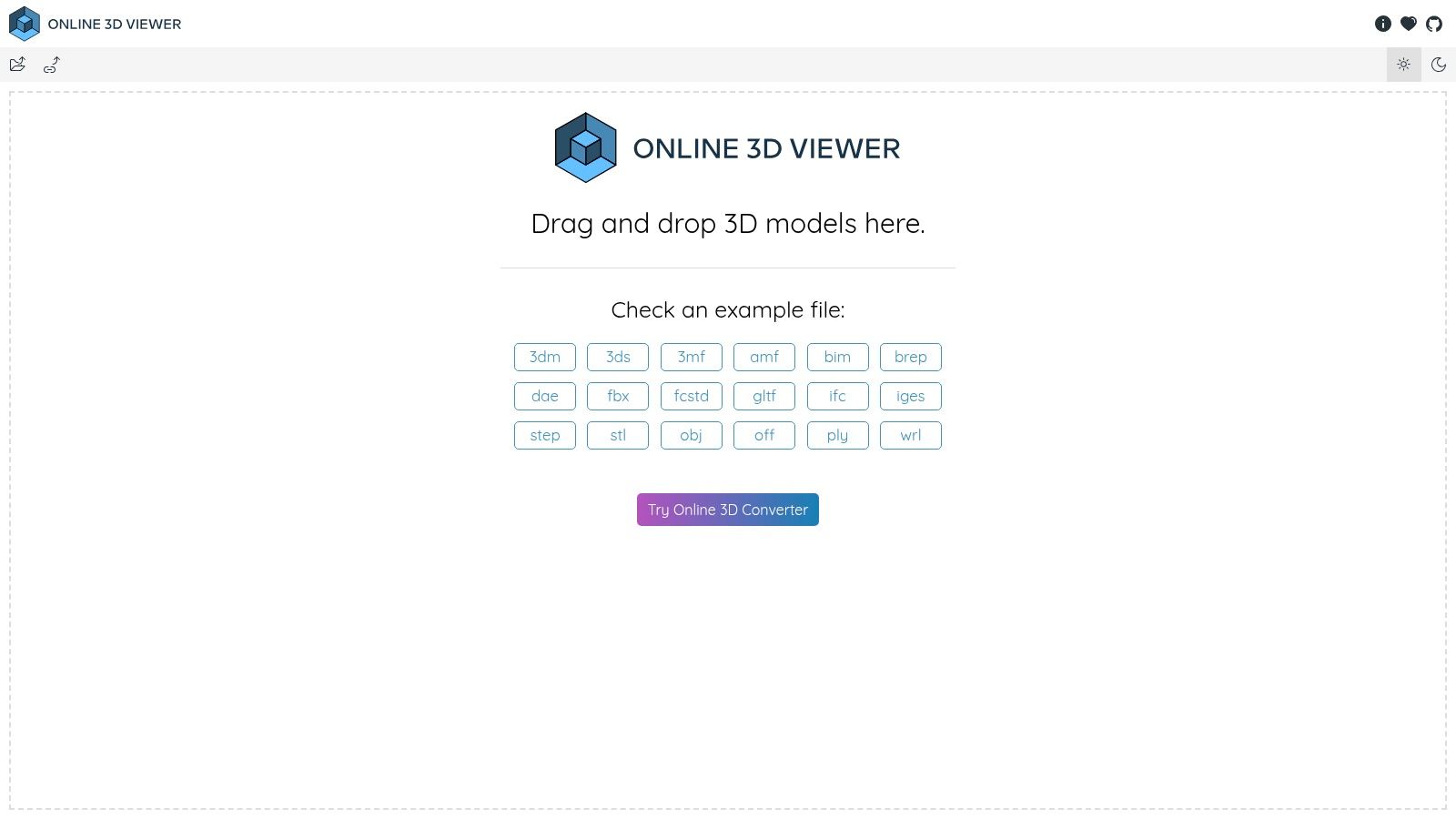
Online 3D Viewer at 3dviewer.net is what I'd call a practical inspection tool. Open the file, rotate it, check whether the model basically behaves, and move on. It doesn't pretend to be a hosted asset platform, and that's why it's useful.
It supports common mesh and 3D printing formats including GLB, glTF, OBJ or MTL, STL, PLY, and 3MF. Because it runs client-side, it's convenient for quick checks without account setup.
The real advantage
The strongest differentiator here isn't feature depth. It's friction. For quick sanity checks, fewer steps matter more than a branded gallery.
The other reason 3dviewer.net is worth keeping in a workflow is its troubleshooting coverage. Its FAQ focuses on the problems that break browser previews, including cross-origin loading issues, wrong URLs, missing companion assets, and STL models showing in default gray because STL doesn't carry material information in the same way richer formats do, as described in the 3dviewer.net FAQ. That's the practical side of “3d model viewer online” that many comparison pieces skip.
A model that opens locally but fails in-browser usually has a packaging or access problem, not a rendering mystery.
If your team regularly exchanges OBJ plus texture folders, this matters. Browser viewing fails most often when linked textures aren't packaged correctly or when server permissions block asset requests.
A useful adjacent reference for teams comparing browser visual workflows more broadly is this overview of online image viewer features.
Use 3dviewer.net when you need fast inspection, easy drag-and-drop, and no account overhead. Don't use it as your system of record for hosted assets. The tool is available at Online 3D Viewer.
6. Babylon.js Sandbox
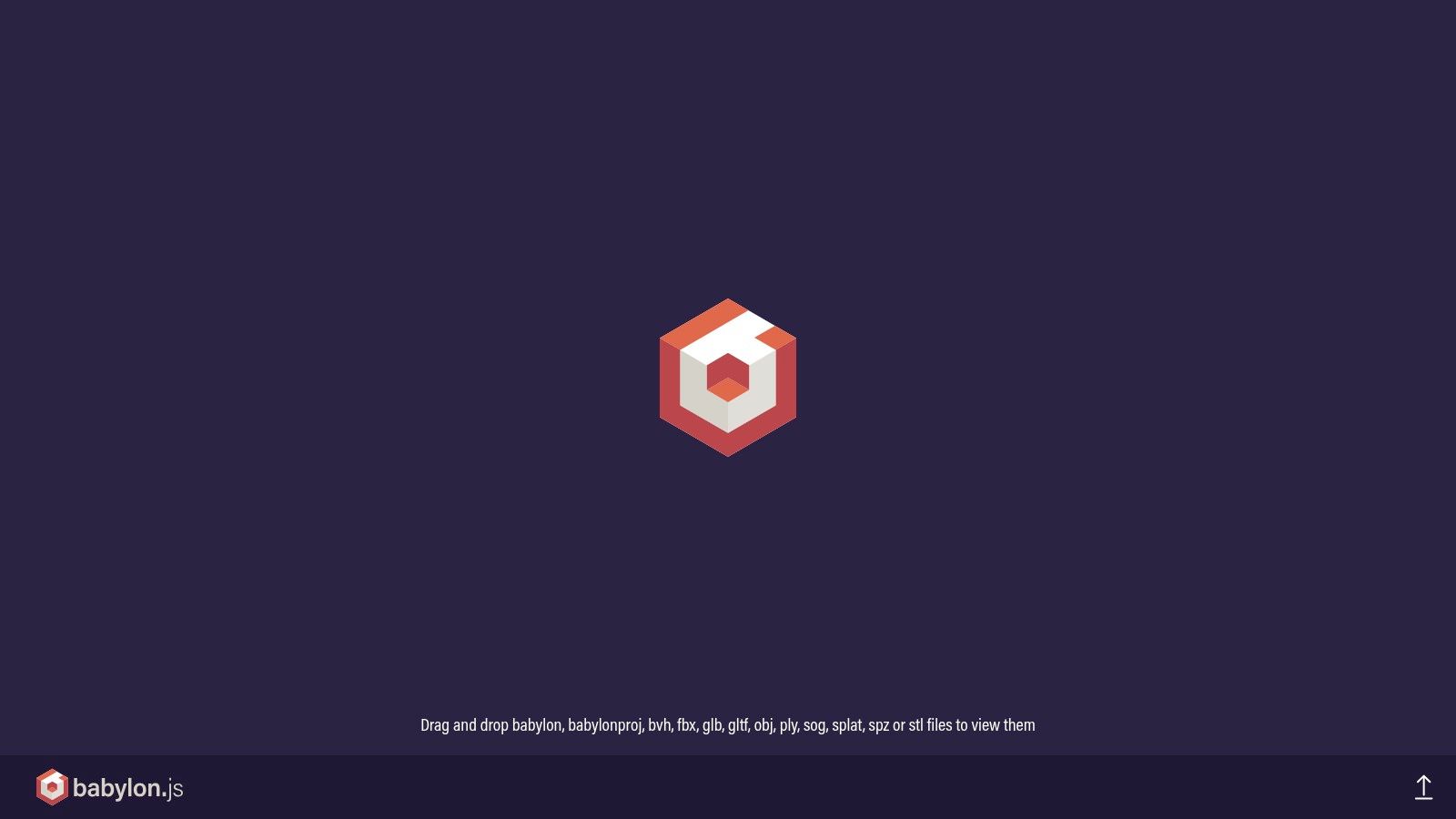
Babylon.js Sandbox is less a “share this with the client” viewer and more a “what's wrong with this scene?” workspace. That distinction matters. If you're debugging materials, lights, animations, or scene hierarchy, Sandbox is much more informative than a clean presentation viewer.
You can drag in GLB, glTF, OBJ, STL, and Babylon scene files, then inspect the scene graph, material settings, animations, and engine behavior. It's free and doesn't require login for local previews, which makes it a reliable debugging stop in a browser-based pipeline.
Best when you need answers
This is the tool I'd reach for when a model technically loads but looks wrong. Was the roughness map interpreted strangely? Are normals broken? Is an animation present but not playing as expected? Sandbox is built for those questions.
It's also useful for performance-aware inspection. Modern web 3D isn't judged only by whether a file opens. Mobile behavior, adaptive quality, progressive loading, and reduced-motion support matter much more than a simple format checklist, as emphasized in this discussion of 3D web design trends in 2026.
- Choose it for: Material debugging, scene graph inspection, animation checks, engine-level review
- Skip it for: Hosted galleries, polished public embeds, CAD solids and STEP workflows
Babylon.js Sandbox rewards technical users. Designers and marketers may find it too tool-like. That's fine. It isn't trying to be a showcase layer. It's a diagnosis layer. You can open it at Babylon.js Sandbox.
7. three.js Editor
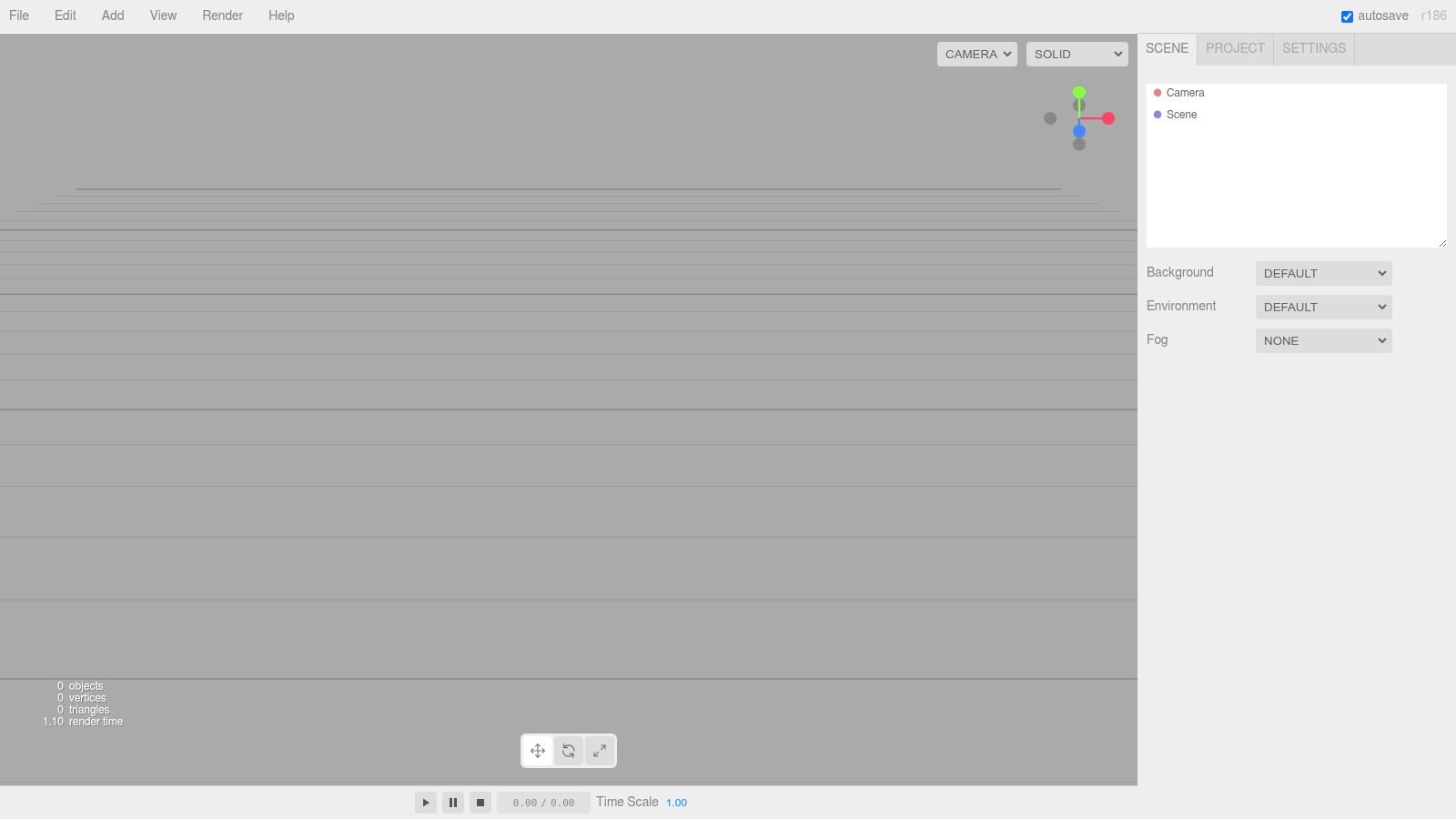
A common handoff problem looks like this: the model file is acceptable, but the scene is not. Camera framing is off, the light is flat, two materials need adjustment, and nobody wants to open a full DCC app just to produce a usable browser preview. three.js Editor fits that gap.
It works well as a lightweight scene assembly step for web teams that plan to self-host. You can import a model, place lights, adjust transforms, swap or tune materials, test camera positions, and export a simple result that maps cleanly to a three.js workflow. That makes it less of a pure viewer and more of a staging area before implementation.
The format choice matters here. GLB or glTF is usually the safest input because hierarchy, PBR materials, and animation tend to survive import more predictably than older interchange formats. OBJ can be enough for geometry checks, but once a handoff depends on material fidelity or animation, glTF saves time.
I use three.js Editor when the job is "prepare this asset for a web scene," not "send a review link to a client."
That distinction affects where it belongs in a browser-based pipeline. For internal handoff, it is useful. A frontend developer can open the asset, confirm scale, set a default camera, make small presentation fixes, and export without building a custom viewer first. For external sharing, it falls short because there is no managed hosting layer, review workflow, or polished embed experience.
A practical setup looks like this:
- Export the source asset as GLB when possible.
- Open it in the editor to fix framing, lights, and obvious material issues.
- Keep scene edits modest. Large changes are usually better handled in Blender, Maya, or the CAD source.
- Hand the exported scene to the developer who will integrate it into the product page, configurator, or prototype.
three.js Editor is also a useful checkpoint between asset creation and engineering. If a model only works inside a marketplace viewer but becomes awkward the moment you need custom scene control, this tool exposes that early. You can open it at three.js Editor.
8. Don McCurdy's glTF Viewer
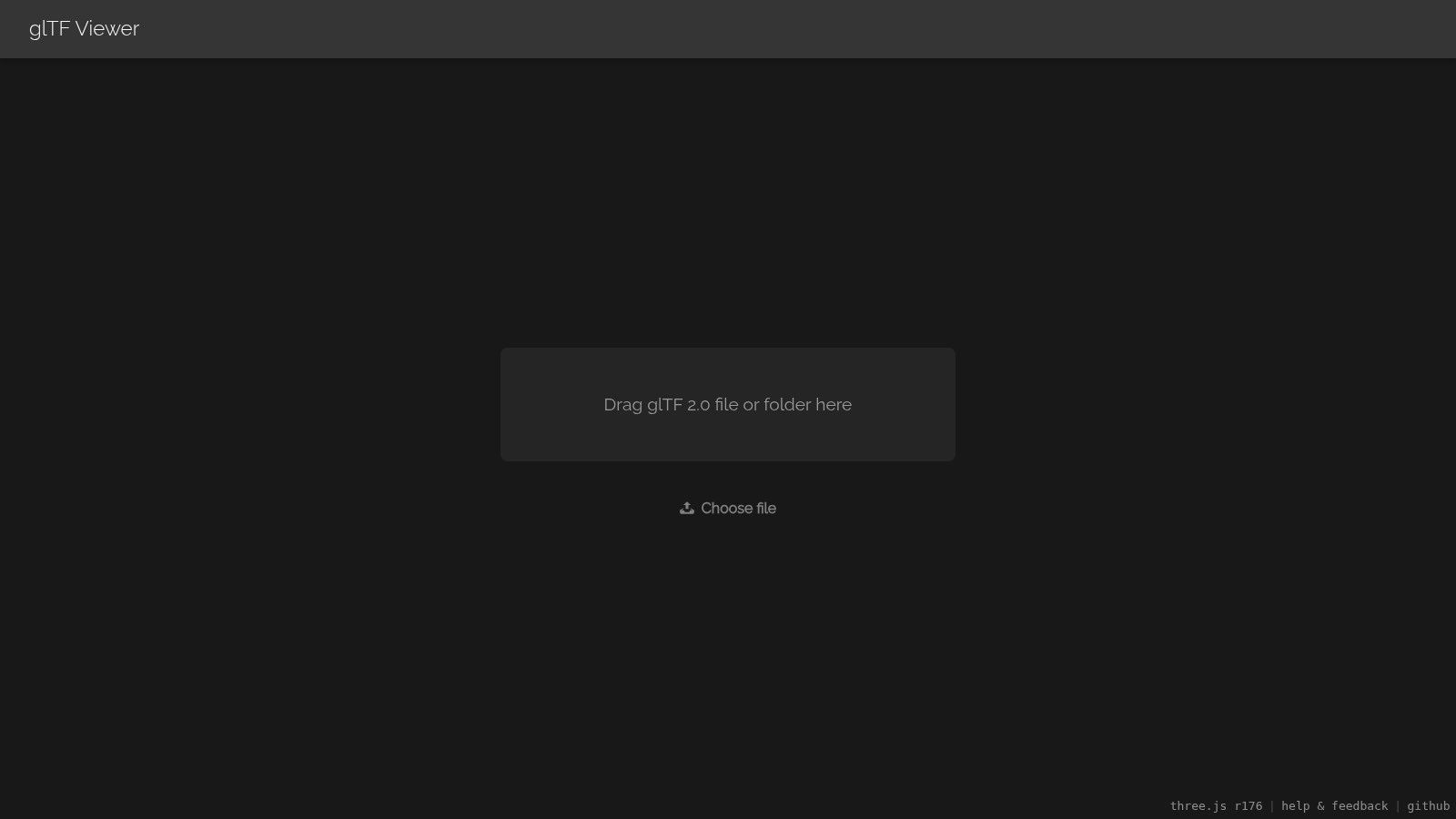
A common browser workflow goes like this. The artist exports a GLB, the model loads in the app, and something still looks wrong. Metal reads like plastic, normals break under an HDRI, or the animation plays but feels off. Don McCurdy's glTF Viewer is the tool I reach for at that point because it isolates the asset from the rest of the stack.
Its job in this roundup is narrow and useful. It is a glTF and GLB inspection tool for web delivery, not a hosted presentation layer, not a CAD reviewer, and not a general file opener.
That focus changes how to use it. Open the exported asset here before handoff to engineering or before blaming the runtime. If the model fails in this viewer, the problem is usually in export settings, material setup, texture packing, or animation data. If it looks correct here but breaks in your product page, the issue is more likely in your viewer implementation, scene lighting, compression pipeline, or app logic.
A few practical checks matter more than a long feature list:
- Confirm that PBR materials react correctly under different lighting.
- Scrub animations and look for timing issues, missing clips, or bad interpolation.
- Inspect texture-dependent problems such as roughness, normal intensity, and alpha handling.
- Verify that the GLB is clean enough for handoff before it goes into a custom viewer or storefront.
That makes it a better fit for QA than for sharing. A client, buyer, or non-technical stakeholder usually needs a link they can open without caring what glTF is. For that kind of simpler format-specific review, a lightweight GLB viewer for quick browser checks can be easier to hand around. Don McCurdy's viewer is better used by the person validating the asset itself.
It also has clear limits. It will not help much with OBJ, FBX, STL, or CAD-heavy review. It does not solve hosting, access control, commenting, or polished embeds. Teams with mixed-format intake still need a broader inspection step earlier in the pipeline.
Use it as the last technical checkpoint before release or developer handoff. You can open the viewer at Don McCurdy's glTF Viewer.
9. Vectary Viewer and Embeds

A common handoff looks like this. Design has approved the model, engineering does not need CAD markup, and marketing needs an interactive product view on a landing page by the end of the week. Vectary fits that job better than a debugging viewer or a raw file inspector.
Its value is in delivery, not diagnosis. You get hosted viewing, share links, iframe embeds, API access, and a design layer that helps non-developers publish something usable without building a custom WebGL front end from scratch. That makes it a practical option in the hosted embeds group of tools in this article.
The trade-off is control. Vectary works well if your browser workflow is GLB or glTF in, branded viewer out, then handoff to web or commerce teams through an embed. It is less convincing if the process depends on low-level rendering changes, custom interaction logic, private local review, or mixed engineering formats that need CAD-style inspection.
Implementation choices matter more here than feature checklists:
For format choice, use GLB when you want a single packaged asset with fewer handoff mistakes around textures. Keep source files elsewhere and treat the hosted viewer asset as a delivery build, not the master. For sharing, decide early whether the model is being reviewed by internal stakeholders, embedded on a public page, or passed to a client through a controlled link, because plan limits and branding options affect that decision. For performance, simplify geometry and texture sizes before upload. Hosted viewers still inherit the same browser limits as any other WebGL experience. For handoff, confirm who owns updates after launch. Design-led teams often prefer Vectary because they can revise the presentation without waiting on frontend development.
I would choose Vectary when the model needs to function as part of a product page, campaign page, or sales presentation, and the team accepts the boundaries of a hosted platform. I would skip it for deep CAD review, format troubleshooting, or scene-level debugging.
You can explore the viewer and embed options on Vectary.
10. ShareCAD Online Viewer
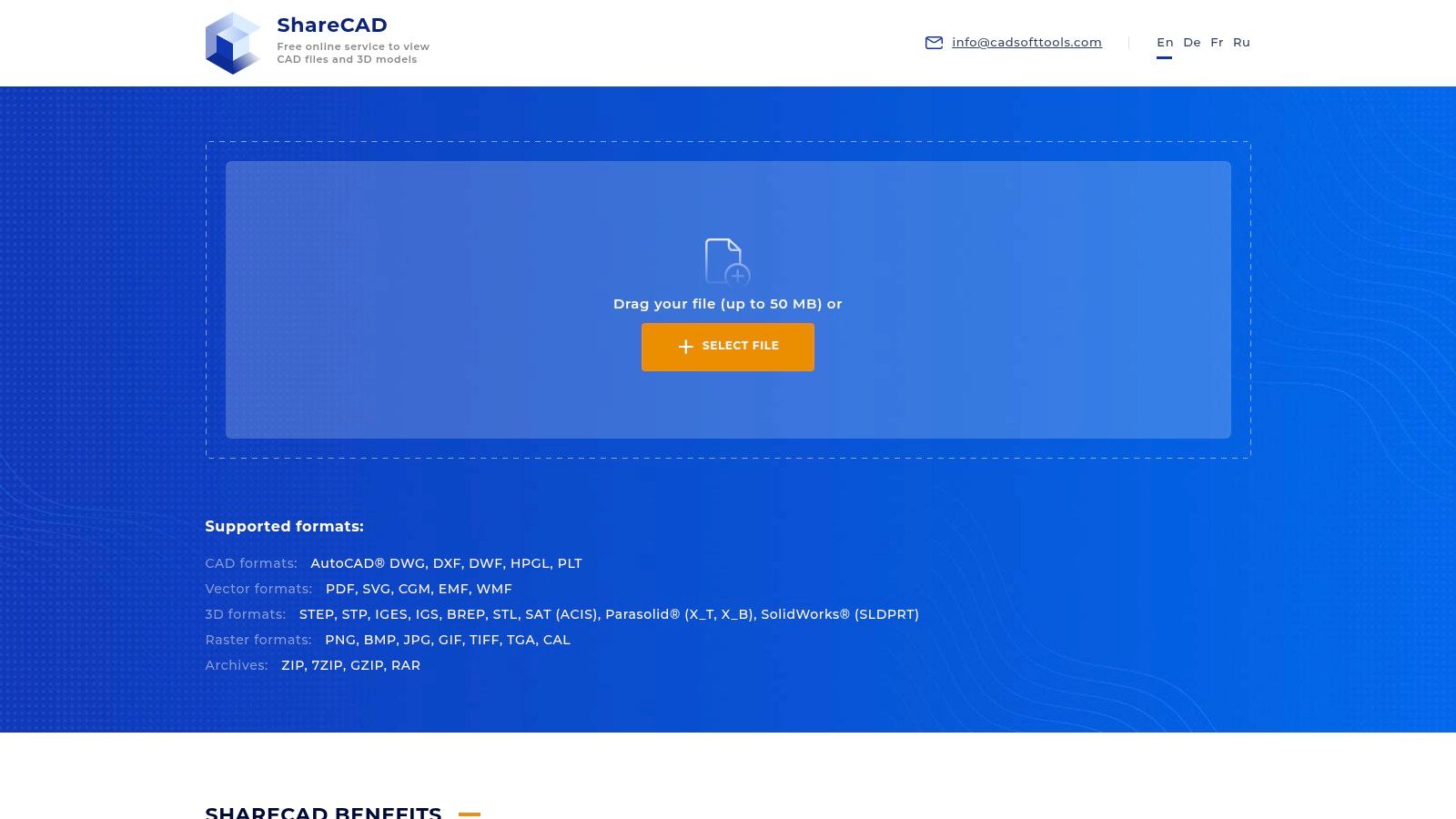
ShareCAD Online Viewer is the fallback I keep in mind for browser-based CAD access when the main need is opening engineering files without local software. It's especially relevant for DWG, DXF, and related review situations where art-oriented viewers don't help.
It's free to start, browser-based, and useful for basic collaboration and link-based access. That alone can remove a lot of friction from AEC and manufacturing review cycles.
What it does well
ShareCAD is most helpful when someone just needs to see the file and understand it in context. It's not trying to compete with PBR-centric model platforms or game-art inspection tools.
The practical caveat is that feature depth depends on the formats and rendering pipeline behind it. That makes ShareCAD a good access tool, but not always the final answer for advanced engineering workflows.
One more reality check applies to any browser CAD viewer. Performance depends heavily on asset complexity and level-of-detail strategy. In an academic evaluation of a WebGL-based glTF viewer, a model with 1,093,871 vertices used 138 MB and ran at 14.4 FPS, while a reduced LOD at 152,395 vertices used 69 MB and reached 304.9 FPS. The lesson isn't that ShareCAD behaves exactly like that test. It's that browser viewers live or die on geometry and memory discipline.
Large browser models usually fail because nobody prepared them for the browser.
Use ShareCAD when you need convenient CAD visibility in a browser and don't need a presentation-grade 3D experience. It's available at ShareCAD Online Viewer.
Top 10 Online 3D Model Viewers, Feature Comparison
| Product | Core features ✨ | UX / Quality ★ | Price / Value 💰 | Target audience 👥 | Unique selling points |
|---|---|---|---|---|---|
| Sculpty 🏆 | ✨ Text→3D, Image→3D, multi‑engine, PBR 4K, remesh, 360° | ★★★★☆ Consistent studio UI, unified pipeline | 💰 Subscription + credits; paid plans include commercial rights (no per‑job public rates) | 👥 Creators, game devs, 3D‑printing, product viz, agencies | ✨ Multi‑engine routing + single credits, private gallery, hosted browser studio |
| Sketchfab Viewer | ✨ Embeddable WebGL viewer, wide format support, Viewer API | ★★★★☆ Mature, performant viewer & community | 💰 Free tier; paid for privacy/branding & higher limits | 👥 Portfolios, product showcases, web delivery | ✨ Large community, robust embeds & API |
| Autodesk Viewer | ✨ CAD/BIM formats, measurement, sectioning, markup | ★★★★☆ Strong CAD review UX for engineers | 💰 Free to use; sign‑in for full sharing | 👥 Engineers, architects, AEC reviewers | ✨ CAD‑native format support + measurement tools |
| p3d.in | ✨ Embeddable iframe, embed API, annotations (paid) | ★★★☆☆ Simple hosting & quick embeds | 💰 Free basic; paid Plus/Premium for annotations/high res | 👥 Portfolios, simple product embeds, developers | ✨ Fast embeds, lightweight developer API |
| Online 3D Viewer (3dviewer.net) | ✨ Client‑side three.js viewer, drag‑drop, shareable URLs | ★★★★☆ Fast, no‑signup previews across devices | 💰 Free | 👥 Quick previews, 3D printers, casual users | ✨ No signup required; client‑side performance |
| Babylon.js Sandbox | ✨ GLB/OBJ/STL support, inspector, WebGPU options | ★★★★☆ Excellent for material & performance debugging | 💰 Free | 👥 Developers, technical artists, performance tuners | ✨ Inspector for scene graph, PBR debugging |
| three.js Editor (online) | ✨ In‑browser editor, real‑time edits, export to GLB/STL | ★★★★☆ Good for prototyping and light edits | 💰 Free | 👥 Web devs, prototypers, educators | ✨ Edit+export pipeline tuned for web delivery |
| Don McCurdy's glTF Viewer | ✨ glTF/GLB drag‑drop, PBR channels, animation panels | ★★★★☆ Focused, accurate glTF validation | 💰 Free | 👥 glTF publishers, web devs, asset validators | ✨ glTF‑centric material & animation inspection |
| Vectary Viewer / Embeds | ✨ Cloud design + embeds, WebAR, Viewer API | ★★★★☆ Strong collaboration & embed UX | 💰 Free tier; paid for branding & high traffic | 👥 Product teams, marketers, collaborative designers | ✨ No‑code design + WebAR + embed configurators |
| ShareCAD Online Viewer | ✨ DWG/DXF and some 3D formats, APS‑backed rendering | ★★★☆☆ Useful for CAD viewing without local software | 💰 Free | 👥 AEC/engineering teams needing DWG view | ✨ Quick DWG/DXF viewing in browser without CAD install |
Match the Viewer to the Handoff
Many teams don't need the “best” 3d model viewer online. They need the least wrong one for the handoff in front of them. That starts by separating hosted viewers from local inspection tools and from CAD review services. Once you do that, the shortlist gets much clearer.
Choose a hosted platform like Sketchfab, p3d.in, or Vectary when you need persistent links, embeds, presentation settings, or some level of public sharing. Those tools are built for publishing. They make sense when the viewer is part of the experience your audience sees.
Choose Autodesk Viewer or ShareCAD when review quality depends on measurement, sectioning, or CAD-native format support. These aren't the best-looking tools in the list, and that's fine. They solve a different problem. If someone needs to inspect dimensions or explore an engineering file without installing software, they're more useful than a prettier mesh viewer.
Choose client-side or lightweight browser tools like Online 3D Viewer, Babylon.js Sandbox, or three.js Editor when speed and control matter more than hosting. These are the tools I'd keep nearby for fast checks, troubleshooting, scene inspection, and pre-handoff cleanup. They're also useful when you don't want every file to become part of a hosted library.
Use a glTF-focused viewer when your delivery target is the web and you care about PBR, animation, and format validation. Don McCurdy's glTF Viewer is narrow by design, and that's exactly why it's valuable. It helps you catch problems before they become embedded-site problems.
Sculpty belongs in a separate category because it covers more than viewing. Pick it when the viewer is one step inside a broader browser workflow that includes generation, conversion, texturing, retopology, rendering, and asset management. That's the right fit when you're repeatedly creating and preparing assets, not just opening them.
Before you commit to any workflow, check a few implementation details:
- Test the actual target format: A viewer that handles STL well may still be the wrong tool for GLB materials or STEP review.
- Optimize before sharing: Browser performance depends heavily on geometry, texture size, and sensible packaging.
- Confirm privacy and branding terms: Hosted viewers often put the most useful controls behind paid plans.
- Check mobile behavior: A file that looks fine on desktop can become frustrating on a phone or lower-end device.
- Verify the handoff method: Some tools are built for embeds, others for links, and others for private local inspection.
The simplest recommendation is still the best one. Take one representative model from your real workflow, preferably not the easiest file, and test it in two or three shortlisted viewers before you standardize. That single exercise usually reveals more than any feature grid.
If your workflow goes beyond viewing and into generating, converting, texturing, retopologizing, rendering, and managing 3D assets in the browser, Sculpty is worth trying first. It gives you free web viewers alongside a full 3D AI studio, which makes it a better fit when the handoff starts long before the final preview link.