Best 10 3D Model Making Software for 2026
You've got a model to make, but the software choice depends on what that model needs to do next. An AI-generated character may need sculpting and cleanup before it's ready for a game. A decorative print needs a mesh that can slice, while a product concept may need precise dimensions and a clean handoff to CAD or rendering software.
The history of 3D model-making software runs from early computer-aided design research to today's mix of sculpting, CAD, and digital content creation tools. No single application is best for every job. This guide compares ten options by skill level and pipeline, so you can choose a starting point for game assets, fabrication, or visualization without mistaking fast modeling for a finished, production-ready asset.
If you're preparing a product scene, choosing the modeling tool is only part of the job. You may also need to find software for 3D mattress visuals.
Table of Contents
- 1. Sculpty
- 2. Blender
- 3. Autodesk Maya
- 4. Autodesk 3ds Max
- 5. ZBrush
- 6. SketchUp
- 7. Rhino
- 8. Shapr3D
- 9. FreeCAD
- 10. Autodesk Fusion
- 3D Modeling Software: Top 10 Comparison Matrix
- Pick Your Pipeline and Start Building
1. Sculpty
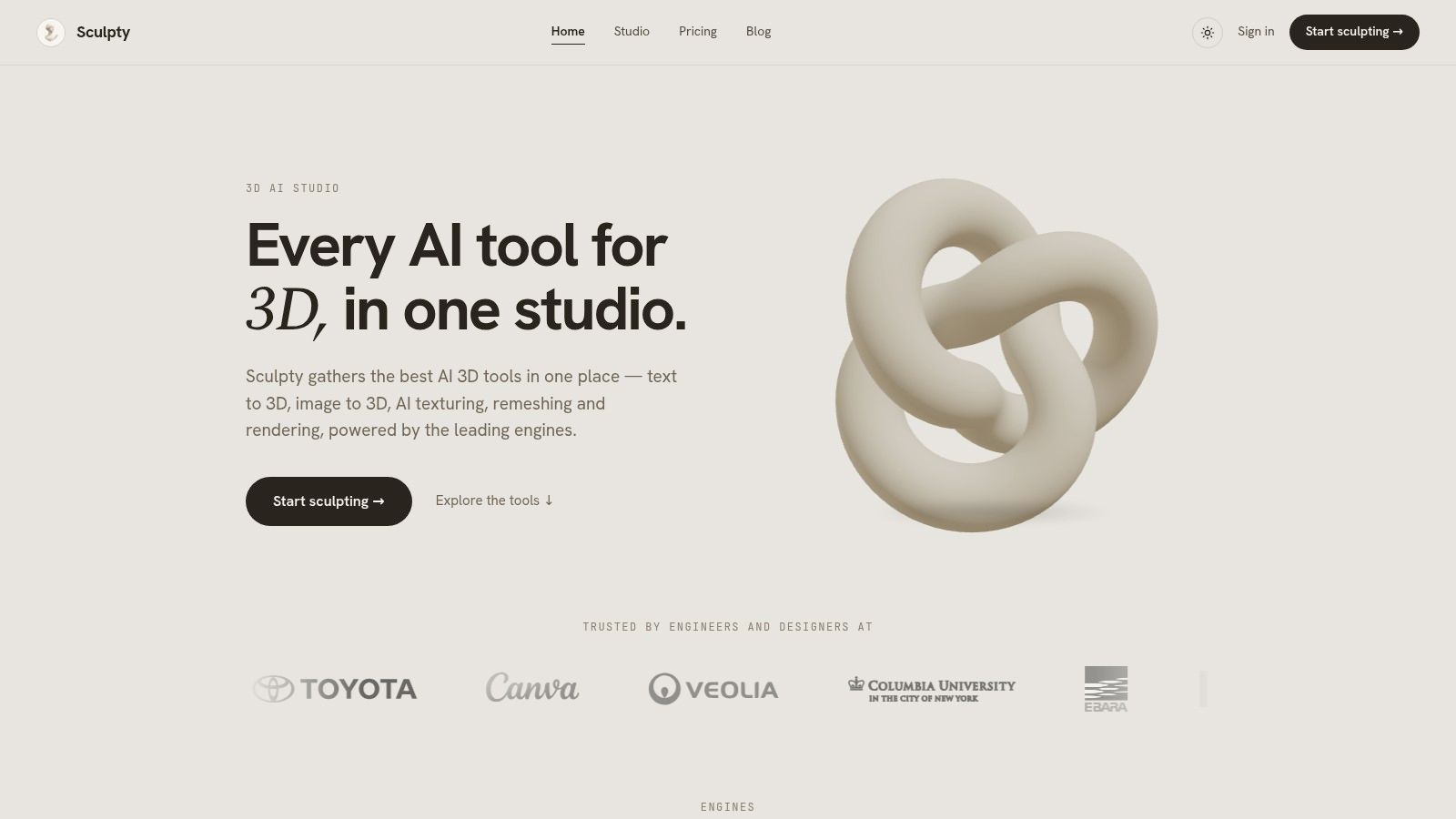
Sculpty is a browser-based AI 3D studio for creators who want to generate assets and then prepare them for use elsewhere. Rather than betting on one generation engine, it brings options including Meshy, Hunyuan 3D, Rodin, Tripo AI, and TRELLIS 2 into one workspace. You can generate from text, a single image, or multiple views, then move into texturing, retopology, rendering, and export.
Best for fast asset starts and handoffs
The useful distinction is that generation is only the first step. Sculpty also offers prompt-driven PBR texturing, remeshing and retopology, 4K rendering, and 360° animation exports. Assets can be exported as GLB, STL, OBJ, FBX, USDZ, or 3MF for continued work in Blender, Unity, or a slicer. For a practical look at the modeling process, see how to model a 3D asset.
A shared prompt interface, credit system, private gallery, and browser-based viewers and converters can reduce the overhead of juggling separate tools. The trade-off is that results can vary by engine and input, and users still need to inspect geometry and materials before treating an asset as finished. A clean-looking preview doesn't prove a mesh is ready for a game or a printer.
Pipeline rule: Choose the generation engine for the task, then validate the exported asset in the application or slicer where it will be used.
Sculpty says your first model is free. Paid plans include commercial usage rights, but the supplied information doesn't specify exact prices or credit allowances, so compare the plan details before committing. If you also sketch concepts on a tablet, you may want to find an iPad app for sketching.
2. Blender
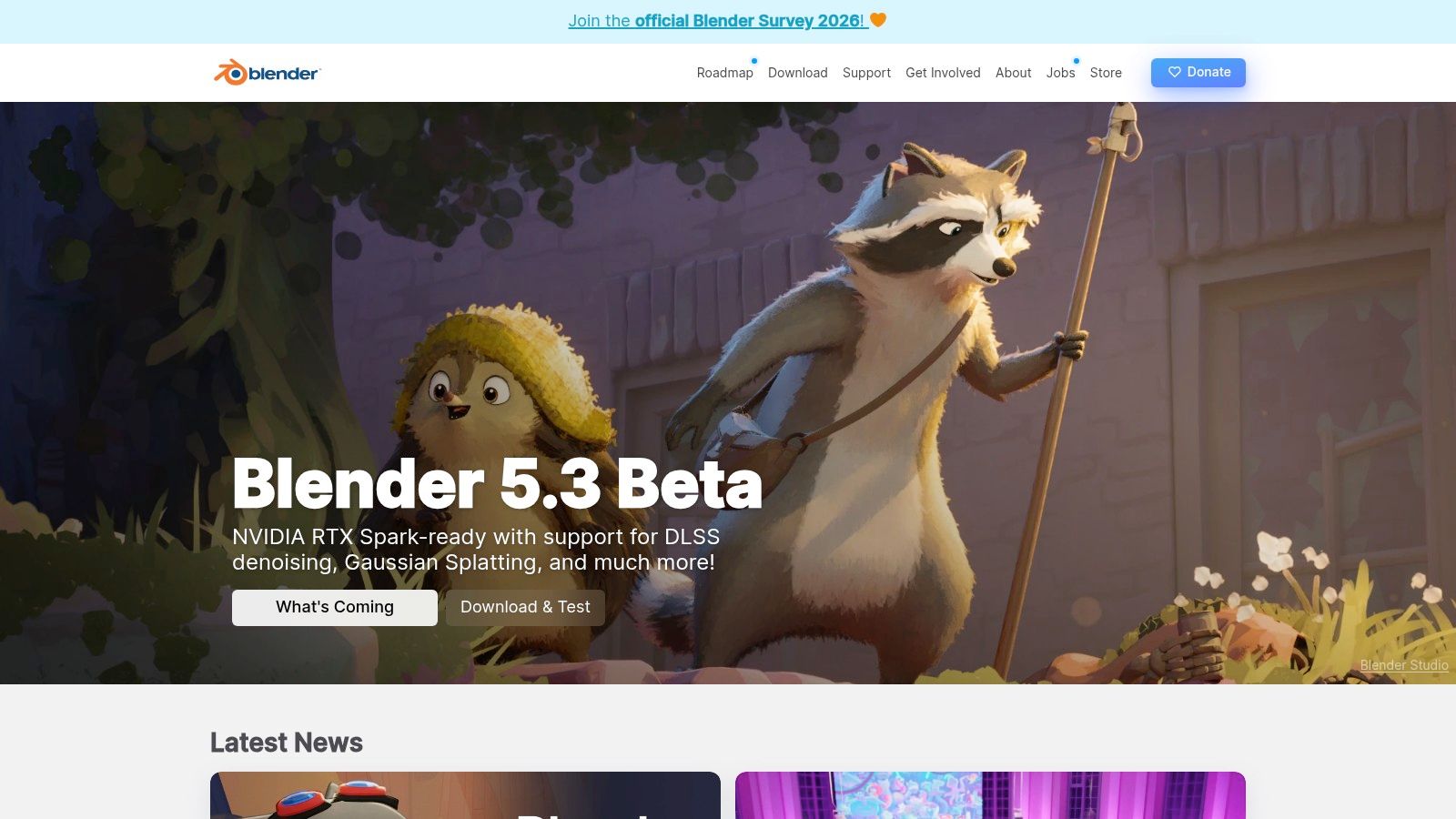
Blender is the most flexible starting point on this list if you want one free application for a broad 3D workflow. It combines polygon modeling, sculpting, UV mapping, materials, rigging, animation, simulation, rendering, and compositing. That breadth suits hobby projects, indie games, visualization, and generalist work, but it also means there's a lot to learn before the interface feels simple.
A strong all-around tool, not an automatic shortcut
Blender's history reflects a broader shift toward accessible 3D creation. Ton Roosendaal began developing its first source files in 1994, and Blender became open source in 2002, allowing people to inspect, modify, and redistribute it. Its development grew beyond polygon modeling into animation, rendering, compositing, and simulation. The Blender Foundation's history of Blender explains those milestones.
For a game asset, Blender can take a model through mesh editing, UV work, materials, and presentation. For a print, it can help prepare geometry, but the final mesh still needs checks in a repair tool or slicer. Learn how to simplify a mesh in Blender when a model needs lighter geometry.
The main downside is the learning curve. Its many workspaces and workflows can overwhelm beginners, and a studio may require specialized applications or custom integrations for its pipeline. Still, if you want a capable free tool and are willing to learn it, Blender is an excellent foundation. Visit the Blender website.
3. Autodesk Maya
Maya is a professional 3D application for modeling, animation, effects, and rendering. It's most compelling when modeling sits inside a larger character or animation pipeline, where rigging, animation, and effects matter as much as the mesh itself. That makes it a sensible choice for artists building toward film, television, or game production workflows.
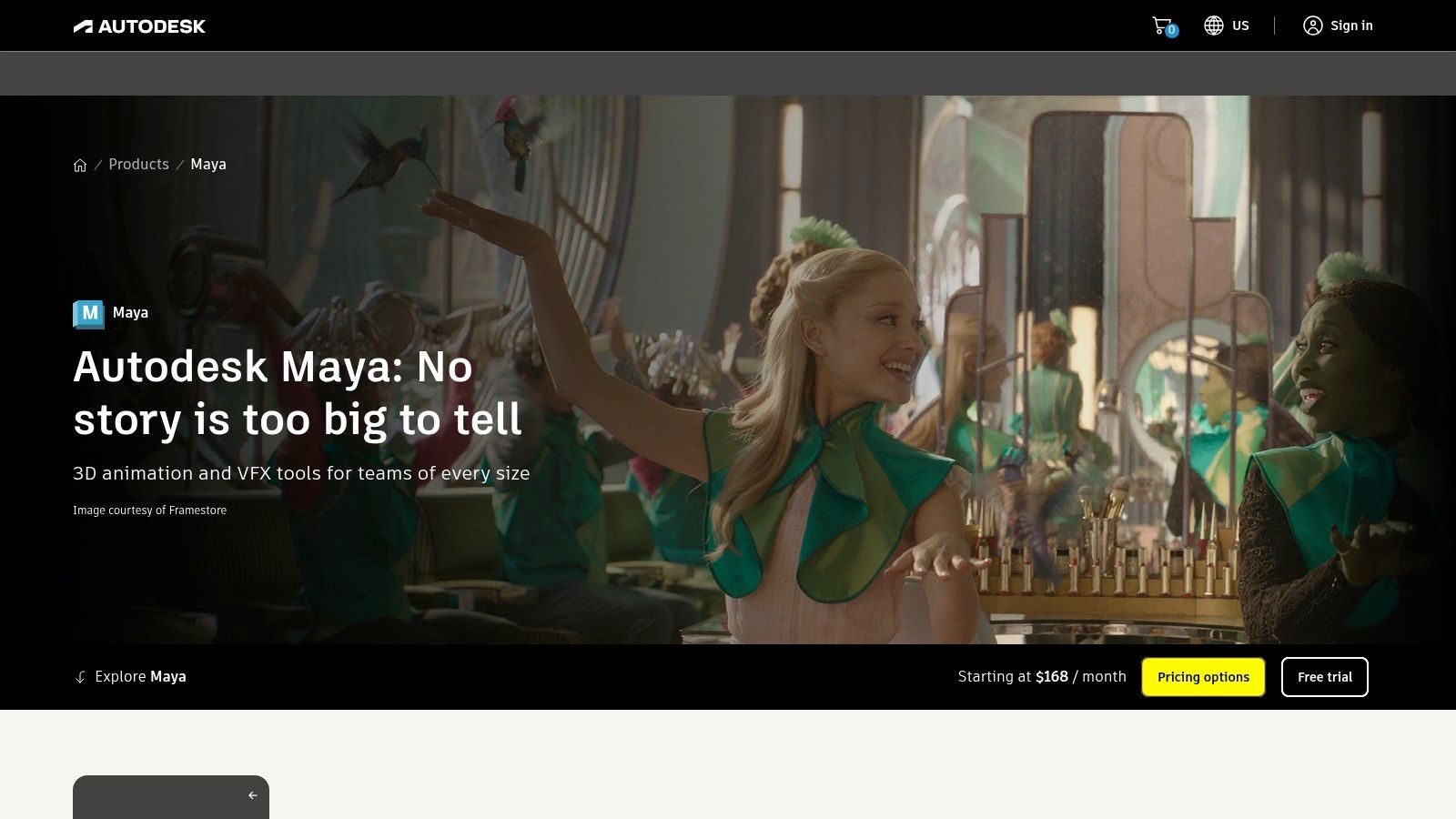
Maya provides modeling and layout tools alongside character rigging, animation, and simulation workflows. The practical advantage is continuity: an artist can build a model and continue into animation-related work without treating the asset as an isolated object. For a still product render or a simple printable part, though, that breadth may be more application than the task needs.
Expect a substantial learning investment. Maya's interface and toolset make more sense once you have a clear use for the animation and production features, rather than approaching it as a basic shape-modeler. Subscription pricing can also be hard to justify for occasional modeling. Autodesk offers a free trial, which gives you a chance to test whether the workflow fits before paying.
Choose Maya if your target studio or project pipeline calls for it. If your priority is learning general 3D skills without a subscription, start with Blender instead. See the Autodesk Maya product page.
4. Autodesk 3ds Max
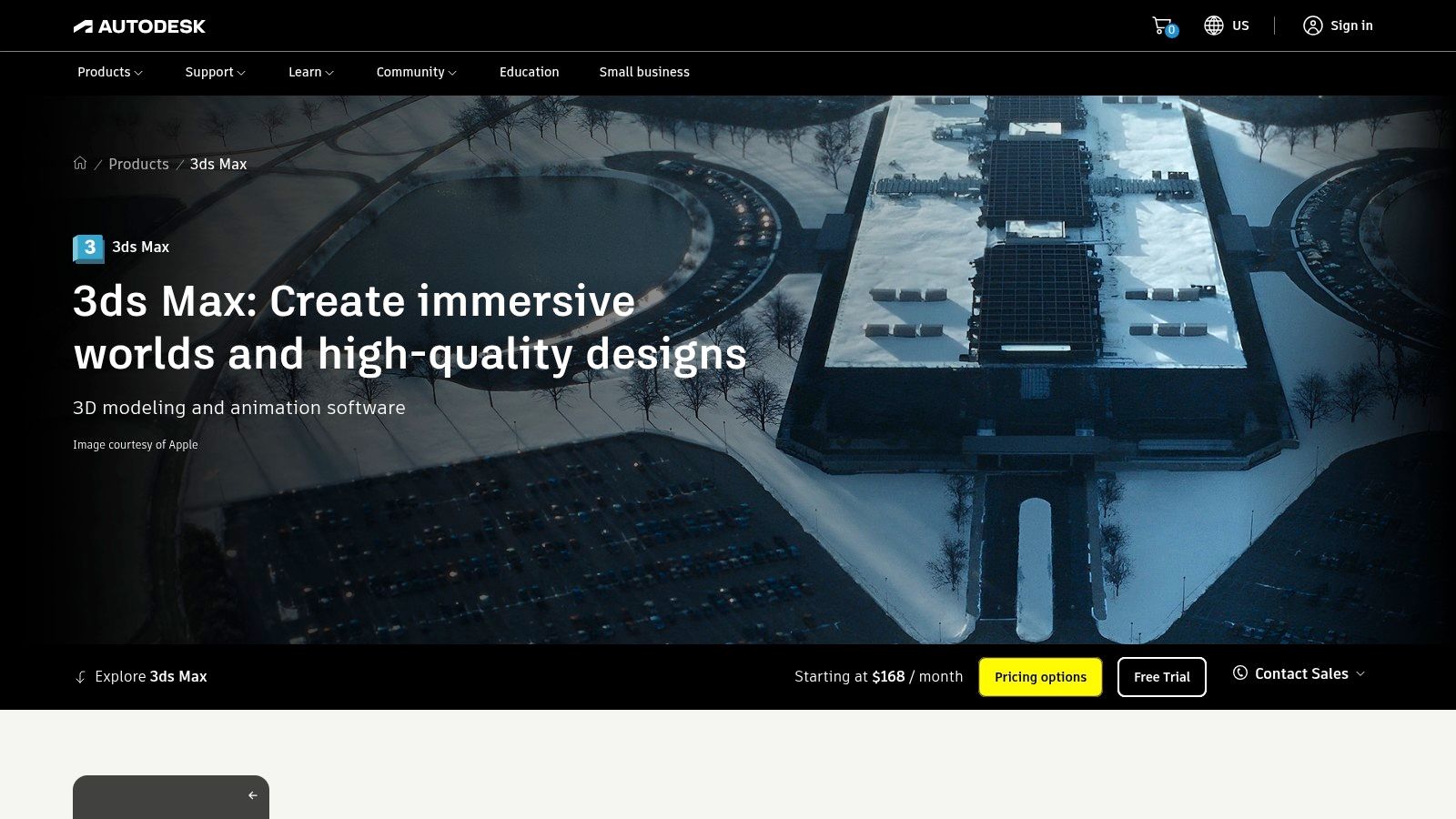
For hard-surface assets and design visualization, 3ds Max offers a modeling-centered workflow with tools that suit props, environments, and detailed product scenes. It's also extensible through plugins, which can be useful when a particular studio or visualization workflow depends on a specialized setup.
When the project needs hard surfaces or visualization
3ds Max brings modeling, animation, and rendering workflows together. That's helpful when one application needs to support a detailed object or scene through to a polished visual output. Plugin support can extend the tool for production needs, but it also means the best setup may depend on which add-ons and integrations a team already uses.
The trade-off is cost and pipeline fit. A subscription can be difficult to justify if you only model occasionally, and choosing 3ds Max over another production tool should depend on the software your collaborators use and the deliverables they expect. It's not automatically the best choice just because a project involves 3D.
Autodesk offers a free trial, so test the modeling workflow and export path with a real project before adopting it. For a beginner, Blender can cover a wide range of modeling and rendering needs without a paid subscription. For a professional visualization pipeline, 3ds Max is worth considering when its tools and compatibility match the work. Check the Autodesk 3ds Max product page.
5. ZBrush
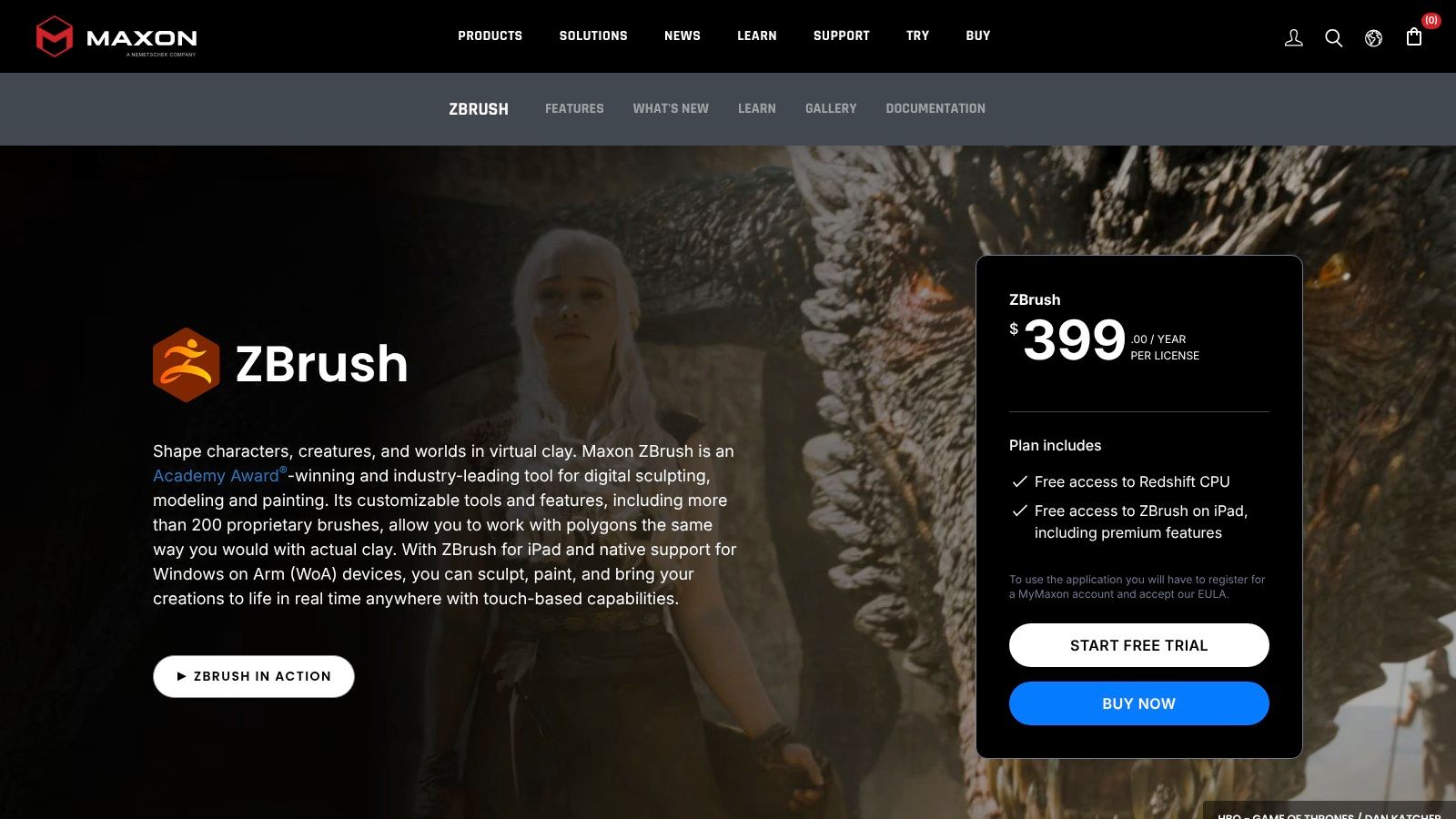
ZBrush is built for digital sculpting, especially organic forms such as characters, creatures, and collectibles. Instead of starting with exact dimensions and constraints, you shape the surface like digital clay. That makes it a natural fit when form and fine surface detail matter more than precise mechanical measurements.
Sculpt first, then prepare the asset
Tools such as Dynamesh and ZRemesher can support sculpting and topology workflows, depending on the version and plan. ZBrush also offers desktop and iPad options, although features differ between them. For a detailed character or collectible, that sculpting focus can be more comfortable than building the form through conventional polygon modeling alone.
ZBrush doesn't replace every tool in a production pipeline. A sculpt may still need retopology, UVs, materials, rigging, or animation in another application. It's also not the right choice for dimension-driven mechanical design, where a CAD application is better suited to exact measurements and editable construction history.
The interface can take time to learn, and the difference between desktop and iPad plans matters if you're comparing workflows. Use ZBrush when sculpting is the core task, and pair it with another application when the asset needs animation or technical design work. Visit the ZBrush product page.
6. SketchUp
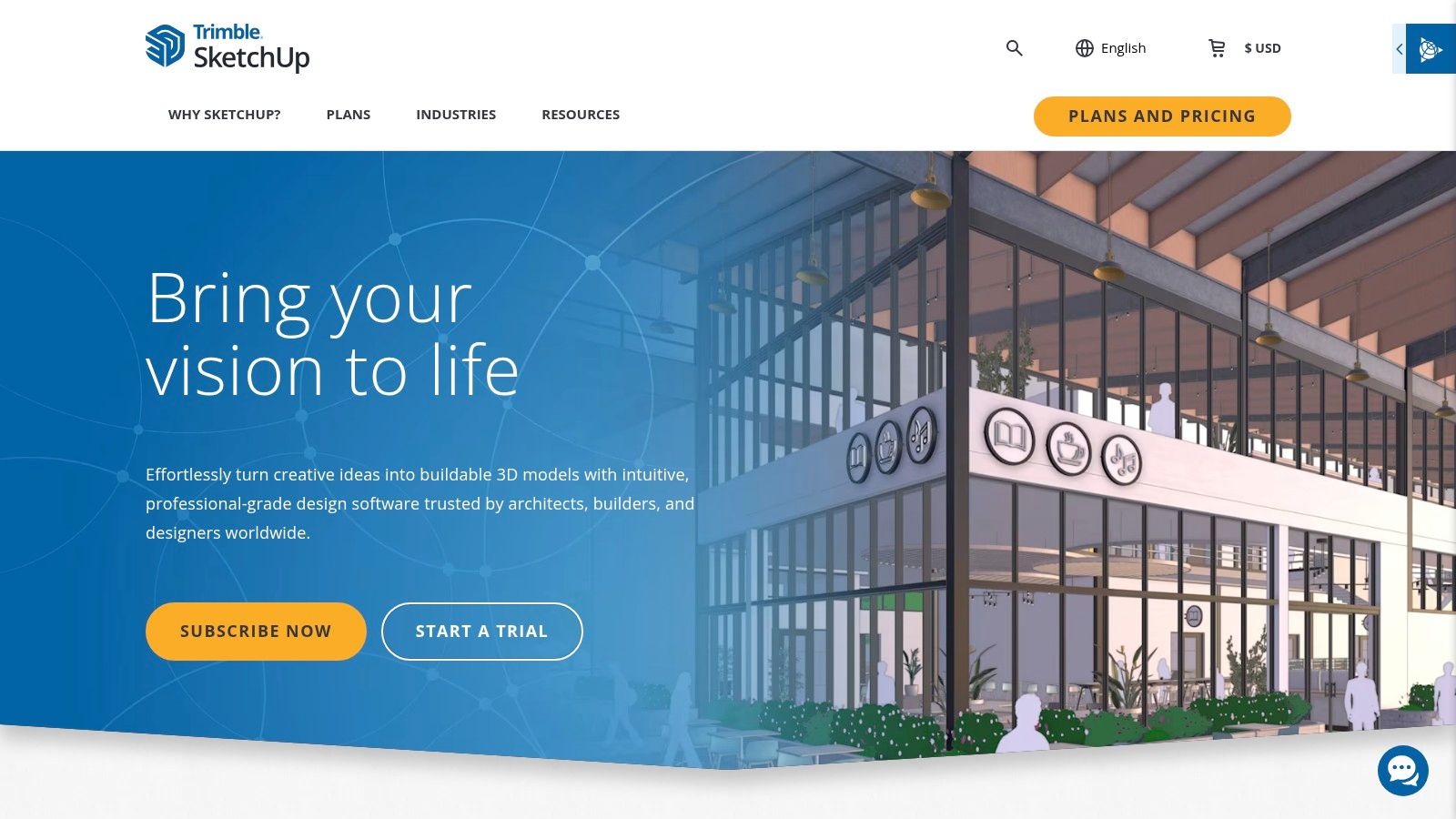
SketchUp is a practical option for architecture, interiors, and spatial design, particularly when the task is to communicate a room, building, or layout rather than sculpt a character or engineer a part. Its web and iPad options make it approachable for developing spatial ideas, while paid plans can add desktop modeling and documentation tools.
Model a space without overbuilding the toolchain
The 3D Warehouse library can help users bring prebuilt models into a scene instead of constructing every object from scratch. That's useful for layout studies and presentations, where the goal is to show how a space could look. Cloud and collaboration features can also help teams share work.
Plan selection matters. SketchUp's web-focused Go plan doesn't include the desktop modeler, and features vary between tiers. Before subscribing, check that the plan supports the modeling and documentation work you need. If a project calls for detailed organic geometry or advanced character animation, SketchUp isn't the natural fit.
For a beginner testing architectural ideas, web access can be a comfortable entry point. For a more complete desktop design workflow, compare the paid options and their tools carefully. Get current plan and product details from the SketchUp website.
7. Rhino
Rhino suits work where precise curves and surfaces are central, including product and industrial design, architecture, and jewelry. It supports NURBS, SubD, mesh, and solid modeling, giving designers more than one way to represent a form. That range is useful when a project moves between smooth conceptual geometry and more defined surfaces.
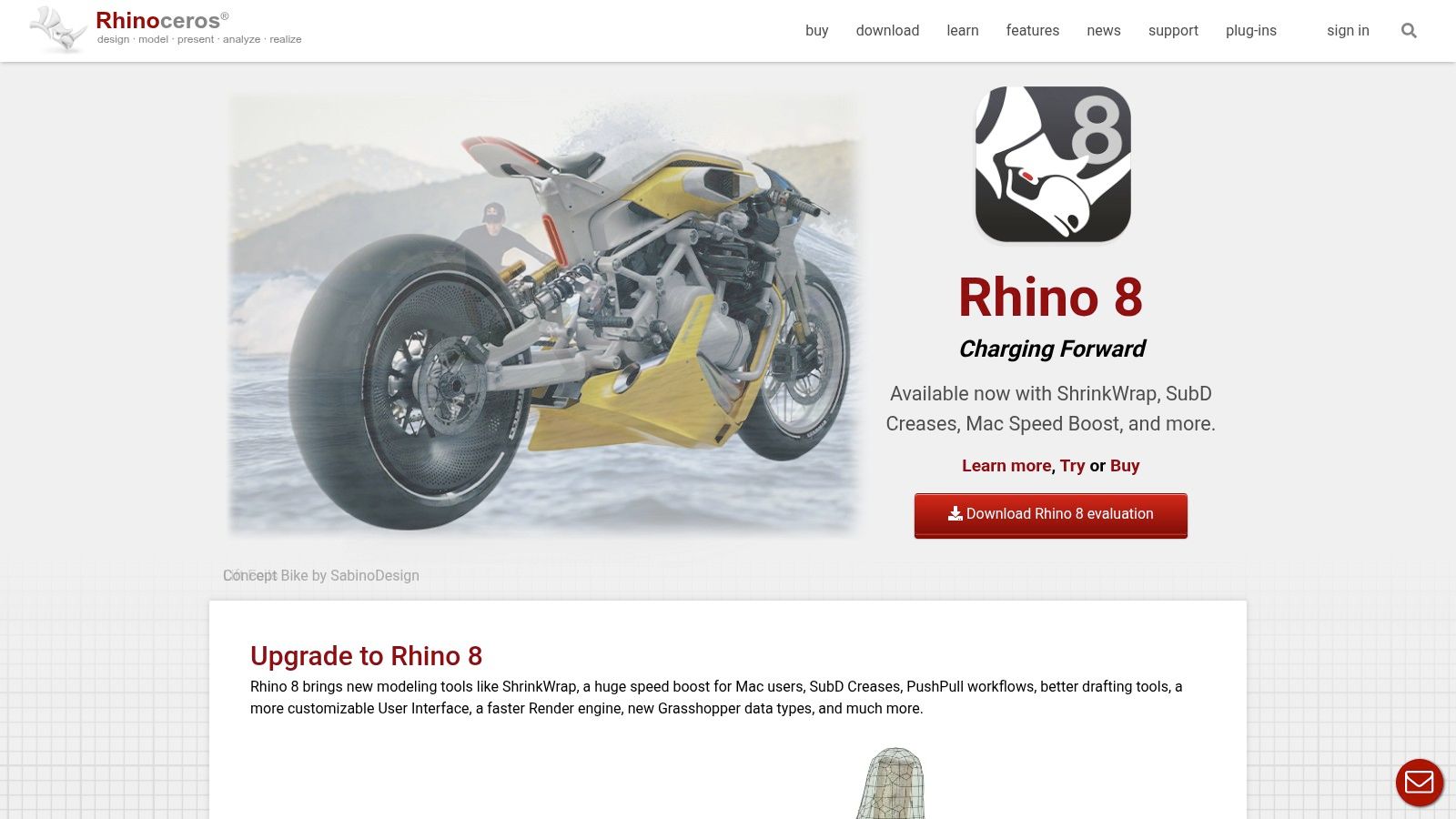
Grasshopper adds visual programming for procedural exploration. Instead of manually editing every repeated element, designers can build systems that generate or adjust geometry according to defined inputs. That can make Rhino useful for complex design studies, though Grasshopper adds another learning layer.
Rhino handles a wide range of design tasks, but its flexibility can take time to master. It offers a perpetual license rather than requiring a recurring subscription, which may suit people who prefer a one-time purchase, although the upfront cost can be substantial for an individual. It's not the simplest option for someone who only wants to make a basic game prop.
Choose Rhino when curve and surface control, design variation, or Grasshopper workflows matter. For animation-heavy scenes, look to a digital content creation application instead. See the Rhino website.
8. Shapr3D
Shapr3D puts CAD-focused product design into a workflow that spans desktop, tablet, and visionOS. Its combination of 2D sketching with constraints and 3D solid modeling makes it a better fit for physical objects than for character sculpting or animation. It's especially useful when the model needs to retain design intent rather than exist only as a finished surface.
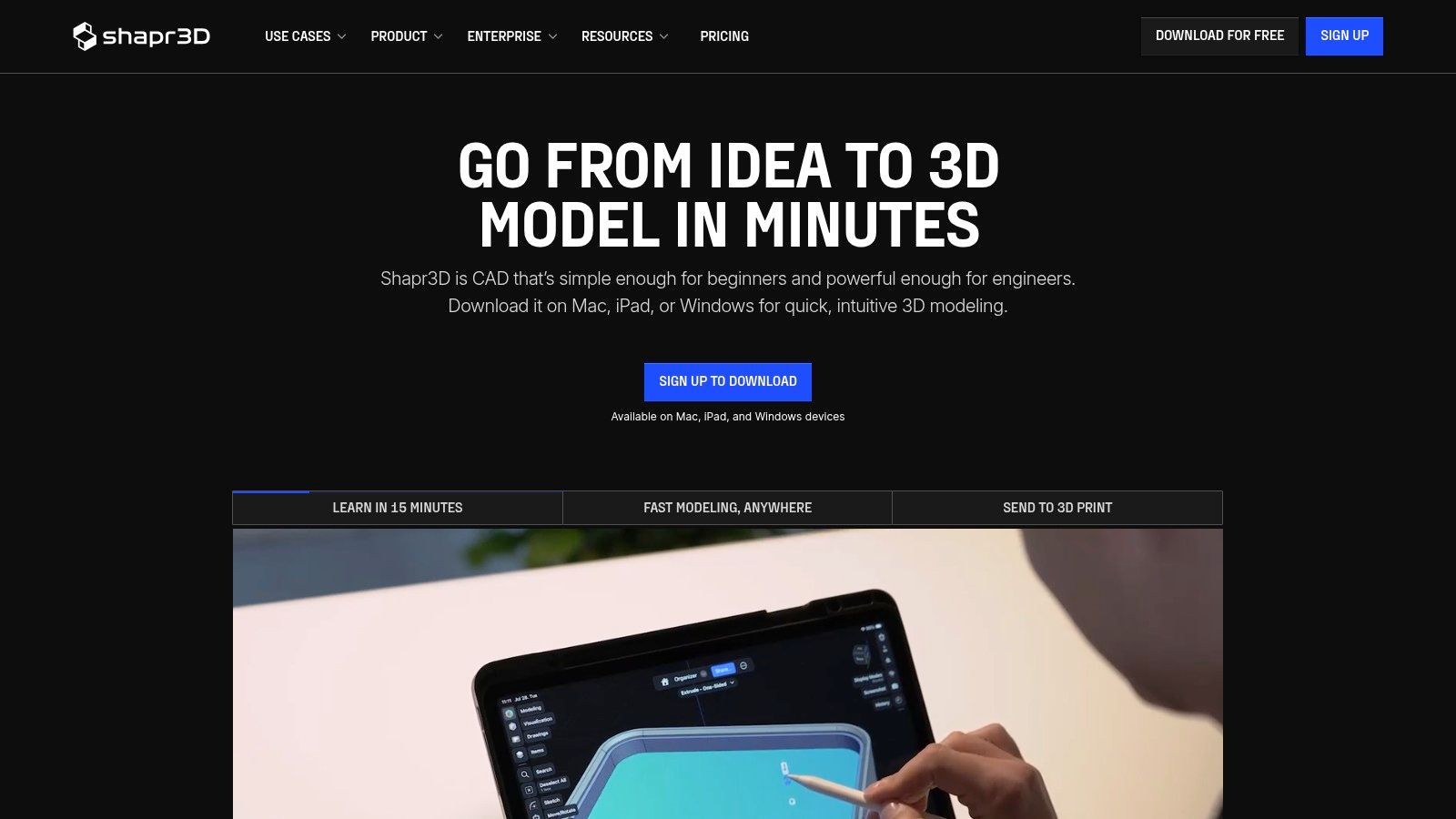
The plan determines how far you can take the workflow. Shapr3D has a free Basic plan, while paid options provide broader export and collaboration features. CAD formats such as STEP and IGES are available, but export choices depend on the plan. The free plan's exports are limited to basic-resolution STL and 3MF, which may be enough for testing a simple print but not for every professional handoff.
Good for product concepts, not every destination
For a maker designing a physical object, sketch constraints and solid modeling provide a more controlled starting point than freeform sculpting. Paid plans add tools such as technical drawings and wider export support, which can matter when another person needs to manufacture or review the design.
Check the export requirements before building a project around a specific tier. If the asset is destined for a game, you'll likely need a separate tool for mesh cleanup, materials, and presentation. Find current plan details at the Shapr3D website.
9. FreeCAD
FreeCAD is a free, open-source parametric modeler for technical objects. Its editable parameters and design history make it useful when a part may need to change after the first version. That's a different goal from sculpting a creature or building an animation-ready character.
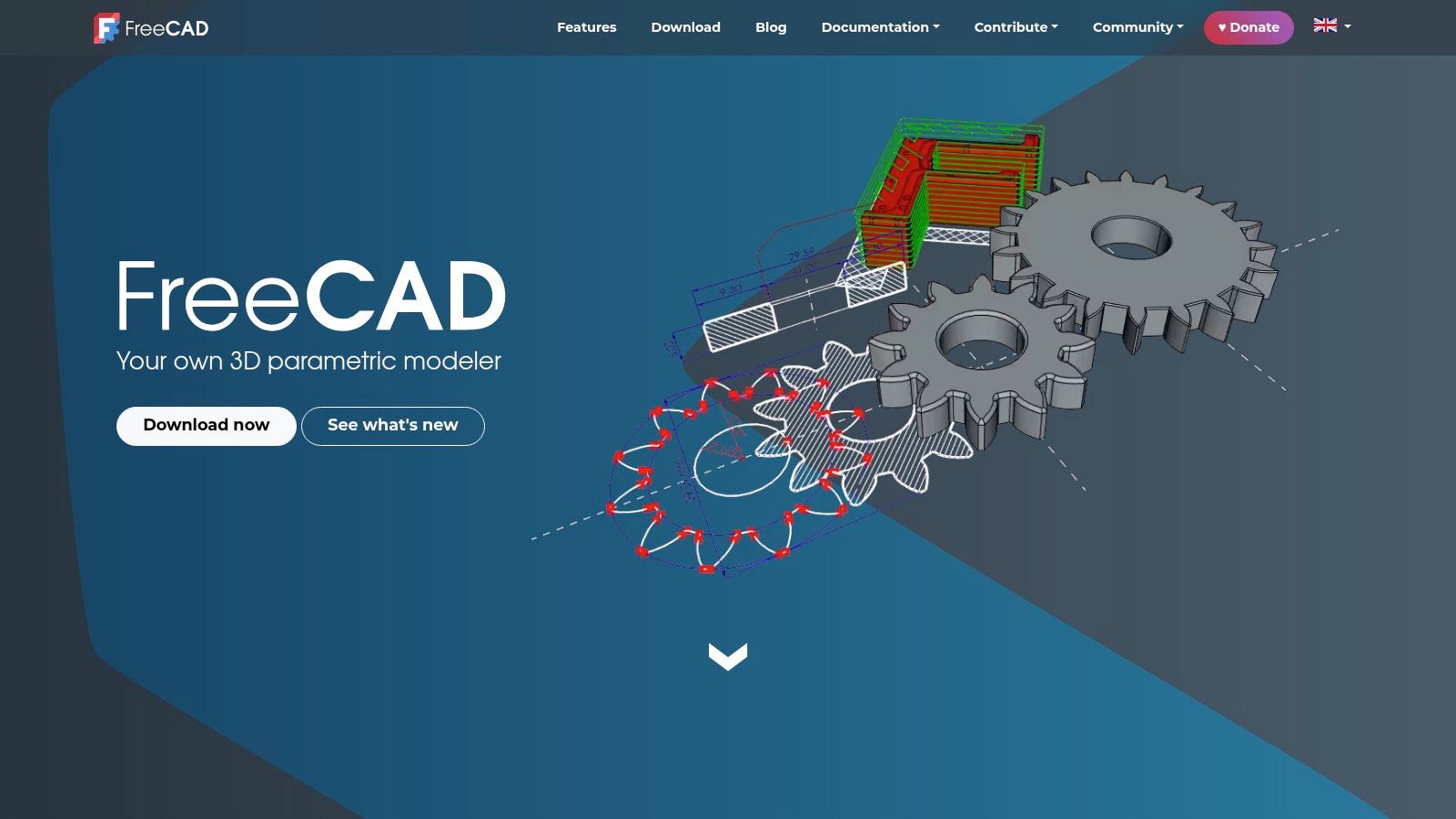
Design with dimensions that can be revised
FreeCAD supports sketch-based construction and community-developed add-on workbenches. Its technical focus suits product design, engineering, and parts intended for 3D printing or CNC workflows. If a dimension changes, an editable model history can make revision more direct than reshaping a static mesh.
The experience can be less uniform across workbenches and add-ons, so beginners may need to spend time learning which tools fit their task. FreeCAD is also not designed as a sculpting- or animation-first application. Use it for dimension-led parts, then move to a sculpting or visualization tool if the project needs organic detail or polished presentation.
For printing, software choice doesn't remove the need to inspect the exported geometry. Check scale, manifold edges, and the slicer's preview before sending a model to a machine. This guide to modeling for 3D printing covers practical preparation steps. Visit the FreeCAD website.
10. Autodesk Fusion
Autodesk Fusion connects CAD, CAM, CAE, PCB design, and collaboration in a cloud-connected product-development environment. It's intended for designing physical products and preparing them for manufacturing, not for character animation or freeform sculpting. If the work moves from a design into production planning, having related tools in one environment can help.
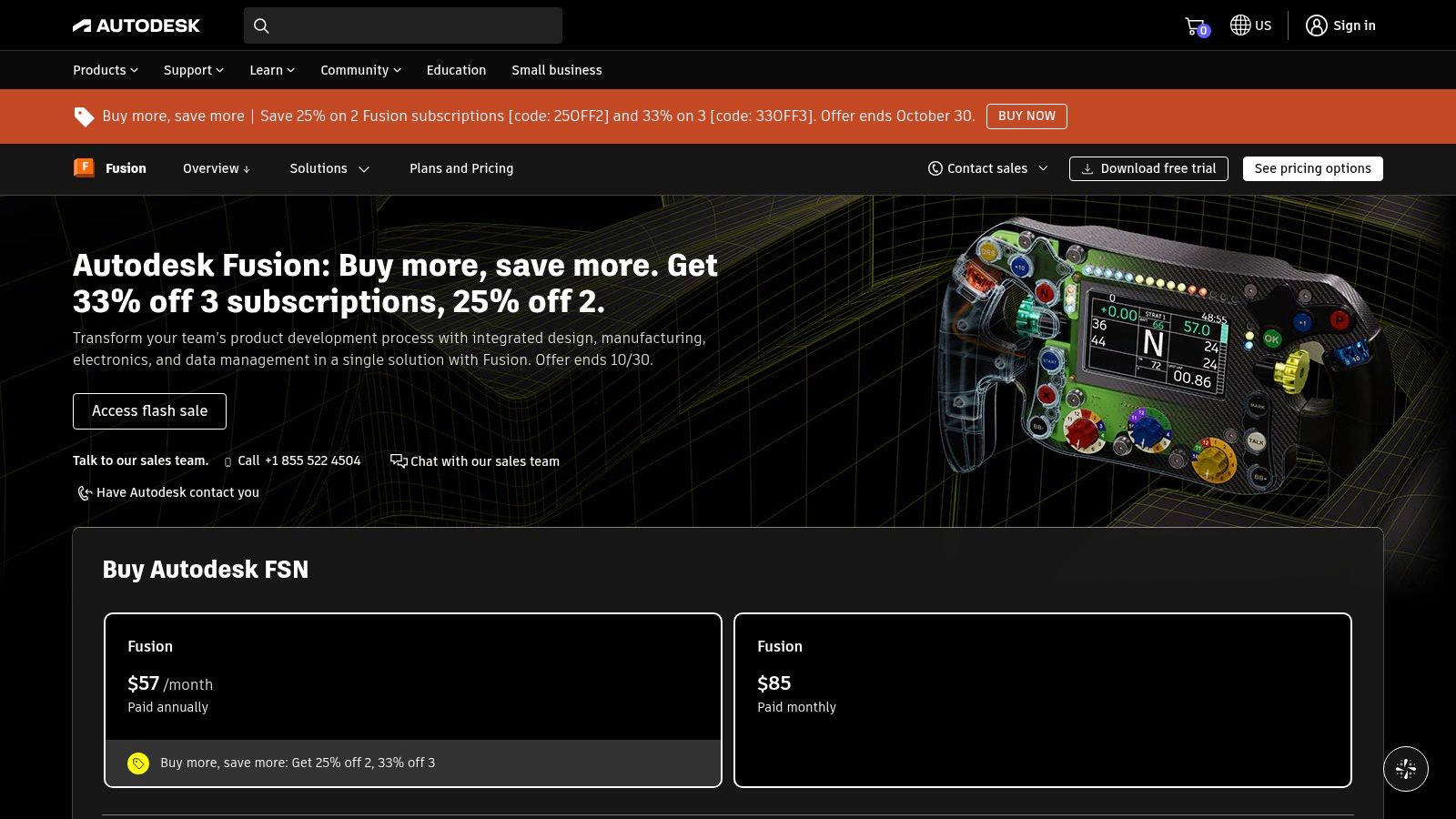
Fusion's cloud-connected approach supports collaboration and data management alongside product design. It can be a strong fit for a maker or designer working on a physical object, particularly when manufacturing processes form part of the project. It's less suitable if the primary goal is to sculpt an organic character or create animated game assets.
Qualifying non-commercial users can access a limited free personal-use option, and Autodesk offers a commercial trial. The free option has restrictions, while full functionality requires a paid subscription. Check eligibility and feature limits before choosing it for an ongoing project.
A production-ready part still needs engineering judgment. A valid model isn't automatically a strong, well-fitting, or manufacturable object, so review dimensions and process requirements before fabrication. See the Autodesk Fusion product page.
3D Modeling Software: Top 10 Comparison Matrix
| 3D Tool | Core Capabilities | Experience & Workflow | Best For | Standout Feature | Price & Value |
|---|---|---|---|---|---|
| 🏆 Sculpty | Text/image-to-3D, PBR texturing, retopology, rendering | ★ Browser-based, unified engines and exports | 👥 Creators seeking an end-to-end AI 3D workflow | ✨ Multiple AI engines, private gallery, 360° exports | 💰 First model free; paid plans include commercial rights; exact prices not provided |
| Blender | Modeling, sculpting, animation, rendering | ★ Broad, capable suite; learning curve | 👥 Hobbyists, artists, game developers, studios | ✨ Free, open-source, extensive community | 💰 Free |
| Autodesk Maya | Modeling, character rigging, animation, effects | ★ Deep production toolset | 👥 Film, TV, and game teams | ✨ Strong character and animation workflows | 💰 Subscription; 30-day trial |
| Autodesk 3ds Max | Hard-surface modeling, animation, rendering | ★ Extensible with plugins | 👥 Game, VFX, and visualization professionals | ✨ Plugin-supported workflows | 💰 Subscription; 30-day trial |
| ZBrush | High-detail digital sculpting | ★ Specialized sculpting tools | 👥 Character, creature, and collectible artists | ✨ Organic sculpting with remeshing tools | 💰 Subscription plans; free iPad plan |
| SketchUp | Spatial and architectural modeling | ★ Web, iPad, and desktop options vary by plan | 👥 Architects, interior designers, spatial planners | ✨ 3D Warehouse model library | 💰 Plan-based; desktop modeler requires Pro |
| Rhino | NURBS, SubD, mesh, and solid modeling | ★ Precise, versatile design tools | 👥 Product, industrial, jewelry, and architectural designers | ✨ Grasshopper parametric workflows | 💰 Perpetual license; substantial upfront cost |
| Shapr3D | Sketch-based and solid CAD modeling | ★ Desktop and tablet support | 👥 Product designers and engineers | ✨ Tablet-friendly CAD workflow | 💰 Free Basic plan; advanced exports and tools are paid |
| FreeCAD | Parametric modeling and technical design | ★ Editable design history; community add-ons | 👥 Engineers, makers, and 3D-printing users | ✨ Free, open-source parametric CAD | 💰 Free |
| Autodesk Fusion | CAD, CAM, CAE, PCB, and collaboration | ★ Connected product-to-manufacturing workflow | 👥 Product designers and manufacturers | ✨ Integrated design and manufacturing tools | 💰 Limited qualifying personal-use option; paid subscription for full features |
Pick Your Pipeline and Start Building
Choose the software based on what must happen after modeling. AI generation is a fast way to establish a starting mesh, but generated geometry still needs review and cleanup. Sculpting gives artists direct control over organic form and fine detail. CAD suits dimension-driven parts, while a broad digital content creation tool can support modeling, materials, animation, and presentation in one place.
For a game asset, Sculpty or another generation tool can help establish a concept, then Blender can handle mesh editing, UVs, materials, and scene work. Maya may be the better next step when a project depends on an animation pipeline. The handoff matters: check whether the asset retains its scale, normals, UVs, materials, and hierarchy in the target application, rather than assuming that a successful export is a clean one.
For 3D printing, use CAD when dimensions and fit matter, or sculpting software when the object depends on organic detail. Export to a format your slicer accepts, then inspect the model for holes, self-intersections, non-manifold edges, and unsuitable wall thickness. A visually convincing model isn't necessarily printable. A repair tool can fix some mesh problems, but it can't confirm that a part will fit, bear a load, or meet a manufacturing requirement.
Visualization needs its own choices. A model may need clean surfaces and materials, but also predictable scale and export compatibility with the rendering or review tool. When work moves among Blender, CAD or BIM applications, game engines, and fabrication software, reliable handoffs can matter more than a long list of features.
Blender offers a strong free foundation for general 3D work. Add a specialized tool when your project demands precision CAD, deep sculpting, or animation-pipeline features. If you're unsure, build one small asset, take it through export and review in its destination tool, and judge the workflow by how much cleanup it requires.
Start with a defined deliverable, not an abstract goal to learn 3D. Make a prop, a printable part, or a product scene, then choose the application that gets that specific result across the finish line. You'll learn faster when each modeling decision connects to a real use.
Sculpty brings text-to-3D and image-to-3D generation together with texturing, remeshing, retopology, rendering, and export in a browser-based workspace. Try it for your next asset and visit Sculpty to start building.