
How to Make a Seamless Texture: A Step-by-Step PBR Guide
You've cleaned up a concrete photo, repeated it across a wall, and removed the obvious line. Then you move the camera back and a dark grid appears. Under angled light, the normal map reveals another seam that wasn't visible in the colour image.
Learning how to make a texture without visible edges means fixing more than matching borders. You need a repeatable material that survives filtering, UV mapping, lighting and export. The reliable approach is to build the colour tile first, keep every PBR channel aligned, and approve the result in the renderer where it will run.
Table of Contents
- Seven Stages from Source Image to Tileable Material
- Choosing a Source Image and Canvas Size
- How to Remove the Seam with the Offset Method
- Deriving Normal, Roughness and AO Maps That Match
- Testing Tiles in 3D and Game Engines
- Deciding When Sculpty AI Texturing Saves Time
Seven Stages from Source Image to Tileable Material
A tileable texture is a periodic image. Whatever exits the right edge must continue from the left, and whatever exits the top must continue from the bottom. Those edges aren't separate borders. They're adjoining parts of the same surface.
Matching edge colours is only the beginning. A wood fibre needs to continue in the same direction, a raised stone needs a continuous slope, and a roughness transition mustn't stop abruptly at the boundary. Otherwise, the tile can look continuous without lighting but split into visible squares under a moving light.
Think of the image as wrapped around a surface with opposite boundaries joined. That mental model is more useful than treating the outer pixels as a frame you can hide.
Tileable texture workflow by stage
| Stage | What You Do | Output | Checkpoint |
|---|---|---|---|
| 1. Capture or generate source | Photograph under even light or generate a base image | Lossless source file | No strong gradient or unique object in frame |
| 2. Set canvas | Choose a square power-of-two size | 2048×2048 or 4096×4096 working file | Size suits the target mip chain |
| 3. Make colour tile | Offset by half and repair the centre cross | Tileable albedo | Cross disappears in a tiled preview |
| 4. Derive other maps | Build height, normal, roughness and AO | Registered PBR set | Maps share identical pixel coordinates |
| 5. Test in 3D | Repeat a test plane and inspect distance and angles | Tile test render | No seams, fringes or shimmer |
| 6. Automate with AI | Generate prompt-driven PBR materials | Candidate material set | Material passes the same tile test |
| 7. Export and ship | Export GLB, FBX or OBJ with the required textures | Final asset and material files | Target renderer uses repeat addressing |
The checkpoints matter more than the tool names. Photoshop, Blender and an AI material generator can all contribute, but none replaces the approval step after its output.
Practical rule: A stage isn't finished when the file exists. It's finished when its checkpoint passes.
Also distinguish seams from recognisable repetition. Perfectly joined edges won't hide a distinctive pale stone appearing across an entire floor. Judge both local continuity and the larger arrangement before spending time polishing tiny pores.
Choosing a Source Image and Canvas Size
Use a square, power-of-two canvas as your baseline, not as a universal hardware requirement. It keeps resizing and mip inspection predictable. I would work at 2048×2048 or 4096×4096 when the source contains useful detail, then export smaller versions for assets that don't need it.
Choose resolution from the intended camera distance and surface coverage. A large file won't rescue a blurred photograph, and a distant wall rarely benefits from preserving detail the player can't see.
Canvas size by use case
These are practical starting points, not asset-category limits. Mip counts include the original image and the final single-texel level.
| Use Case | Square Canvas | Mip Levels | Typical Fit |
|---|---|---|---|
| Distant background or small prop | 512×512 | 10 | Pieces seen at a distance or in crowds |
| Most game props and modular walls | 1024×1024 | 11 | Standard real-time assets |
| Hero asset or close-up surface | 2048×2048 | 12 | Visible characters, vehicles and product shots |
| Print or large showcase render | 4096×4096 | 13 | Dense detail for stills and large displays |
A mipmap is a smaller version of the texture used when the surface occupies less screen space. Each halving adds another level. Non-square images are valid, but dimensions that stop halving evenly make the chain less straightforward to manage.
For memory and delivery decisions, use the texture-size guide alongside the actual asset's screen coverage.
Capture material information, not lighting
- Shoot straight-on. Keep the camera parallel to the surface, using overcast light or a diffused softbox to reduce directional shadows.
- Remove exposure gradients. Correct vignetting and broad brightness changes before attempting seam repair.
- Preserve the source. Keep a TIFF or PNG master rather than repeatedly saving a compressed JPEG.
If your crop lacks usable material around its edges, tools that extend image backgrounds can provide extra editing space. Treat the extension as replacement pixels to inspect, not proof of tileability or physically accurate detail.
Say your sidewalk photograph includes a manhole cover and a dominant branching crack. Remove the cover and interrupt the crack's distinctive silhouette before tiling. Otherwise, viewers will recognise the repeated object even if every boundary joins cleanly.
How to Remove the Seam with the Offset Method
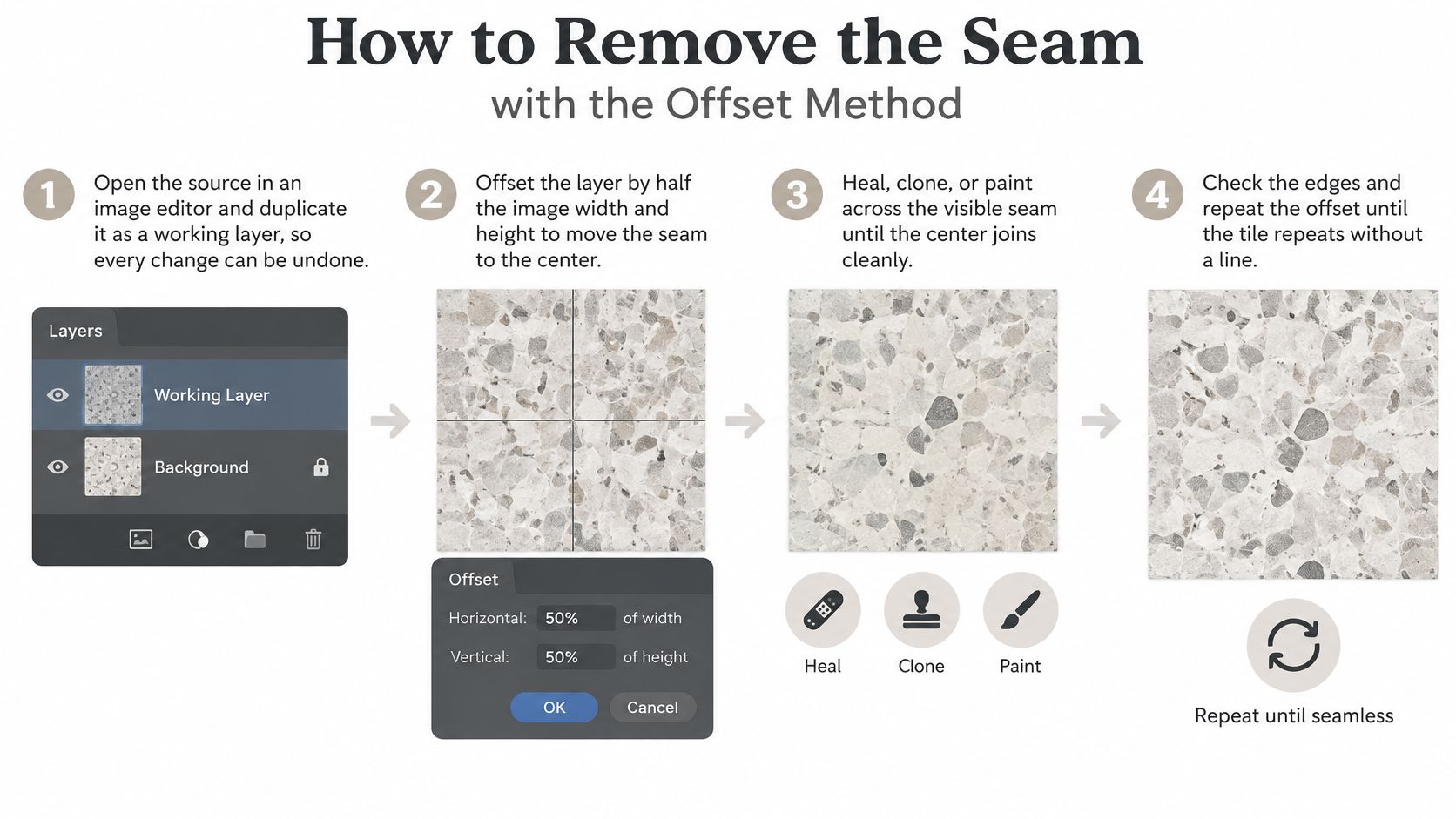
The offset method moves the difficult joins into the middle of the canvas, where you can repair them without guessing how opposite edges connect. Correct broad lighting first, then use the offset to solve structural discontinuities.
This graphic shows the basic repair loop.
Repair the join without flattening the material
Duplicate the source layer. Keep the untouched original underneath and make repairs on editable layers. Common slip: painting directly onto the only copy makes selective rollback difficult once the history is gone.
Offset horizontally and vertically by half the canvas dimensions. In Photoshop, use Filter > Other > Offset with Wrap Around enabled. The original borders now form a cross at the centre. Common slip: using a fill or edge-extension option instead of wrapping the pixels.
Repair the cross with small, deliberate strokes. Clone from nearby areas with comparable grain, stone size or fabric direction. Use healing for irregular detail, but clone or paint across strong structural lines. Common slip: copying a large patch creates recognisable twins, while healing across a brightness gradient produces a smear.
Offset again and inspect the new centre. Repair any join you've introduced and check whether the material still has a consistent scale. Common slip: accepting a faint cross because it looks unobtrusive when zoomed in.
Assign the bitmap in Blender and select Repeat. The Blender Image Texture documentation distinguishes Repeat, which tiles the image, from Extend, which extends edge pixels. Common slip: mistaking stretched border colours for a correctly repeating texture.
Separate broad tone from fine detail
Frequency separation helps when the seam is mostly a low-frequency brightness change. Adjust the broad tonal layer while preserving the fine grain on a separate detail layer. It won't reconnect a broken mortar line automatically, but it can prevent repeated cloning from turning concrete into a soft patch.
Preserve the material's structure first. A sharp but implausible repair is still a failed repair.
For flat artwork, the same edge logic applies to seamless backgrounds for branded designs. A PBR material needs additional approval: after the colour repair, test the surface under lighting and at reduced viewing sizes rather than accepting the centred image alone.
Deriving Normal, Roughness and AO Maps That Match
| Map | How to Keep It Tiling | Failure to Watch For |
|---|---|---|
| Height | Use tiled albedo luminance as a starting point, then correct material structure | Border bands or drift after non-wrapping blur |
| Normal | Derive from tiled height with wrap-aware filtering and fixed strength | Abrupt edge normals from an untiled source |
| Roughness | Adjust a tiled source within material-appropriate, clamped ranges | An implausible wet patch repeated across the surface |
| Ambient occlusion | Bake with padded UV islands | Dark fringe along island borders |
| Metallic | Use clean nonmetal or metal masks for ordinary materials | Grey halos from contaminated mask edges |
Keep this channel workflow beside your material editor.
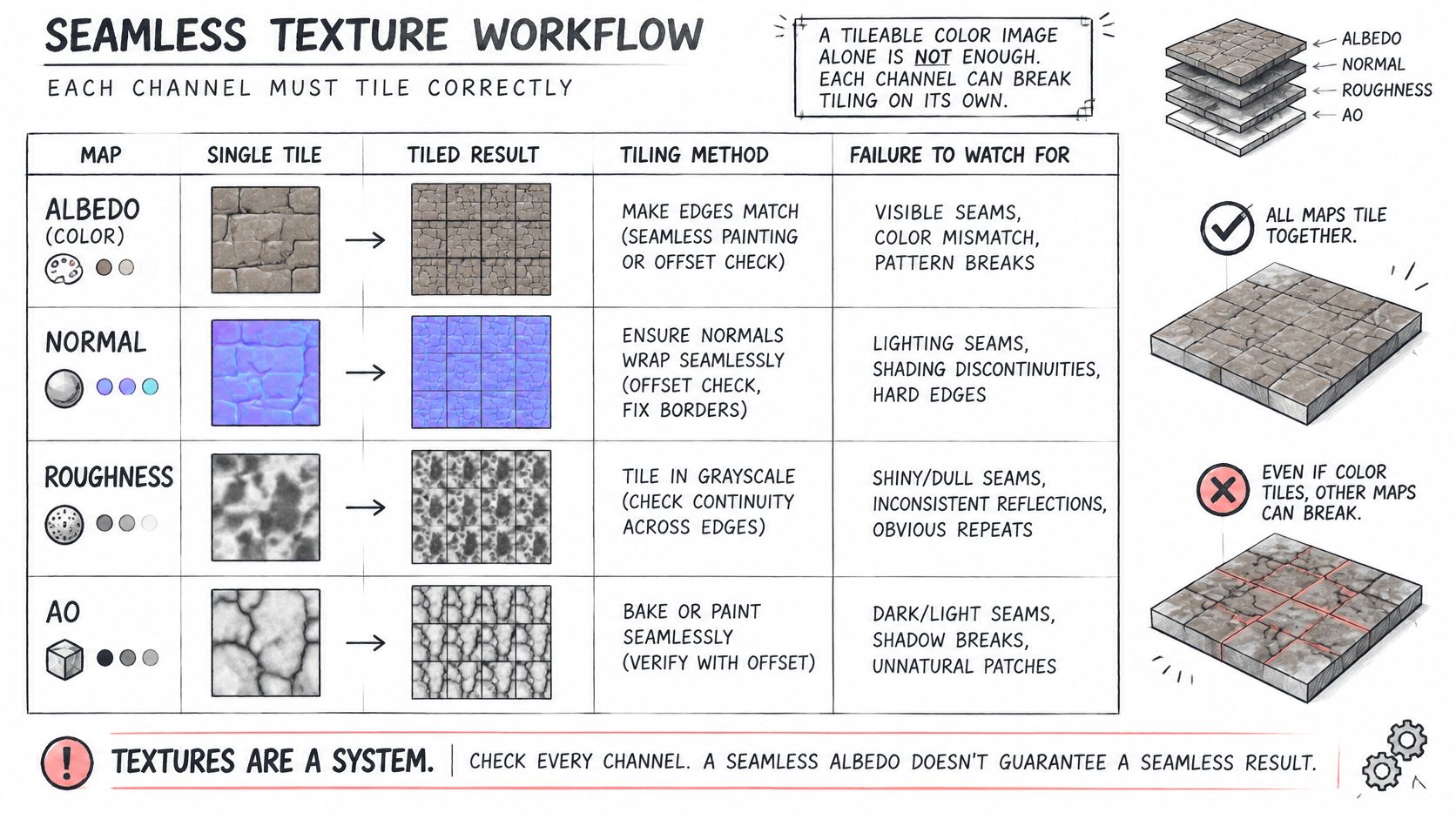
Build structure before surface response
Start with height, but don't confuse brightness with elevation. Dark paint isn't necessarily recessed, and a pale mineral fleck isn't necessarily raised. Correct those relationships before deriving normals, and make sure blur and derivative operations sample across opposite edges.
Generate the normal map from that corrected height. Changing strength between regions creates inconsistent slopes even when the underlying colour joins. Studio Liddell's explanation of normal mapping for real-time graphics provides useful context for understanding how normals change shading without adding silhouette geometry.
Roughness deserves independent judgement. Albedo can provide masks, but desaturating it doesn't establish whether a surface is polished, dusty or wet. Remove photographed highlights from base colour rather than converting them into shiny spots.
The paper on geometry-aware texture generation identifies fragmented UV layouts and inconsistent multiview imagery as causes of texture misalignment. Generated views therefore need registration checks, not just individually attractive previews.
For a moving demonstration alongside your own channel inspection, use the embedded video below.
Keep the maps registered
Bake AO with dilation around UV islands, and don't use it to preserve directional shadows from the source photograph. Keep metallic masks clean unless the material needs intermediate values for transitions or coverage.
Use identical resolution and pixel coordinates across the set. The PBR texture maps guide helps distinguish channel roles, but the decisive check is visual: inspect roughness by itself in a repeated layout, not only inside a flattering final shader.
Testing Tiles in 3D and Game Engines
A clean flat preview is not material sign-off. It can hide filtering artefacts, incorrect normal interpretation and colour leaking from neighbouring UV islands. Even automated image assessment needs a continuity-specific check, as the TiPGAN paper's discussion of tile-continuity evaluation makes clear.
Run the following protocol in the target renderer, with the intended import settings.
The engine validation checklist
Inspect the pattern at useful coverage. Tile the albedo across a plane and look for dominant stones, stains or cracks that reveal the repeating unit. Fix conspicuous motifs rather than merely softening their edges.
Change distance and mip level. Move the camera towards and away from the surface. Look for dark grids, unstable detail and transitions that appear only when the renderer selects smaller texture versions.
Use grazing angles. Rotate the camera until the surface recedes sharply. Check border blur and shimmer under the project's anisotropic filtering settings.
Inspect UV padding. For baked atlases, dilate island colours into the surrounding gutter and leave adequate separation. This is distinct from a standalone repeating tile, which needs compatible opposite image borders.
Isolate material channels. Inspect albedo, roughness, metallic, normal and AO independently. Then move a neutral light across the combined material to expose shading discontinuities.
Verify addressing and import settings. Confirm repeat wrapping on the intended axes, correct colour-space interpretation for data maps, and the expected normal-map orientation.
Use this visual reminder during review.
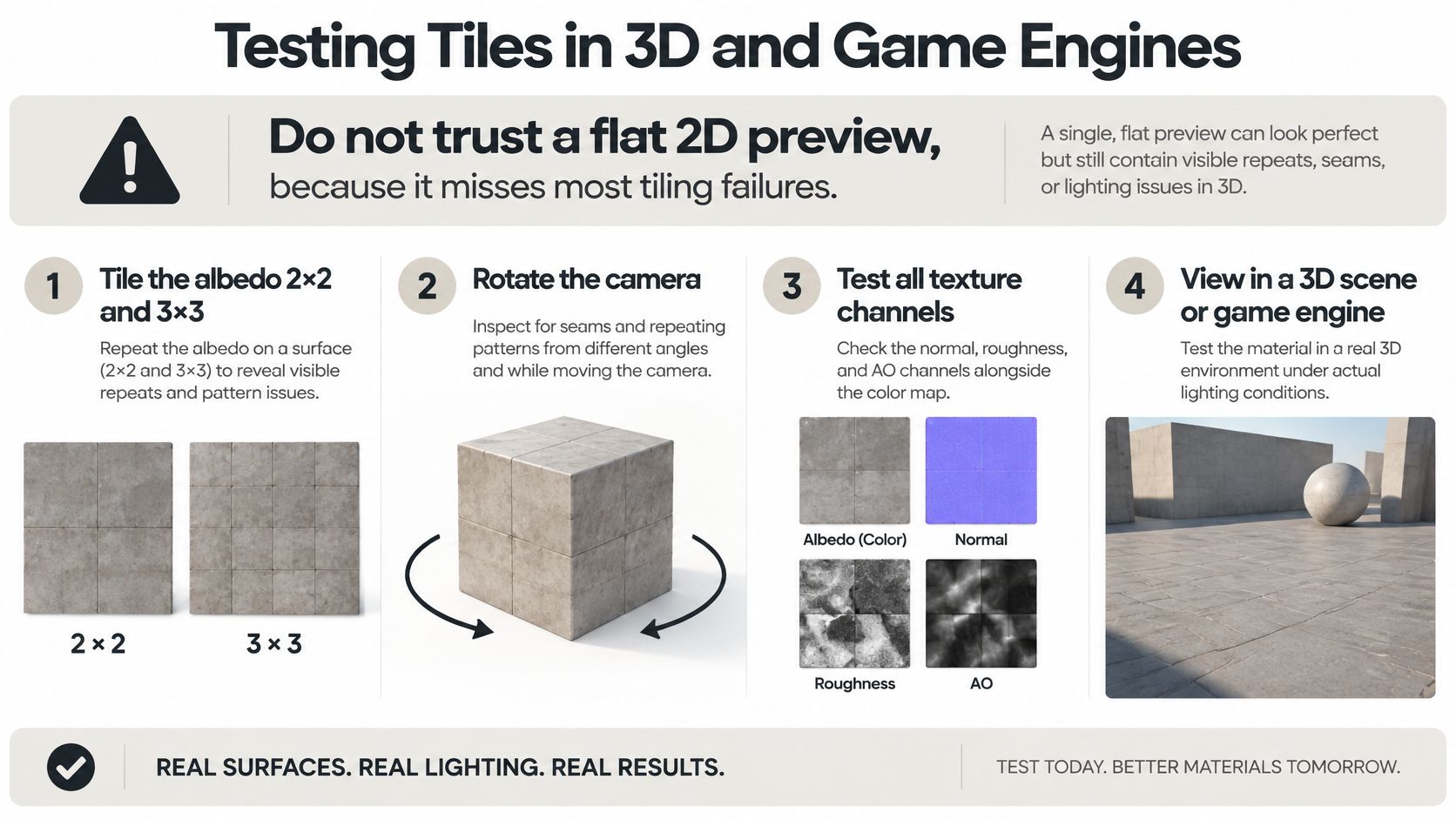
Diagnose the failure before repainting
Say a brick wall looks clean close up but develops dark outlines at distance. If its baked UV islands have no padding, reduced mip levels can mix brick pixels with the dark atlas background. Repainting the albedo seam won't solve that problem. Repack or rebake with sufficient gutters and dilation, then test again.
Sign-off condition: Approve the material only after every check passes in the engine, not merely in the image editor.
That's why tileability is a pipeline property. Artists control the image, UV layout, border treatment, filtering and shader inputs together. A failure in any one of them can reveal the tile.
Deciding When Sculpty AI Texturing Saves Time
| Task | AI Texturing | Keep Manual |
|---|---|---|
| First PBR set from a prompt | Generate a candidate material and review its channels | Match a specific real photograph by hand |
| High-resolution colour for a repeating surface | Generate a starting image, then tile-test it | Offset and heal visible joins |
| Generated mesh with fragmented UVs | Clean up or retopologize, then retexture | Repack islands with padding and rebake when needed |
| Export to Blender, Unity or a slicer | Export a supported mesh format with the required files | Verify material transfer, wrap mode and normal orientation |
| Tile sign-off | Use generation to produce alternatives | Perform engine validation every time |
AI is useful when you need an initial material direction rather than an exact reconstruction. A prompt describing fine-grained sandstone, restrained colour variation and shallow pores gives you a candidate to evaluate. It doesn't establish that the resulting height is plausible or that the roughness will behave under your scene lighting.
The AI texture generation workflow supports prompt-driven PBR material creation. Use that capability to shorten material blocking, then spend your saved effort on channel inspection and target-engine testing.
Choose speed or fidelity deliberately
Keep manual control when the surface must match a particular photograph, manufacturing finish or art-directed crack pattern. Generation may produce a convincing alternative without preserving the specific details you need. Clone work, projected photography and carefully authored masks offer more predictable local control.
For generated meshes, inspect UVs before investing in repairs. Fragmented islands can make local painting cumbersome, and changing the UV layout after texturing usually means rebaking or regenerating the maps. Don't repack islands and expect the old textures to remain aligned.
Export also needs a deliberate handoff. GLB, FBX and OBJ don't carry identical material information, and a printing slicer won't necessarily use a game-style PBR set. Keep editable texture masters and verify what the receiving application imports.
Compare on the same surface
This week, take a material you already have and repair it with the offset method. Run the engine checklist, then generate an alternative and place both on the same test plane with identical scale, lighting and camera movement.
Choose the version that needs less repair while meeting the visual target. That's a more useful measure of time saved than how quickly either tool produces its first image.
Sculpty offers prompt-driven PBR texturing alongside mesh generation, remeshing and export tools. Visit Sculpty to create a candidate material, then compare it with your manually repaired texture under the same lighting and engine checks before you ship.