
How to Convert SVG to STL for 3D Printing
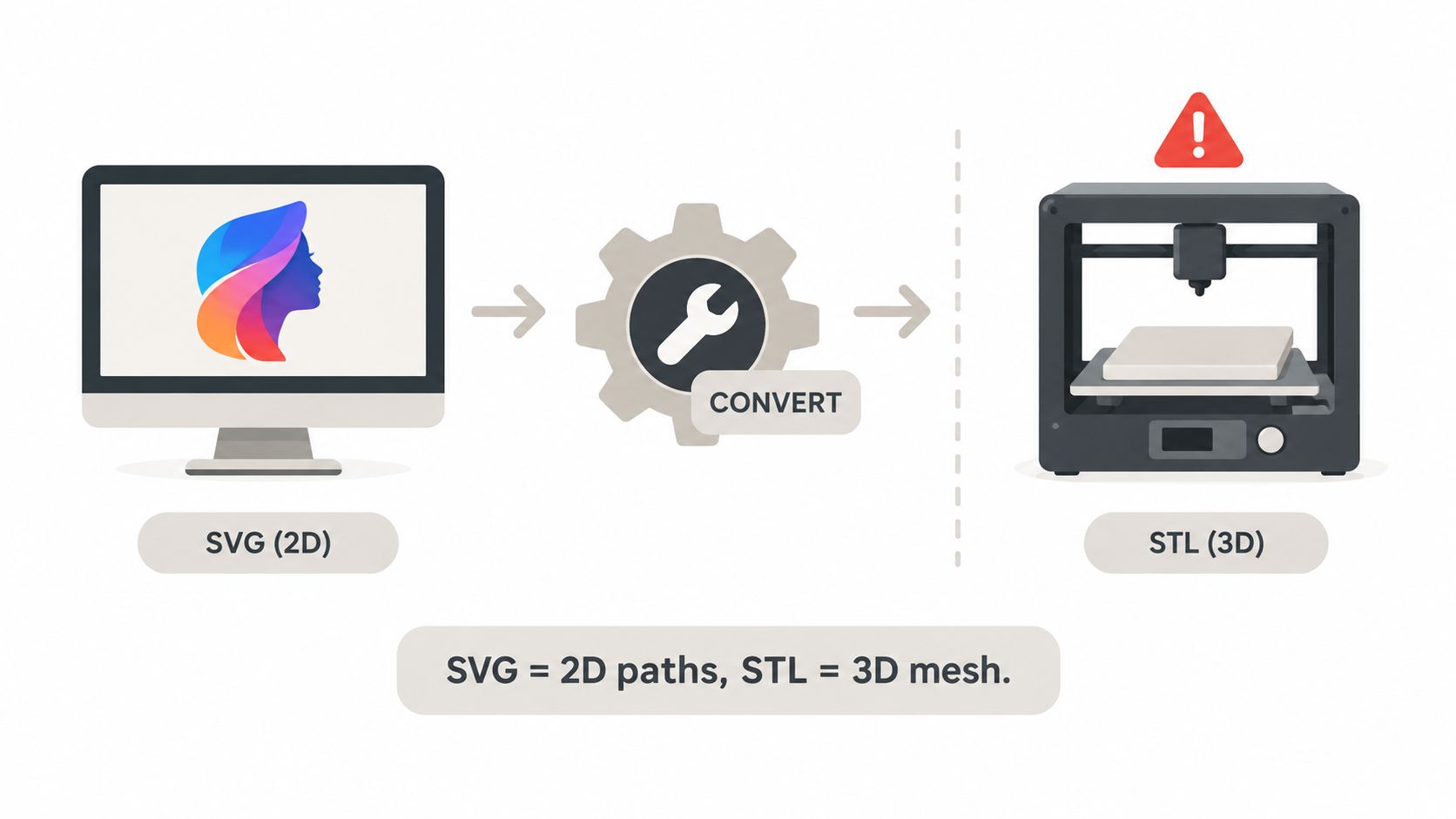
You've got a clean logo, badge, or cookie cutter outline on screen, you run it through a converter, and the printer gives you a flat slab, a solid letter O, or a part a quarter of the size you expected. That's not bad luck. It's what happens when you treat convert SVG to STL as a rename instead of a manufacturing step, and it's fixable once you control scale, contour meaning, and minimum feature width yourself.
Table of Contents
- Why SVG to STL Is Not a File Rename
- Preparing the SVG Before Any Tool Touches It
- Choosing Extrusion Depth, Thickness, and Curve Tolerance
- Browser Converters and Desktop Pipelines Compared
- Repairing the Mesh So It Actually Prints
- Previewing in the Slicer Before You Print
- A Reusable Workflow for the Next SVG You Convert
Why SVG to STL Is Not a File Rename
The screen version lies by omission. Your SVG only describes where ink would go. It says nothing dependable about how thick the part is, how big it is in millimetres, or which white areas should stay open after printing.
That gap is built into both formats. The W3C's first public SVG specification from 11 February 1999 defined SVG as an XML language for 2D shapes, images, and text, and SVG 1.0 reached W3C Recommendation status on 4 September 2001. STL, by contrast, is a three dimensional surface mesh made of triangles. One format describes paths. The other describes the outside of an enclosed solid.
What the Converter Is Actually Doing
A converter has to invent the missing third dimension from your settings. It interprets paths as closed profiles, scales them, samples curves into line segments, decides which nested contours are holes, caps the top and bottom, and builds side walls between them. Then it tessellates the result into triangles and orients the normals outward.
If any step guesses wrong, you feel it at the printer. An open path can't define a region, so a face goes missing. A stroke has visual width on screen but no filled area, so line art can vanish. Live text depends on a font the converter may not have. Gradients and embedded raster images don't define a solid at all.
A converter doesn't read your intent. It reads closed, filled geometry, then applies the depth, scale, and tolerance you gave it, or defaults you didn't notice.
That's why this workflow suits signs, badges, stamps, cookie cutters, and reliefs so well. Those parts are honest extrusions of a flat profile. It struggles with layered, full colour artwork because colour differences aren't height differences until you explicitly assign them. Your job isn't to find a magic button. It's to own three decisions the SVG never made: physical size, extrusion depth, and curve resolution.
Preparing the SVG Before Any Tool Touches It
Most ruined prints are decided before conversion starts. Clean the vector file first, in Inkscape, Illustrator, Figma, or Affinity Designer, and you'll stop debugging the same failures inside the STL.
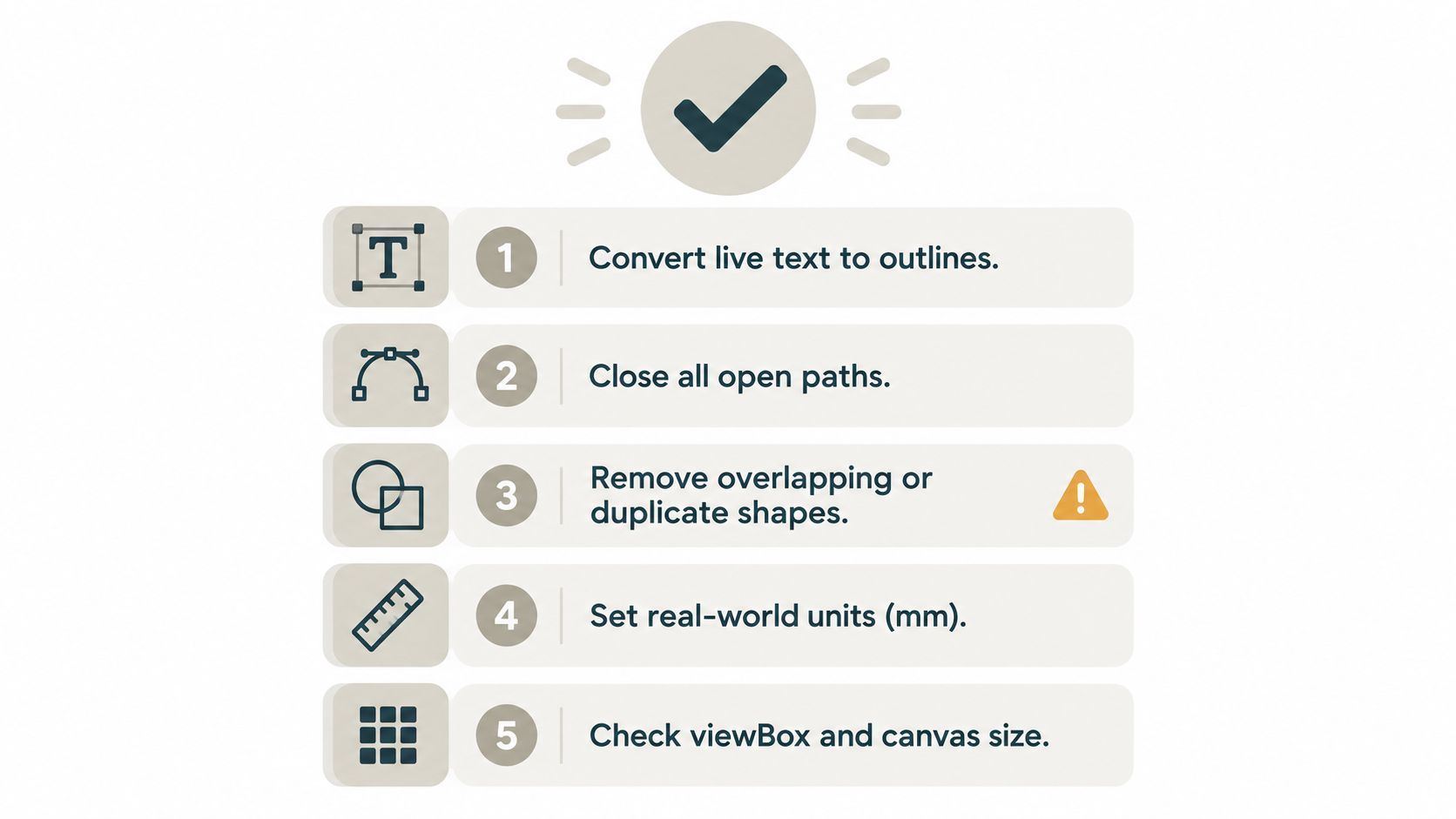
Run the Semantic Preflight
- Outline the text: Convert live type to paths. If the converting machine lacks your font, live text can substitute or disappear, and you won't know until export.
- Expand strokes to fills: Convert every stroke to a filled outline. Converters extrude filled regions, so stroke only artwork is commonly ignored.
- Delete hidden baggage: Remove hidden layers, guides, filters, clipping leftovers, and embedded raster images. Hidden objects can still generate geometry in some pipelines.
- Close and simplify paths: Join microscopic endpoint gaps, delete duplicate segments, and fix self intersections. A contour that looks closed at normal zoom can still fail to fill.
- Resolve overlaps on purpose: Fuse shapes that should print as one solid, and keep genuine holes as compound paths. Don't let the fill rule guess.
Holes deserve a close look. The counters inside O, A, and R only stay open if the inner contour is correctly nested inside the outer one, as explained in this guide to semantic issues in SVG to 3D workflows. Get the nesting or winding wrong and the letter becomes a solid block. Zoom in and toggle fill on and off to confirm each counter reads as empty space.
Fix the Units Trap Now
SVG files mix pixels, points, millimetres, and dimensionless user units. Width, height, and viewBox have to agree, or the converter picks an assumption for you. One technical guide notes that unit ambiguity can make an 80 mm design come out at roughly 21 mm under a 96 pixels per inch assumption.
Write the intended finished width in millimetres in the filename or a locked notes layer, something like logo_80mm.svg. It sounds crude. It works. Before uploading anywhere, confirm five things: every path is closed, every stroke is outlined, no raster placeholders remain, no duplicate paths sit on top of each other, and you know the target width in millimetres. That five minute check saves a full reprint.
Choosing Extrusion Depth, Thickness, and Curve Tolerance
The height field in a converter looks like one decision. It's three, and they interact. Set them from the printer and the part's job, not from how chunky the preview looks.
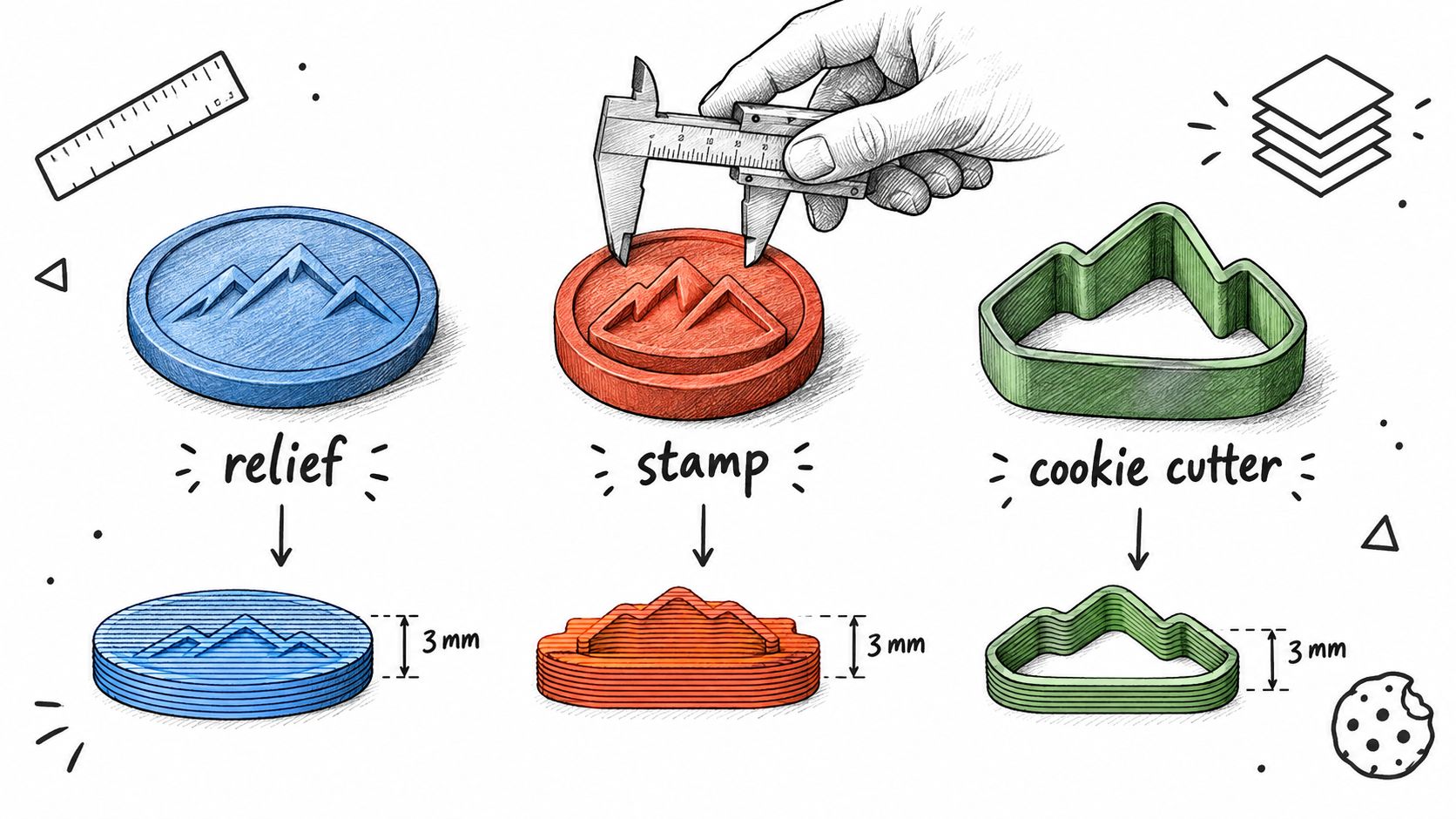
Depth Follows Function
A raised relief on a plaque needs only enough height to read clearly and survive handling. A stamp needs a face that stays flat and a body you can grip. A cookie cutter needs tall, thin walls and almost no top surface at all, which means it's really a wall thickness problem wearing an extrusion costume.
Keep overall height and wall thickness separate in your head. Height is the bounding box. Thickness is what the nozzle lays down as perimeters, and it's what breaks when you flex the part. If you're unsure how thin you can go for your process, work through the limits in this guide to wall thickness for 3D printing before you export, not after a wall snaps.
Depth also interacts with orientation. A deep relief printed face up is easy. The same relief printed on edge turns fine detail into stacked layer lines and may need support that scars the face. Pick depth for the orientation you'll really use.
Tolerance Follows the Printer
Curves can't go into an STL as curves. They're flattened into short line segments, and the chord error tolerance controls how far those segments may stray from the true arc. For fine FDM or resin work, a curve approximation tolerance of about 0.01 to 0.05 mm balances smoothness against file size, and binary STL costs 50 bytes per triangle, so excess triangles only bloat the file.
Decision rule: Find your smallest intended feature in millimetres, confirm it survives one extrusion width, set tolerance well below your printer's XY resolution, then choose depth for strength and orientation.
More segments won't rescue a feature that's too narrow. If a serif or a map line is thinner than the line your printer lays down, it disappears no matter how smooth the mesh is. Thicken the artwork itself, or accept losing that detail.
Browser Converters and Desktop Pipelines Compared
Tool choice should follow the job in front of you, not habit. A one off logo badge and a parametric family of fifty nameplates are different work, even though both start as SVGs.
Browser converters are fast, free or cheap, and need no install. For a clean silhouette with one extrusion depth, they're hard to beat. Their weakness is control. You often can't inspect fill rules, adjust curve sampling in detail, or repair a bad mesh, and some rescale on import.
Desktop pipelines trade speed for visibility. Inkscape cleans the vector, then Blender, OpenSCAD, or FreeCAD handles extrusion, boolean cleanup, and remeshing where you can see every step. That control pays off when artwork has layered heights, engraved regions, or repeated size variants. The cost is setup time and a steeper learning curve.
SVG-to-STL Tool Options at a Glance
| Approach | Cleanup Depth | Scale Control | Mesh Repair | Best For |
|---|---|---|---|---|
| Browser converter | Limited, mostly automatic | Often a single width field | Minimal or none | Logos, badges, stamps, one offs |
| Inkscape plus Blender | Full manual control | Explicit units at import | Strong, with add ons | Layered art, tricky holes |
| OpenSCAD or FreeCAD | Scripted and repeatable | Parametric, exact | Via export checks | Variant families, production runs |
| Slicer embossing | Basic depth and placement | Set in the slicer | Slicer dependent | Adding logos to existing parts |
Watch the desktop route in action before committing to it, since seeing the import dialog once explains more than a settings list.
Hybrid setups suit many makers. Clean the SVG locally, convert in the browser, then validate in the slicer. If you later price these parts for clients, the quoting side matters too, and an Uptool quoting platform stack shows how shops connect estimating with the rest of their software. Keep it simple: browser tool for a single artwork, desktop pipeline when the artwork becomes a system.
Repairing the Mesh So It Actually Prints
Watertight is a slogan, not a test. Replace it with four checks that pass or fail, and you'll know whether to fix the mesh or go back to the SVG.
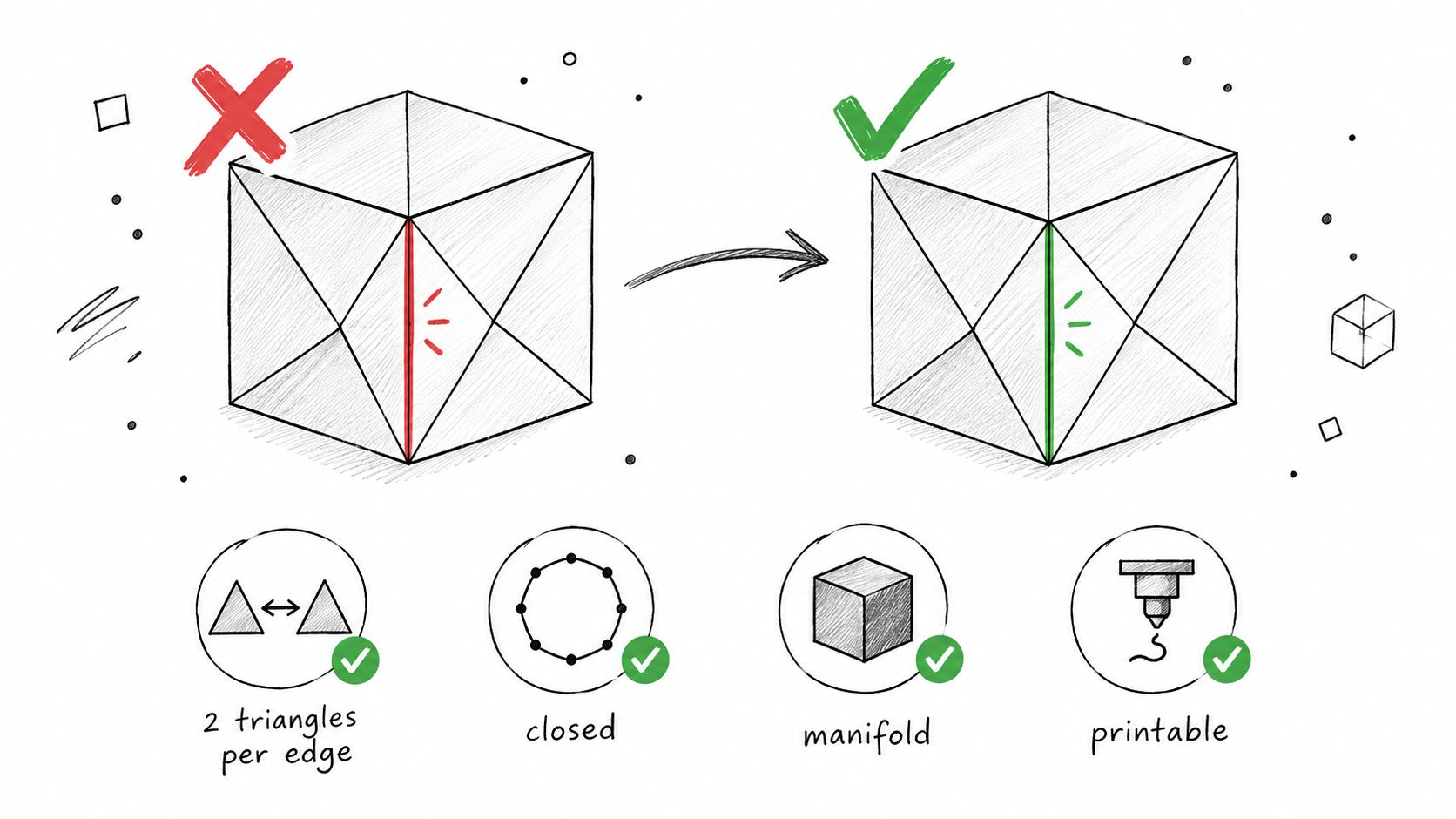
The Four Checks
- Every edge has exactly two triangles: This is the practical test for a closed mesh, as set out in this breakdown of what an STL file actually stores. An edge with one triangle is a hole. An edge with three means overlapping geometry.
- No zero area triangles: Degenerate faces come from duplicated points and collapsed segments in the source path. They confuse slicers and cost nothing to remove.
- Normals point outward, consistently: STL stores triangles and normals, not topology, so flipped winding makes surfaces shade inside out and can invert what the slicer treats as solid.
- One enclosed volume: Disconnected islands slice as separate parts. Sometimes that's intended, as with separate letters. Often it's a contour that broke apart during conversion.
Each failure has a recognisable symptom. Missing faces point back to open contours. Filled in holes point to ambiguous winding or wrong fill rule interpretation. A model that looks dark or inside out in the viewer usually has reversed normals. Shells that move independently in the slicer were never fused.
Run the exported STL through MeshLab or your slicer's built in analysis before printing. If a check fails, resist patching blindly. Most mesh errors from SVG conversion are cheaper to fix in the vector file, where the cause is visible, than in triangle soup. Working through sound modelling practices for 3D printing will also stop you generating the same defects next time.
Repair the cause in the SVG when you can. Patch the mesh only when the vector source is gone or the defect is purely a triangulation artefact.
Export, check, fix the source, re export. Two loops of that cycle beat one heroic mesh repair session.
Previewing in the Slicer Before You Print
A clean STL is not automatically a printable STL. Geometry checks can't tell you whether a letter survives your nozzle, whether the first layer sticks, or whether support material will swallow your finest line. The slicer preview can.
Load the file and check dimensions first, before anything else. STL carries no dependable unit declaration, a legacy issue noted in the Library of Congress format description for SVG 1.1 and related formats, so confirm the bounding box matches your intended millimetre width. If it's wrong, rescale here and note the factor, then fix the source units so it doesn't recur.
Scrub the Layers
Set your real layer height and line width from the printer profile, slice, then drag through the layers slowly. Look for three things.
- Vanished features: Details narrower than one extrusion width may disappear entirely, and freestanding features thinner than two perimeters stay fragile even when they render.
- Bridges and overhangs: Holes and counters that print fine face up can sag or need support in another orientation.
- First layer contact: A relief with tiny disconnected feet may be watertight and still pop off the bed.
Choosing and configuring your slicing software for 3D printing matters here, because preview quality varies and a weak preview hides exactly these failures.
When preview exposes a problem, fix it at the source. Thicken the letter stems in the SVG instead of shrinking line width below what the nozzle handles well. Merge a floating island into a backing plate instead of adding support under a speck. Rotate the part so detail faces up instead of tuning retraction around a bad orientation. Slicer toggles are band aids. Source fixes stay fixed across every future print of that file.
The rule is blunt. Any feature the slicer can't render, the printer can't make. If it's missing in preview, it's missing on the bed, and no amount of hope changes that.
A Reusable Workflow for the Next SVG You Convert
Replay this sequence on every file and conversion stops being a gamble. Each stage has one job and one typical failure, so you always know where a bad result came from.
The Seven Stages
- Preflight the SVG: Outline text, expand strokes, close paths. Failure here means missing or solid filled regions.
- Set units to millimetres: Record the intended finished width. Failure means a correctly shaped part at the wrong size.
- Choose curve tolerance: Match it to printer XY resolution. Failure means faceted circles or a bloated file.
- Set depth and wall thickness: Base both on function, material, and orientation. Failure means snapped walls or unreadable relief.
- Triangulate and extrude: Cap both faces, build side walls, orient normals outward. Failure means holes and inverted surfaces.
- Repair the mesh: Run the four manifold checks. Failure means slicer errors and phantom shells.
- Preview in the slicer: Confirm dimensions and scrub layers. Failure means vanished detail you could have caught for free.
Notice what's absent. There's no stage called trust the defaults. Every parameter that determines whether your print works, including scale, tolerance, depth, and minimum feature width, is a decision the SVG file itself never contained. Someone sets each one. It might as well be you, deliberately, before filament is involved.
To convert SVG to STL reliably is to make a small manufacturing decision dressed as a file conversion. Makers who get clean results consistently aren't using a secret converter. They're running the same seven stages, catching the same few failures at the cheapest possible moment.
When your next design needs to go beyond a flat extrusion, Sculpty gives you a browser based 3D studio with multiple generation engines, remeshing, PBR texturing, and STL export for printing, all behind one interface. Bring your cleaned up artwork, build or refine the model there, and export a file you can validate in your slicer with the same checks covered above.