
360 Degree Turntable: A Practical Guide to 3D Spin Renders
You've probably had this happen already. A client signs off on the model, then asks to “see the back,” then the underside, then one more angle with the light catching the edge. Three screenshots later, the review thread is longer than the asset brief, and nobody still has a clear sense of how the object reads in motion.
That's the point where a 360 degree turntable stops being a convenience and becomes the cleanest way to communicate the work. One controlled spin answers shape, proportion, material response, and silhouette in a single deliverable. If you export it properly, it also stops being just a review artifact. It becomes something marketing can use, something QA can inspect, and something you can drop into a portfolio without rebuilding the whole presentation.
Table of Contents
- Why a Turntable Render Changes Everything
- Preparing Your Model for a Clean Spin
- Setting Up the Scene and Lighting
- Exporting the Turntable Animation
- Choosing the Right Output Format
- Where Turntable Exports Actually Get Used
- Quick Fixes for Common Spin Export Issues
Why a Turntable Render Changes Everything
Static views fail in a predictable way. The front angle looks polished, the three-quarter angle looks informative, and the moment someone asks about the seam line, rear profile, or base geometry, the stills break down. You end up managing angles instead of presenting the object.
A turntable fixes that with the smallest possible upgrade. One loop gives the viewer a full read on the form without asking them to imagine the missing side. That matters even more on products with recessed details, internal cutouts, asymmetrical profiles, or a back panel that's functionally important.
It answers the question behind the question
When a client asks for “the other side,” they usually aren't asking for one more JPEG. They're asking whether the model holds up as an object. A clean spin reveals whether the proportions stay believable through the whole arc, whether the materials stay coherent, and whether the design has dead angles you didn't notice in a hero shot.
A still frame can prove detail. A turntable proves the object exists from every angle.
That's why I treat turntables as finished creative output, not just preview footage. The same spin can serve review, approval, launch, and archive if it's framed and exported with intent.
It travels well across teams
The useful part is downstream flexibility. Product teams use spins to check seams and alignment. Marketing teams use them as lightweight motion assets. Artists use them as portfolio proof because a loop exposes topology, surfacing, and shading choices more clearly than a single still ever will.
This matters outside hard-surface products too. If you work on apparel visualization, references like virtual models for clothes are a good reminder that rotation is often part of presentation, not just inspection. Once the asset is meant to sell fit, drape, or construction from multiple angles, motion stops being optional.
Preparing Your Model for a Clean Spin
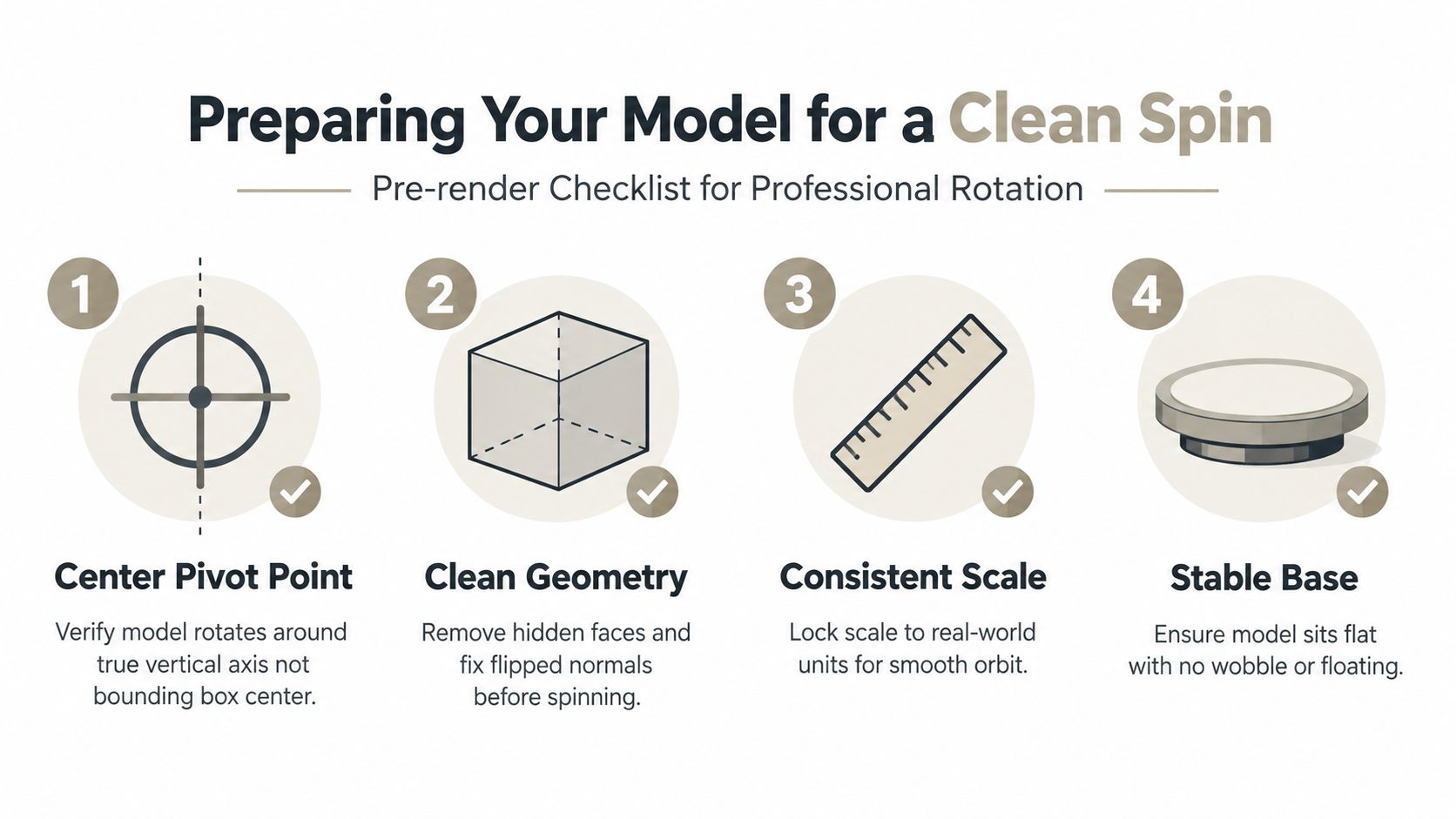
Most bad turntables aren't ruined in render settings. They're ruined before render starts. The giveaway is usually immediate: the model wobbles, drifts off center, or reveals junk geometry the front view hid.
Start with the pivot, not the camera
If the pivot is wrong, the whole export looks amateur no matter how good the shading is. The object needs to rotate around its true vertical axis, not the center of a loose parent, not a bounding box center, and not whatever point the import created.
A few checks catch most problems fast:
- Apply transforms first: Unapplied scale or rotation often makes the spin feel uneven even when the keyframes are technically correct.
- Inspect parent groups: Imported CAD assemblies and kitbashed scenes often hide an offset empty that pulls the object off-axis.
- Test the base contact: If a product should feel grounded, its resting point needs to stay visually stable through the full rotation.
For physical product work, I also check whether the asset has the kind of geometry that would survive fabrication review. Looking at examples of profitable 3D printing products is useful because those objects expose the same issues that break spins: bad bottoms, weak silhouettes, and details that only exist from one angle.
Remove what the camera will eventually find
Hidden geometry always shows up once the model starts moving. Interior faces, backup meshes, forgotten booleans, floating decals, and disabled modifiers have a way of becoming visible at frame 37 instead of frame 1.
Run a short cleanup pass before you animate:
- Toggle wireframe or X-ray mode and inspect for buried duplicate shells.
- Check normals on anything reflective or thin-walled.
- Disable helpers and construction meshes from render visibility.
- Reduce unnecessary density if the viewport is lagging. A cleaner source mesh is easier to preview and less likely to flicker. If the model is heavier than it needs to be, a guide to mesh decimation workflows is worth revisiting before you commit to final frames.
Practical rule: Orbit the camera manually around the model once before rendering anything. If you see clipping, shimmer, or shadow acne in the viewport, the final export won't magically fix it.
Ground plane or no ground plane
This decision affects delivery more than beginners expect.
- Keep the ground plane when the object needs weight, contact shadows, or a catalog look.
- Remove it when the asset is meant to float, composite over multiple backgrounds, or export with transparency.
- Use a shadow catcher if you want the contact read without baking in a full background.
A turntable meant for review can get away with a rough setup. A turntable meant for reuse needs these decisions locked before frame one.
Setting Up the Scene and Lighting
Lighting for a spin is different from lighting for a hero still. A setup that looks perfect from the front often falls apart halfway around, where one side blooms with specular glare and the opposite side drops into a dead patch.
Build for consistency across the full rotation
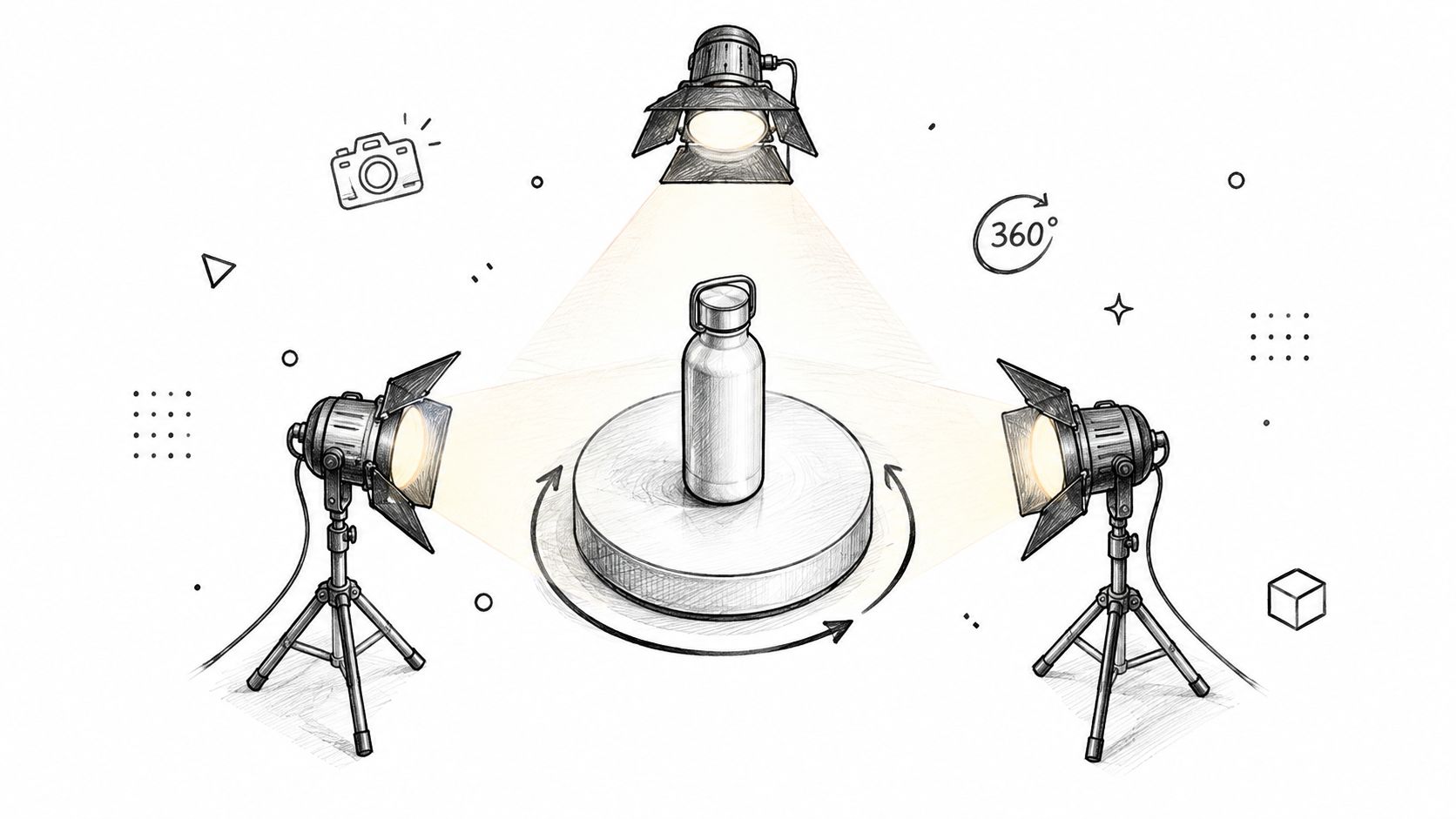
The goal isn't dramatic lighting from one angle. It's stable readability through all angles. I usually want one dominant light defining the shape, one softer source preventing the shaded side from collapsing, and one edge light that keeps the silhouette separate from the background.
That doesn't mean every rig must be classic three-point. It means every light has a job, and that job has to survive the full loop.
- Key light: Carries the form. If the key is too narrow or too hot, glossy areas will flare in one part of the spin and disappear in another.
- Fill light: Softens contrast so details don't vanish as the object turns away.
- Rim or back light: Helps edge definition, especially on dark objects or transparent-background exports.
Background choice affects everything later
Background is not a cosmetic choice. It changes how flexible the final asset will be.
A few reliable options:
| Background | Works best when |
|---|---|
| Flat gray | You expect color grading or editorial compositing later |
| Pure white | The client wants a catalog or marketplace look |
| Transparent | The same spin needs to sit over multiple layouts or UI surfaces |
Glossy materials need special care here. Strong environment reflections can look beautiful in a still and jitter in motion. A controlled HDRI or restrained reflection card setup usually beats a dramatic studio map if the output is a loop.
If reflections are moving more than the object itself, the lighting is doing too much.
Camera framing deserves the same restraint. Keep the model visually stable in frame, with enough breathing room that it doesn't crowd the top or feel stranded at the bottom. A common product-photography workflow captures 24, 36, or 48 frames per full turn, and a standard spin often uses 36 frames, with the turntable pausing every 10 degrees, according to Orbitvu's guide to 360 product photography. Even if you're rendering in 3D rather than shooting on a physical rig, that pacing logic still helps when you're deciding how dense the rotation should feel.
Here's a simple studio-style reference for the kind of setup this section is describing:
Exporting the Turntable Animation
The model is clean, the lighting is stable, and the final file still arrives with the wrong background, a sloppy loop, or a codec that no one downstream can use.
Lock the motion before you think about codecs
For a polished deliverable, I treat the rotation as mechanical. The object rotates around its origin or a dedicated empty. The camera stays locked unless the whole concept is a camera orbit, and even then the move has to loop perfectly.
A practical baseline:
- 60 frames for one full revolution gives you a deliberate, readable showcase.
- 120 frames feels smoother and holds up better in hero placements, especially on reflective products.
More frames aren't automatically better. If the playback target is small, compressed, or meant for quick preview, excessive frame count just creates larger files and longer review cycles.
Transparent backgrounds need planning, not guessing
Beginners often think “transparent background” is a checkbox. It isn't. It's a pipeline choice. Your renderer, output format, and downstream editing app all have to agree about alpha.
For that reason, I always verify these points before the final render:
- The render engine is outputting alpha, not a baked solid background.
- The file format supports RGBA, not just RGB.
- The alpha interpretation matches the destination, especially if the file is going into web playback, motion graphics, or a viewer app.
Black halos, dirty edges, and fringe around glossy objects usually come from mismatched alpha handling, not bad anti-aliasing.
Export one short test loop and composite it over both white and dark backgrounds. If the edge fails on either, fix alpha before rendering the full sequence.
This is also the stage where browser-based tools can be useful. If you need a straightforward option that outputs a model or logo as a 360 animation with transparent background support, Sculpty includes a 3D and logo to 360° workflow inside its web studio.
Pick the export type based on what happens next
I almost never choose the final format based on what previews best in my viewport. I choose it based on who touches it next.
- PNG sequence: Safest for compositing, editing, archiving, and transparency. If a client changes the background later, this is the format that won't punish you.
- MP4: Efficient and easy to deliver when transparency isn't required.
- GIF: Fine for rough previews or lightweight embeds, but color compression is harsh on gradients and soft lighting.
Always export a still frame too. Teams need thumbnails for CMS slots, review boards, and gallery cards, and pulling one later from a compressed video is a waste of time.
There's also a broader strategic question now that synthetic spins exist. Recent coverage notes that AI can generate 360 spins from a single image, while other ecommerce commentary says 360-degree views are becoming standard in some categories, as discussed in this overview of interactive 360 product photography and AI-generated spins. For delivery work, the trade-off is simple: if exact geometry, label placement, and material fidelity matter, a physical or true 3D turntable export is still the safer asset.
Choosing the Right Output Format
File format choices only look boring until the wrong one blocks delivery. The format has to match the destination, the need for transparency, and how much post-processing the asset will go through after export.
What each format is actually good at
Image sequences sit at the top of the reliability stack. PNG and EXR survive editing, color work, and background changes because they preserve frame-level control. If something glitches in one frame, you can replace one frame instead of re-encoding an entire video.
GIF is the opposite. It's convenient, widely supported, and useful for quick previews, but the palette limitation shows up fast on smooth shadows, glows, and soft gradients.
MP4 is the normal answer for web embeds and client-facing previews where transparency doesn't matter. WebM can be more efficient in the right environments, but codec support only matters if the destination accepts it.
Turntable output format comparison
| Format | Transparency Support | Best For |
|---|---|---|
| PNG sequence | Yes | Compositing, editing, review archives, reusable master delivery |
| EXR sequence | Yes | Heavy post-processing, linear workflows, advanced grading |
| GIF | No practical alpha workflow for most deliveries | Quick previews, lightweight loop demos |
| MP4 H.264 | No | Website embeds, portfolio reels, client review links |
| WebM | Depends on pipeline and destination support | Web delivery where smaller files or alternative browser support matter |
If you're still deciding between scene exports and presentation outputs, a plain-language rundown of 3D file formats helps separate model interchange from render delivery. A GLB or FBX gets the asset to another tool. It does not replace a finished turntable export.
Use the newest codec only when the delivery target already supports it. “Better compression” means nothing if the client can't publish the file.
The practical rule is simple. If transparency matters, deliver a sequence. If transparency doesn't matter, render against the chosen background and encode a video. If the asset only needs to communicate motion fast, a small GIF is enough.
Where Turntable Exports Actually Get Used
The same spin rarely ships unchanged everywhere. What works in a review portal often feels clumsy on a product page, and what looks perfect in a portfolio can be too heavy for a storefront.
Ecommerce, review, and portfolio are different jobs
In ecommerce, the turntable usually has to load fast, loop cleanly, and sit comfortably on a white or neutral background. This is also the use case where the business case is clearest. One industry roundup says listings with 360 spin imagery can convert 27% to 47% better than static-only pages, with one cited study also reporting about a 35% lift in add-to-cart rates and return-rate reductions of 22% to 50% when 360 views replace static images, according to ComXim's industry report on 360 product photography turntables.
Client review is a different environment. Here, the viewer may need to stop on a seam line, inspect one frame, or compare revisions. That's where image sequences stay useful because a reviewer can scrub, annotate, and pull stills without introducing compression noise from video.
Portfolio use is different again. Artists often benefit from a baked environment, a slower read on materials, and cleaner editorial framing than a marketplace would allow.
One master render, several derivatives
The efficient approach is to render once at the highest useful quality, then derive smaller outputs from that master. That prevents repeat rendering every time another destination appears.
A typical split looks like this:
- Ecommerce listing: compressed video or interactive spin asset over white
- Review portal: full-resolution sequence for frame-accurate feedback
- Internal library: archived master sequence with alpha intact
- Portfolio page: graded video with a chosen background and title card if needed
If you need a lightweight way to hand off inspectable assets without forcing everyone into DCC software, online options like a 3D model viewer in the browser can complement a turntable nicely. The spin communicates the finished presentation. The viewer handles deeper inspection when stakeholders want to orbit manually.
Another real-world wrinkle comes from physical turntable capture. Buyers often ask whether very light objects behave reliably, and independent guidance notes that many turntables perform best above 0.3 kg, while items under 200 g can show micro-jerks at low speed unless secured with tape or a silicone pad, as noted in Alibaba's rotating display turntable guide. If you shoot jewelry, miniatures, or tiny product parts, that hardware behavior affects the footage before post even starts.
Quick Fixes for Common Spin Export Issues
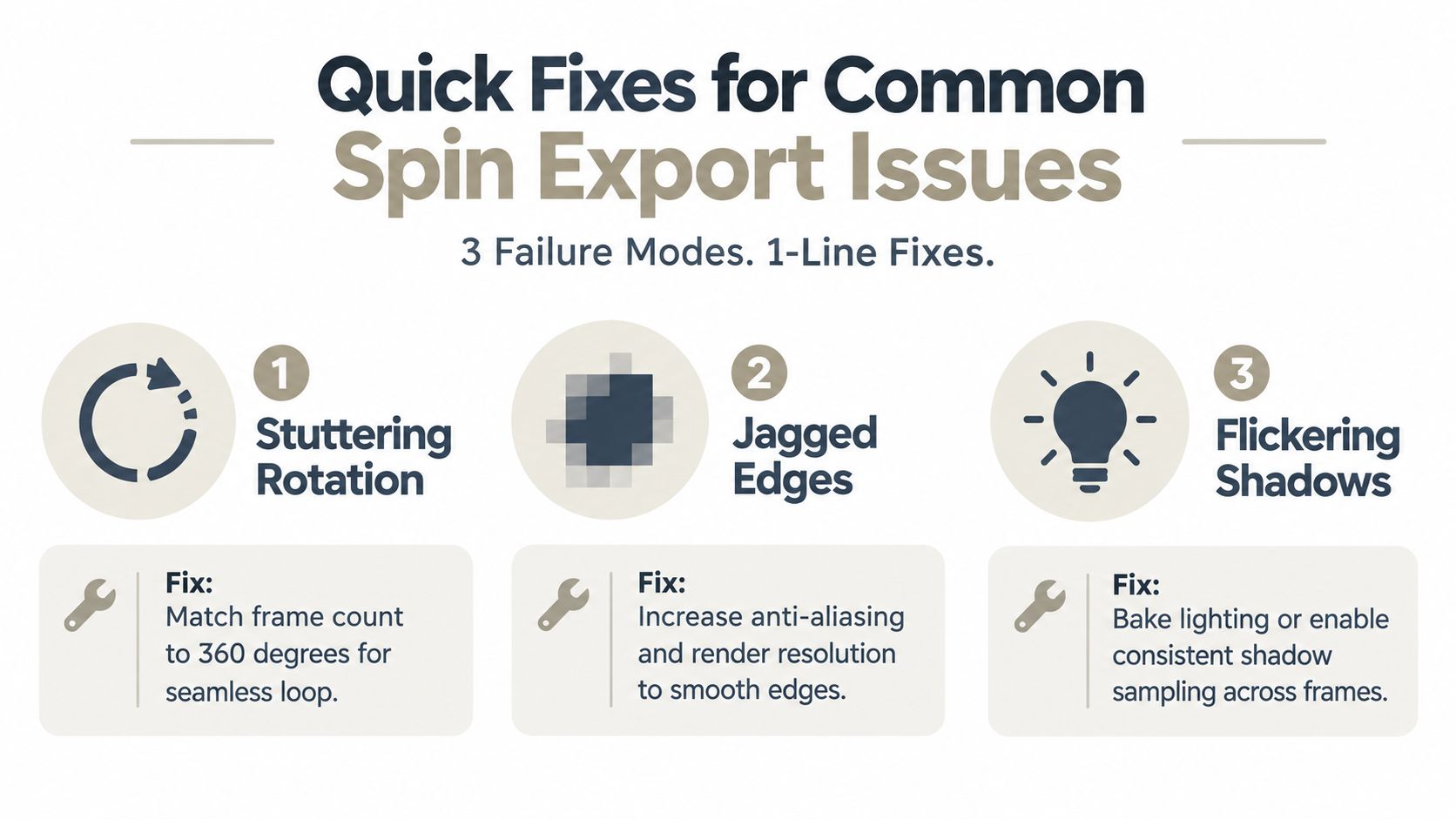
Most failed turntable deliveries come down to a short list of repeat offenders. The good news is that the fixes are usually simple once you know where to look.
The three issues that break the loop
- Stuttering rotation: This usually happens when the frame count and the rotation keys don't divide into a clean full revolution. Fix it by matching the animated rotation exactly to the loop length and checking that the first and last visible frames don't duplicate awkwardly.
- Jagged edges in motion: A still can hide weak anti-aliasing. Motion exposes it immediately on silhouettes, decals, and thin geometry. Raise sampling or render resolution before you blame the codec.
- Flickering shadows or reflections: Small lighting instabilities become obvious once the object moves. Use more stable shadow sampling, reduce noisy reflections, or simplify the environment that's causing the shimmer.
One more issue that ruins transparent exports
Alpha halos are common when a transparent render gets interpreted incorrectly during encoding or compositing. The fix is usually to re-check whether the output expects straight alpha or premultiplied alpha, then test the footage over both light and dark backgrounds before delivery.
Scrub the exported file at full playback speed before you send it. Motion problems almost never show up in the hero frame.
A turntable is one of the fastest ways to make a model feel finished, but only if the export survives outside your own machine. That means stable rotation, clean edges, and a format that matches the job at hand.
If you want a faster path from model to delivery-ready spin, Sculpty gives you a browser-based workflow for creating 360° turntable exports, including transparent-background output that's useful for web, review, and compositing. It's a practical option when you need the spin as a finished asset, not just a viewport preview.