
What File Type Do 3D Printers Use? STL or 3MF
3D printers commonly receive G-code generated from model files, most often STL or 3MF; STL offers broad legacy compatibility, while 3MF better preserves scale, materials, and manufacturing information. Why, then, can a file open successfully in your software yet still lose its colors or arrive at the wrong size?
The missing distinction is what the file carries, not just whether an application accepts its extension. A digital sculpture, an editable engineering component, a configured slicer project, and a machine instruction file serve different purposes. Choosing well means matching the download to your next task, whether that's printing, editing, sharing, or handing a prepared job to someone else.
Table of Contents
- What Files Do 3D Printers Actually Use
- How a Model Becomes a Printable File
- Comparing Common 3D Printing File Formats
- Why STL Became the Default and 3MF Changed It
- How to Export and Validate a Print-Ready Model
- Choosing a Format for Real-World Models
- Why Supported Files Can Still Print Incorrectly
- Choose the Right File for Your Printing Goal
What Files Do 3D Printers Actually Use
You download a figurine, copy its STL file to your printer's storage, and discover that it isn't available as a printable job. That doesn't necessarily mean the download is broken. You may have supplied the object's shape where the machine expected manufacturing instructions.
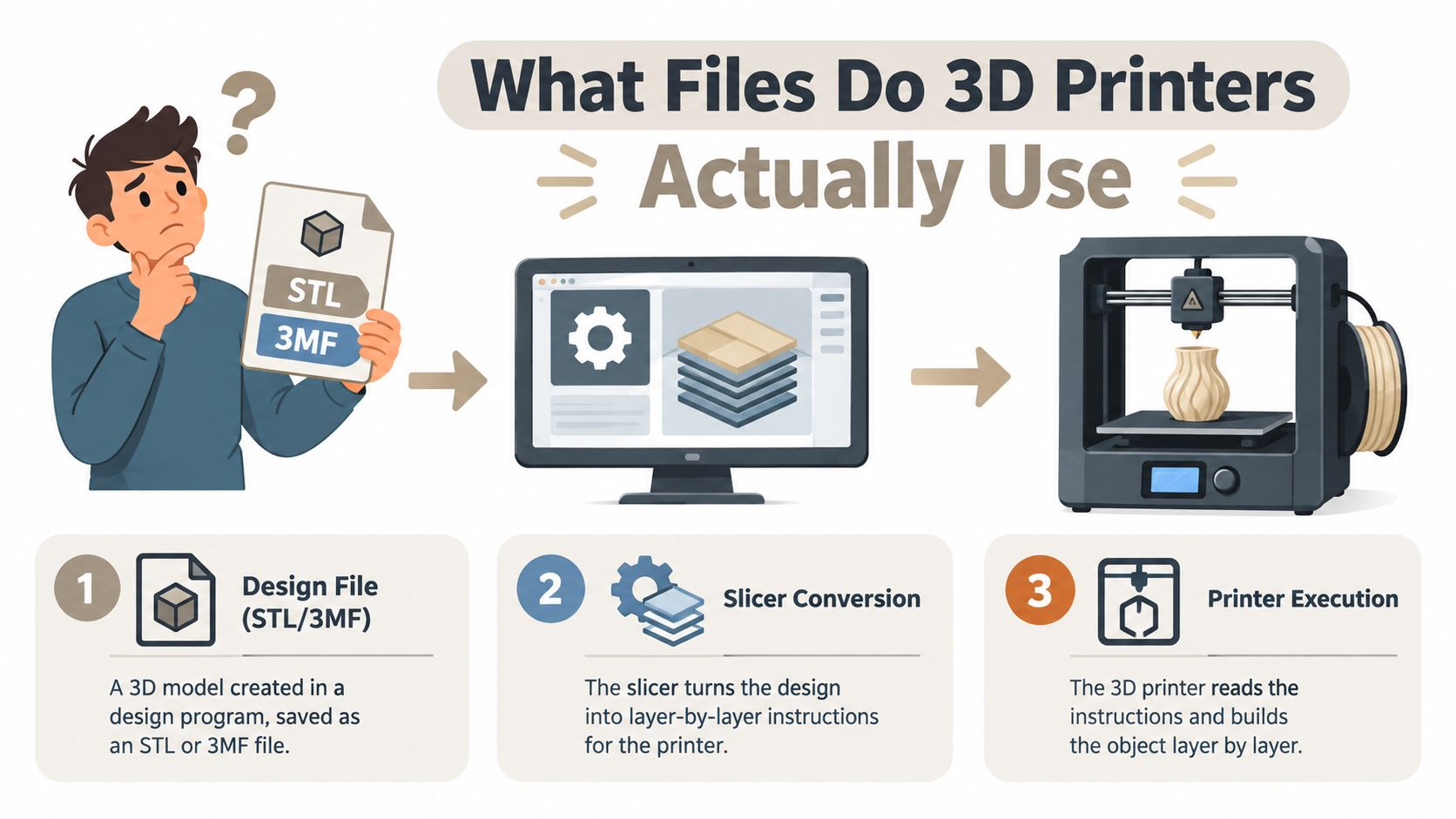
The 3MF Consortium's manufacturing-format guidance distinguishes model information from the preparation needed to produce a physical object. A printer generally doesn't execute an STL, OBJ, or GLB directly. A slicer converts the model into layer-by-layer instructions, commonly G-code, for the intended machine.
Think of a workshop handoff
The model is the object plan, the slicer is the translator, and G-code is the step-by-step instruction booklet given to the printer. Handing a craftsperson a drawing doesn't specify every movement needed to build it. Likewise, supplying geometry doesn't finish the manufacturing preparation.
The process diagram separates those responsibilities.
Keep these file roles separate:
- Model files describe the object and may include appearance or manufacturing properties.
- Slicer projects preserve a preparation workspace, potentially including object placement and print settings.
- Machine instructions tell the selected printer how to execute the prepared job.
This is why the question “what file type do 3D printers use?” has a workflow answer rather than a single extension. You usually choose a model file first, prepare it in compatible software, and then send the resulting machine file.
Format choice still matters before that final conversion. If important information disappears during export or import, the slicer can't reliably reconstruct your intent. A successful handoff begins with knowing which information the next person or application needs.
How a Model Becomes a Printable File
A finished-looking model isn't necessarily a finished printing job. Its surface may describe a character's face beautifully while leaving the manufacturing decisions entirely unresolved.
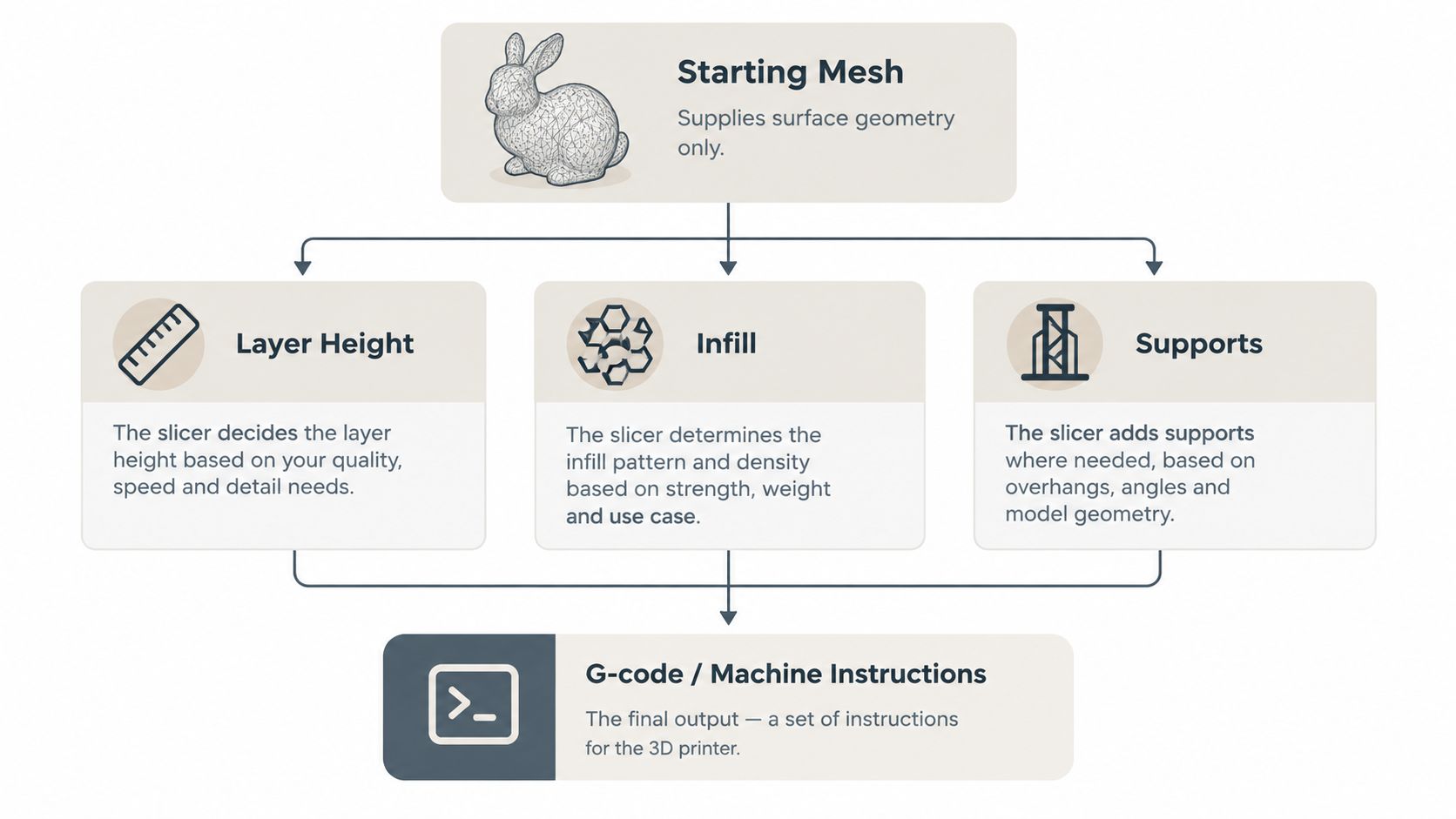
For a geometry-only export, you still need to configure layer height, infill, supports, temperatures, and material profiles. You also need to decide how the object should sit on the build surface and check whether its dimensions and walls suit your intended print.
The flowchart shows how geometry and preparation choices become machine instructions.
Follow the asset through preparation
- Create or generate the model. Start with your design or AI-generated asset, keeping the editable version available for changes.
- Export for the destination. Choose a format that retains the information your next tool needs, rather than selecting the first available extension.
- Set up the slicer. Select the intended printer and material configuration, then establish placement and print parameters.
- Inspect and repair. Check dimensions and geometry, address warnings, and examine the sliced result.
- Generate the machine file. Export the instructions using the target printer's supported workflow.
Our guide to slicing software for 3D printing provides context for choosing the application that handles this preparation.
Practical rule: Treat importing a model as the beginning of print preparation, not proof that preparation is complete.
For example, consider a small decorative bust. The surface model describes its exterior, but you still need to decide whether the chosen orientation requires supports and whether delicate features remain viable at the intended size. Those are production decisions, not merely export preferences.
A slicer project can preserve some of those choices for a later session or another recipient. However, a model-only export won't necessarily retain them, even when it uses a format that can support richer information.
For a visual walkthrough of the preparation process, watch the accompanying video.
Comparing Common 3D Printing File Formats
Choose a format by asking what must survive the handoff. A colleague who needs editable geometry has different requirements from someone who only wants to slice a monochrome figurine.
Compatibility also has layers. PrusaSlicer's supported-format documentation lists STL, 3MF, STEP, OBJ, and AMF, but explicitly says that OBJ material and texture information is ignored during import. It also explains that STEP geometry is triangulated during import. Acceptance therefore doesn't mean preservation.
3D Model Format Comparison for Printing Workflows
| Format | Best For | Information Preserved | Main Limitation | Pre-Slice Check |
|---|---|---|---|---|
| STL | Broad legacy geometry exchange | Triangulated surface geometry | No intrinsic units, appearance, or print settings | Confirm dimensions and mesh integrity |
| 3MF | Manufacturing-oriented and project-aware handoffs | Geometry, defined units, and supported properties; project content depends on exporter | Applications may interpret extensions and project data differently | Confirm which objects, properties, and settings actually arrived |
| OBJ | Downstream tools expecting separate geometry and material files | Geometry and associated appearance information when supported | A slicer may discard materials and textures | Check imported geometry and material interpretation |
| AMF | A toolchain that explicitly requests it | Verify the properties retained by the particular exporter and importer | Format support alone doesn't establish equivalent behavior | Test the actual file in the receiving slicer |
| GLB | Web, game-oriented viewing, and digital review | Digital appearance suitable for supported review workflows | Not a direct printer submission format | Prepare and validate a separate printing deliverable |
| STEP | CAD-oriented engineering handoffs | CAD geometry before the receiving tool's conversion | Slicer import may triangulate the geometry | Inspect the resulting mesh and physical dimensions |
| PLY | A workflow that specifically requests PLY | Confirm the required geometry and properties in the destination tool | Don't assume support from another format's compatibility | Verify import support before committing to the handoff |
Compare the destination, not just the extension
For printing, concentrate on geometry, dimensions, material intent, and the receiving slicer. STL and 3MF are the practical starting choices for most of the workflows discussed here.
For editing, ask what the recipient needs to change. Someone adjusting an engineering component may want the CAD-oriented handoff rather than only the surface mesh you prepared for printing. Someone reviewing a textured sculpture may instead need its associated appearance files.
For sharing, distinguish visual review from manufacturing collaboration. A model that looks correct in a browser hasn't necessarily been prepared for a physical build. Conversely, a geometry-only printing file may be entirely adequate even though it omits the original asset's textures.
A file can preserve exactly what the recipient needs without preserving everything in the original design.
AMF and PLY belong in a destination-led decision, not a beginner's default download list. If a service or collaborator requests either, ask for its import requirements and a description of the properties it expects. Don't convert just because another extension sounds more specialized.
Finally, treat complete slicer projects as a distinct handoff category. Ask whether the recipient wants just the object or the prepared workspace. Those requests can produce files with the same extension but very different contents.
Why STL Became the Default and 3MF Changed It
STL's longevity makes more sense when you consider its original job. It provided a portable way to communicate a model's surface rather than attempting to describe every aspect of manufacturing.
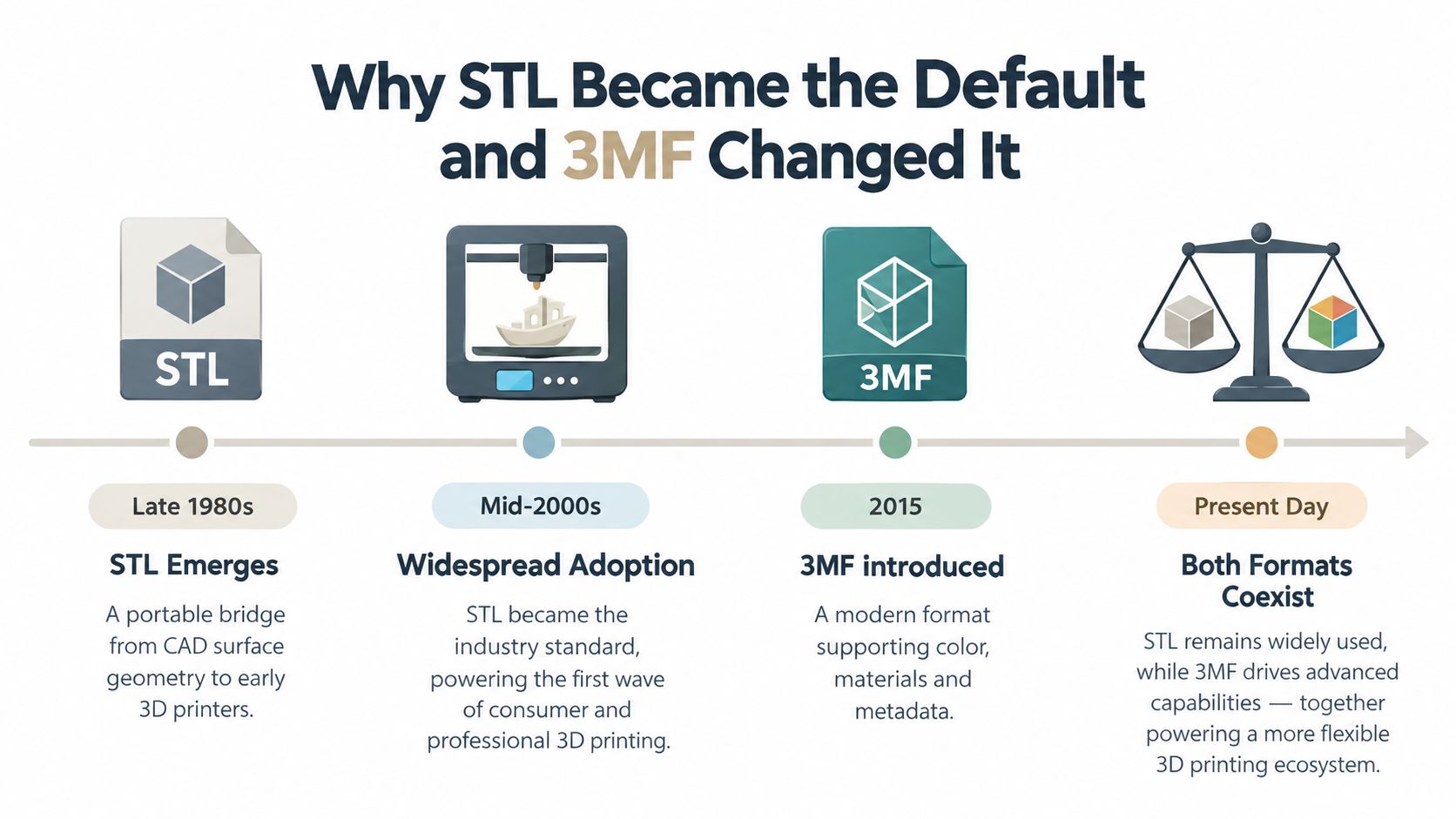
According to Adobe's explanation of the STL format, 3D Systems developed STL in 1987 for its early commercial stereolithography printers. The format was formally documented in 1988, with a second edition in 1989. Its name comes from stereolithography.
A simple surface description with lasting trade-offs
STL represents a surface as flat triangles, each described by vertex coordinates and a surface normal. Curves become an approximation assembled from those triangles. That portable representation helped establish STL as a de facto interchange format for additive manufacturing.
Its simplicity also explains its omissions. STL stores geometry, not intrinsic units, colors, textures, materials, or print settings. A recipient can receive the correct shape without receiving enough information to understand its intended scale or manufacturing setup.
The timeline places the formats in their practical historical context.
A richer handoff rather than a universal replacement
Prusa's explanation of 3MF and its manufacturing benefits describes the practical contrast between a bare mesh and a richer manufacturing package. Defined units and supported properties reduce the information a recipient must infer or recreate.
The important distinction is capacity versus contents. A format may support materials or project information without every exporter writing those properties. Likewise, an importer may read the core geometry without handling every additional property as intended.
That makes “newer is better” an incomplete rule. STL remains a sensible choice for uncomplicated geometry exchange, while 3MF becomes more useful when the handoff requires information beyond the surface.
Before choosing, ask what the exporter writes and what the recipient reads. A carefully checked, deliberately simple file is more useful than a richer container whose contents nobody has verified.
How to Export and Validate a Print-Ready Model
Begin with the intended physical result, not the export menu. A monochrome decorative object, a multipart assembly, and a material-aware handoff require different checks.
Also separate export capability from export verification. Seeing a format in a menu tells you what the application can produce, not whether the resulting file contains every property you need.
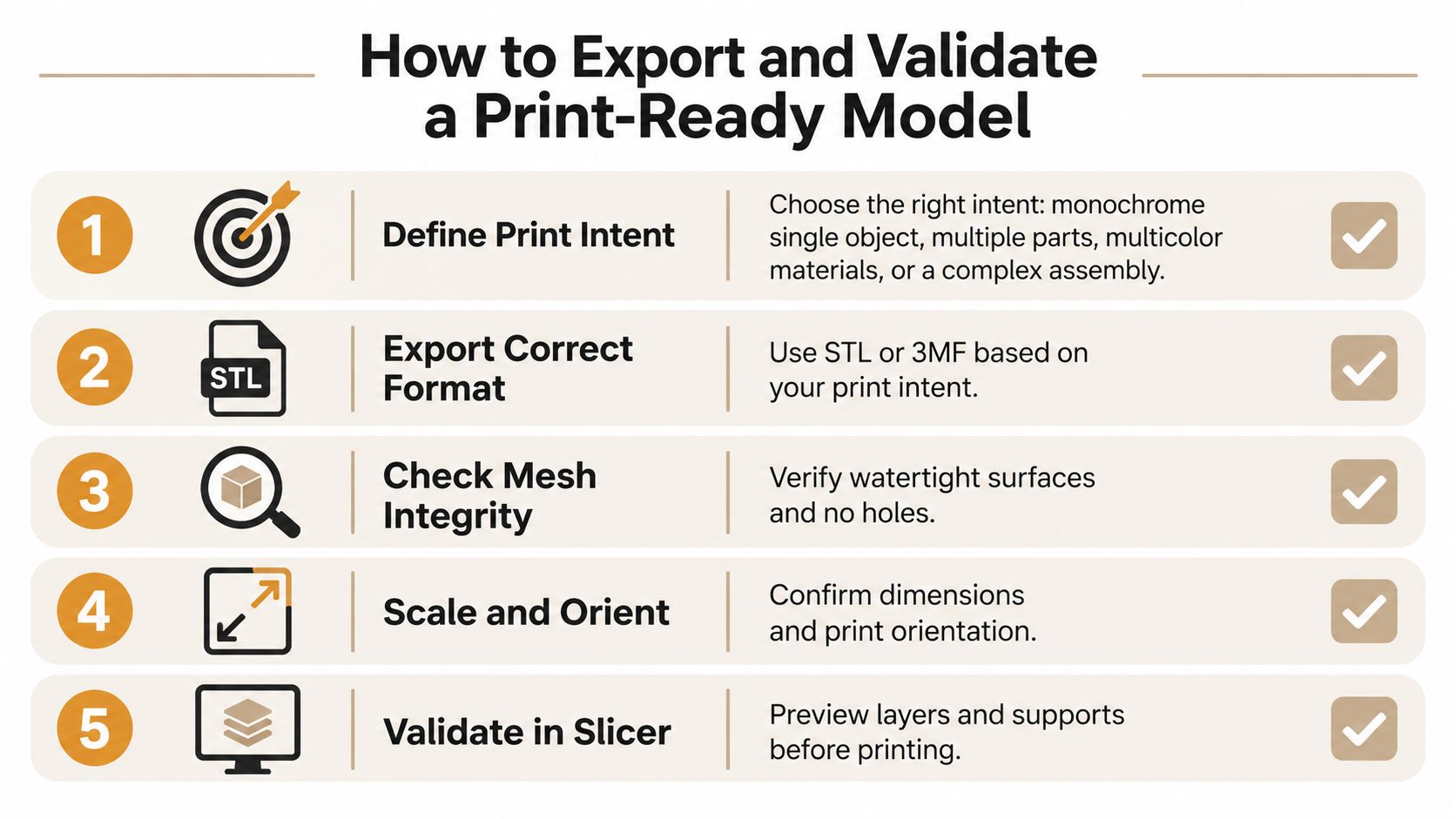
Use this checklist as a practical preparation sequence.
Establish what the recipient needs
- Define print intent. Decide whether you're delivering a single monochrome object, separate parts, material assignments, or a configured project. Write that intention down if another person will prepare the print.
- Choose the deliverable. Use STL for a validated, watertight monochrome mesh when compatibility takes priority. Consider 3MF when manufacturing properties need to accompany the geometry.
- Confirm export scope. Check whether the exporter writes model data only or also includes supported materials and preparation settings.
Inspect the exported result
Open the exported file in the actual target slicer, rather than relying only on its appearance in the design application. Compare its physical dimensions with your intended object and inspect how separate parts arrive.
- Check topology. Look for holes, non-manifold edges, self-intersections, reversed normals, and duplicate geometry. Investigate repair warnings instead of accepting them without inspection.
- Check physical features. Review thin walls and delicate details at the final size. A feature that looks substantial when zoomed in may be unsuitable for the intended physical object.
- Check preparation. Orient and position the model, confirm material assignments, configure the print, and inspect the layer preview.
Before committing: Verify the exported file, not just the model you exported from.
For a figurine, inspect the hands, accessories, base, and narrow connections. For an assembly, confirm that each intended part remains identifiable and that the receiving application hasn't flattened your material choices into an undifferentiated object.
If you're uncertain about a delicate feature or material arrangement, make a small test before committing to the full print. Keep the editable asset and the validated printing export separately, so correcting the design doesn't depend on working backward from the manufacturing handoff.
Choosing a Format for Real-World Models
Consider a single-color figurine for an older slicer. The recipient needs a dependable surface mesh, not the sculpture's digital texture. STL is a practical delivery choice, provided you establish the intended dimensions and check the mesh before sending it.
A multicolored assembly asks more of the handoff. Here, 3MF is more informative when the exporter writes the relevant properties and the receiving slicer understands them. Ask the recipient to confirm the imported part and material assignments rather than assuming the filename proves success.
Printing and reviewing aren't the same delivery
A textured sculpture for editing or review may call for OBJ when the downstream application expects separate geometry and material files. Package the required associated files and ask the recipient to check appearance in that application. Don't assume the same appearance will survive a later slicer import.
For a browser or game-oriented review asset, GLB fits the digital-sharing role. That deliverable lets the recipient evaluate the asset for its intended digital use, but it shouldn't be mistaken for the final printing handoff.
These choices reflect the distinction between exporting a model for 3D printing and other downstream workflows: the destination determines which information matters.
- For a CAD-derived component, retain the engineering-oriented handoff when the recipient needs to work with the design, then inspect the geometry produced during print preparation.
- For an already configured print, ask for the slicer project rather than merely requesting the object's extension.
- For a conversion request, identify what can be discarded before changing formats.
Our guide to converting 3MF to STL addresses that last situation. Treat the conversion as a deliberate simplification, not a promise that every aspect of the original file will survive.
A useful delivery message is straightforward: identify the file's purpose, state the intended dimensions, and tell the recipient which properties to check. That's more actionable than sending several unexplained exports and asking them to choose.
Why Supported Files Can Still Print Incorrectly
A successful import proves that the application accepted something it could read. It doesn't prove that it retained everything you intended or that the geometry is ready for manufacturing.
The OBJ and STEP behaviors noted earlier show different forms of interpretation: appearance can be ignored, and CAD geometry can become a mesh. With 3MF, project data and extensions introduce another compatibility question. The recipient must confirm the application's interpretation, not just the availability of an import command.
Separate information loss from geometry defects
Information loss concerns what disappears or changes during the handoff. Missing material assignments, ambiguous dimensions, or absent project settings belong in this category. Investigate the exporter's contents and the importer's behavior.
Geometry defects concern the object itself. Non-manifold surfaces, intersecting faces, reversed normals, and unsuitable wall dimensions need inspection and correction. Changing the container doesn't repair the model inside it.
A richer format can preserve more information. It can't substitute for checking whether that information describes a printable object.
Use different responses for different failures:
- Wrong dimensions: Check the original export, the intended units, and the slicer's interpretation before rescaling by eye.
- Missing appearance: Confirm whether the receiving application reads the property you exported.
- Unexpected missing features: Inspect the geometry and sliced layers around the affected region.
- Different preparation results: Compare the selected printer, material, and project configuration.
Once the model imports correctly, review the 3D print settings that control preparation. Correct geometry and appropriate settings are separate requirements.
The practical acceptance test is therefore broader than opening a file. Check its physical dimensions, inspect its structure, confirm material interpretation, and review the result in the exact slicer that will generate the machine instructions.
Choose the Right File for Your Printing Goal
Start with the recipient's task. If they need to slice a straightforward monochrome object, send a validated STL when legacy compatibility matters. If they need manufacturing properties or a prepared workspace, consider 3MF and confirm what the specific file contains.
For editing and visual review, choose the format the downstream application expects. OBJ or GLB may be appropriate digital deliverables without being the printing deliverable. Keep the purpose of each export explicit.
Make the handoff unambiguous
- Geometry exchange: Supply the checked mesh and communicate its intended dimensions.
- Manufacturing collaboration: Confirm that the required objects, materials, and project information survive import.
- Editing or presentation: Preserve the information needed for that task, then prepare a separate print export when required.
- Specialized toolchains: Use STEP, AMF, or PLY only where the surrounding applications and recipient requirements justify the choice.
Don't ask one file to serve every purpose because the export menu allows it. Maintaining an editable asset, a review deliverable, and a validated print handoff can make responsibilities much clearer.
The best file is the one that matches the destination workflow, retains the information that matters, and passes inspection in the receiving slicer. The extension starts that decision. Verification finishes it.
Sculpty offers browser-based AI model generation, remeshing tools, and exports including STL and 3MF for downstream printing workflows. Visit the studio to create or prepare an asset, choose an export that matches your printing goal, and validate it in your target slicer before generating machine instructions.